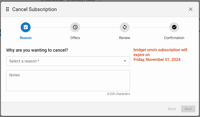
Step 1 of the Cancel Subscription Wizard - Select a Cancel Reason
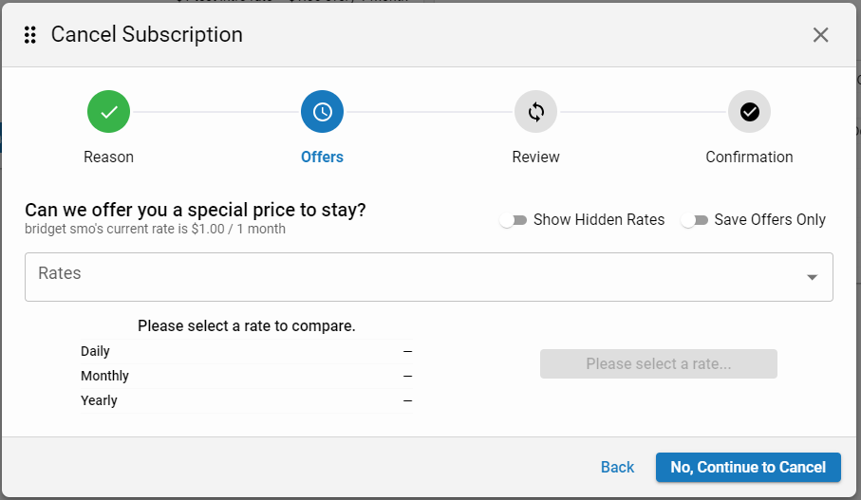
Step 2 of the Cancel Subscription Wizard - Save Offers
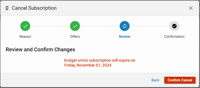
Step 3 of the Cancel Subscription Wizard - Review and Confirm
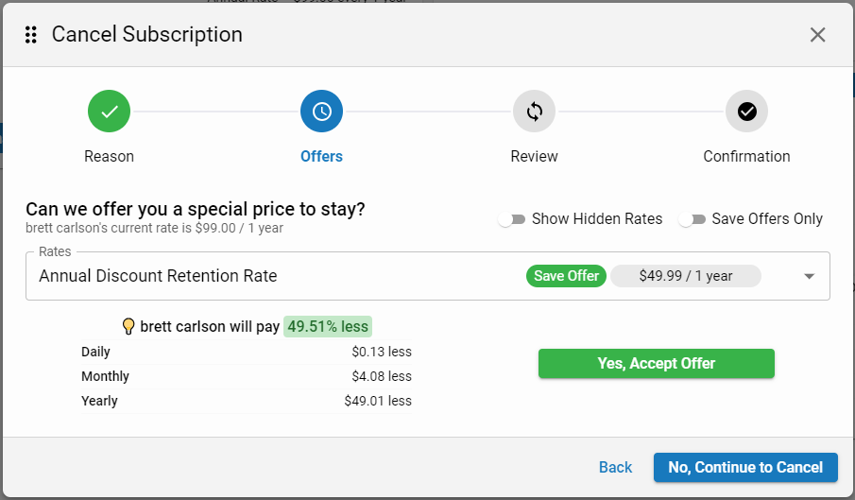
Step 2 of the Cancel Subscription Wizard showing a selected save rate and a comparison between the current rate and the selected rate.
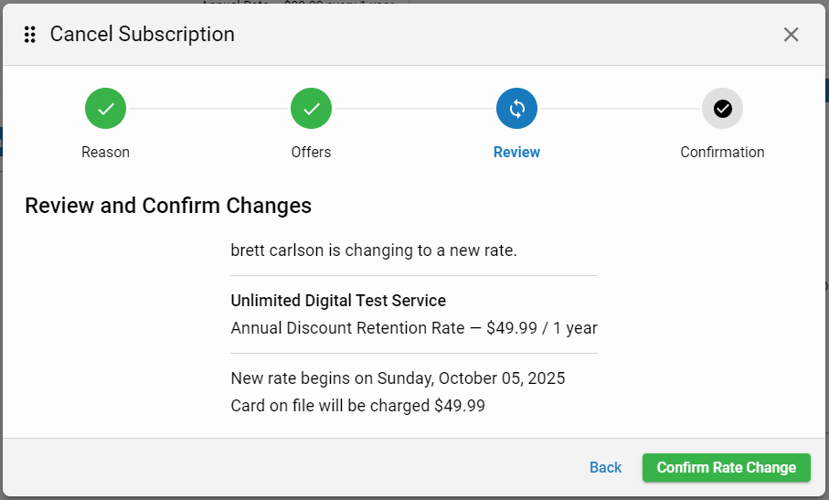
Step 3 of the Cancel Subscription Wizard showing a summary of the selected save rate including service name, rate name, terms, subscription start date, and rate to be charged.
Step 4 of the Cancel Subscription Wizard - Confirmation
blox nxt
Cancel Subscription Wizard
Overview
This overview details the steps of the Cancel Subscription Wizard starting with selecting a Cancel Reason, offering a Save Rate, Review, and Confirmation.
📝 If setup, the subscriber would be able to go through these same steps using the Self-Serve Cancel Flow. For additional information regarding the Self-Serve Cancel setup and user flow, seeSetting up Self-Serve Cancel for subscribers.
Step 1 of the Cancel Subscription Wizard - Select a Cancel Reason
Step 2 of the Cancel Subscription Wizard - Save Offers
Step 3 of the Cancel Subscription Wizard - Review and Confirm
Step 4 of the Cancel Subscription Wizard - Confirmation
Cancel Subscription Wizard
Step 1 of the Cancel Subscription Wizard - Select a Cancel Reason
Step 2 of the Cancel Subscription Wizard - Save Offers
Step 3 of the Cancel Subscription Wizard - Review and Confirm
Step 4 of the Cancel Subscription Wizard - Confirmation
Step 1 - Cancel Reason
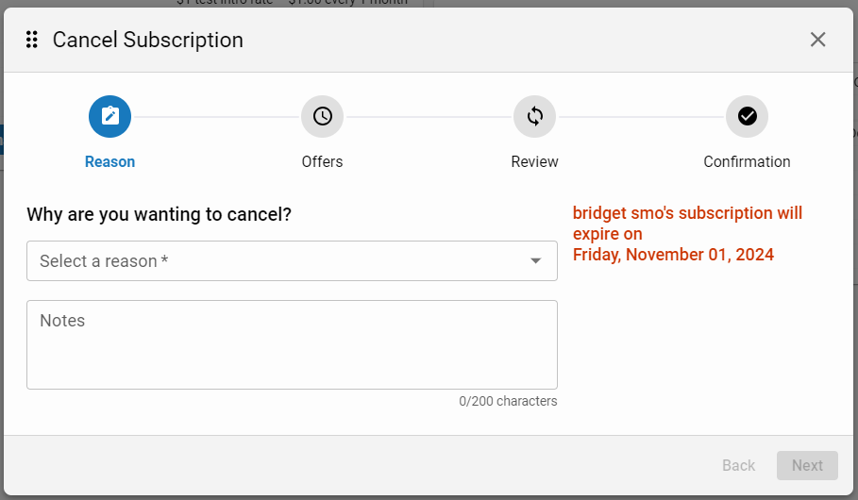
Step 1 of the Cancel Subscription Wizard - Select a Cancel Reason
The Cancel Wizards starts by asking, “Why are you wanting to cancel?”. The expiration date and the first and last name associated with the selected subscription is displayed on the right.
📝 the user account’s screen name associated with the selected subscription will be displayed in place of the first and last name when first and last name were not provided.
To continue with the cancelation, the Customer Service Representative (CSR) selects a cancelation reason from the ‘Select a reason’ dropdown, optionally enters any notes into the ‘Notes’ field, and then clicks ‘Next’.
Step 2 - Save Rate
Step 2 of the Cancel Subscription Wizard - Save Offers
The second step of the Cancel Wizard allows the CSR an attempt to save the subscription by switching the subscriber to a different rate. The CSR also has an option to continue to cancel. The current rate and the first and last name associated with the selected subscription is displayed above the rate selection.
📝 the user account’s screen name associated with the selected subscription will be displayed in place of the first and last name when first and last name were not provided.
Save to a different rate
To continue with the cancelation, the CSR may optionally select a rate from the ‘Rates’ dropdown.
Step 2 of the Cancel Subscription Wizard showing a selected save rate and a comparison between the current rate and the selected rate.
Two options are available to filter down the rate selection, ‘Show Hidden Rates’ and ‘Save Offers Only’. By default, rates designated as ‘Save Rates’ will appear at the top of this list followed by all other active rates.
📝Inactive rates, expired rates, future rates, and the current subscription rate are all filtered out of this ‘Rates’ dropdown.
Save Offers Only: The ‘Save Offers Only’ option, when selected, filters rates down to rates designed as ‘Save Rates’. Save rates are special Purchase Rates that you can offer to subscribers to keep them from canceling. They are Purchase Rates designated in the given Subscription Service via the ‘Rate is available as a Save Rate‘ setting in the Retention Tab. Additional information can be found in theSelf-Serve Cancel FAQs.
Show Hidden Rates: The ‘Show Hidden Rates’ option, when selected, allows rates designed as hidden to be displayed. ‘Hidden rates’ are designed on either the Subscription Service (the ‘Hidden’ option in the ‘Service information’ tab) or on the Purchase Rate (the ‘Prevent rate from being listed on the web site’ option in the General tab).
When a rate is selected, the selected subscription rate is compared with the current subscription rate. This detailed comparison, broken down by daily, monthly, and yearly savings, is displayed below the ‘Rate’ selection so the CSR may communicate the savings to the subscriber.
📝 The new subscription rate will not take effect until after the current subscription rate expires.
After agreeing to a new rate, the CSR clicks ‘Yes, Accept Offer’.
Continue to cancel
If the subscriber doesn’t want to continue their subscription at any rate, the CSR clicks ‘No, Continue to Cancel’.
Step 3 - Review
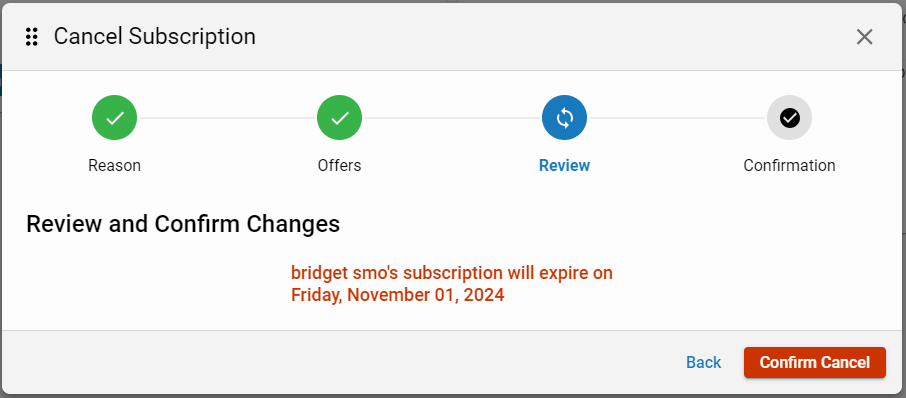
Step 3 of the Cancel Subscription Wizard - Review and Confirm
The third step of the Cancel Wizard allows the CSR to review details prior to Confirming the cancelation or Confirming the rate change.
Confirm cancel
If the subscriber did not accept a save rate in the previous step and instead wanted to proceed with cancelation, the first and last name associated with the selected subscription is displayed along with the Expire Date of the subscriber’s current subscription.
📝 the user account’s screen name associated with the selected subscription will be displayed in place of the first and last name when first and last name were not provided.
To continue with the cancelation, the CSR clicks ‘Confirm Cancel’.
📝 Clicking ‘Confirm Cancel’ creates a record within the Activity Stream such that a record of the contact and dissatisfaction is visible on theSingle Customer View. The Activity Stream Description will read, “Your cancellation has been processed on {domain}”. In addition, an email confirming the cancelation is sent to the subscriber.
Confirm rate change
Step 3 of the Cancel Subscription Wizard showing a summary of the selected save rate including service name, rate name, terms, subscription start date, and rate to be charged.
If the subscriber accepted a save rate in the previous step, a summary is displayed along with the first and last name and detailed information of the selected save rate including the service name, rate name, terms, subscription start date, and the rate to be charged.
📝 the user account’s screen name associated with the selected subscription will be displayed in place of the first and last name when first and last name were not provided.
To continue with the rate change, the CSR clicks ‘Confirm Rate Change’
Step 4 - Confirmation
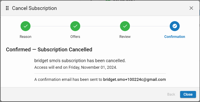
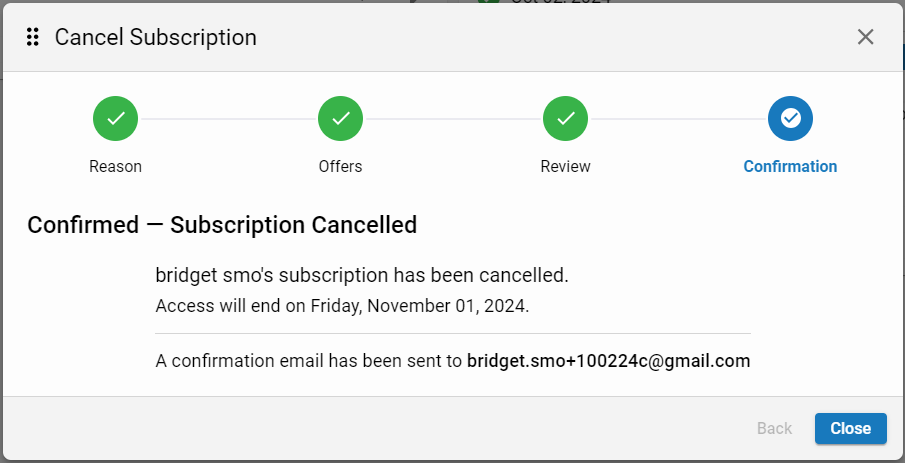
Step 4 of the Cancel Subscription Wizard - Confirmation
The final step of the Cancel Wizard allows the CSR to reiterate details of either the Cancelation or Rate Change to the subscriber.
Cancelation
If the subscriber confirmed the cancelation in the previous step, a “Subscription Cancelled” confirmation summary is displayed along with the first and last name and information about the cancelation including when the canceled subscription will expire.
📝 the user account’s screen name associated with the selected subscription will be displayed in place of the first and last name when first and last name were not provided.
If the subscriber confirmed a rate change in the previous step, a “New Rate Accepted” confirmation summary is displayed along with the first and last name and information about the rate change including when the new subscription rate will begin.
📝 the user account’s screen name associated with the selected subscription will be displayed in place of the first and last name when first and last name were not provided.