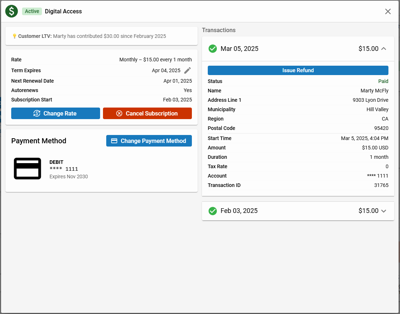
The Subscription Detail View displays the Lifetime Value of the subscriber, contains a snapshot of current Subscription Information, the preferred Payment Method, and Transaction Information over the lifetime of subscription selected from the Single Customer View.
📝some of this information may not be available for 3rd party subscription services.
The Subscription Detail View within Community.
Lifetime Value
The Lifetime Value (LTV) displays the total amount paid by the customer, including all transactions (via BLOX Subscriptions, BLOX Forms, BLOX Ad-Owl, etc.), allowing CSRs the opportunity to fully understand the customer’s contribution to their brand / website.
It’s displayed as, “Customer LTV: {First Name} has contributed $x.xx since {User Account Date Created}”
📝 if First Name is not provided, LTV will be displayed as “Customer LTV: This customer hascontributed $x.xx since {User Account Date Created}”
Subscription Information
Subscription Information displays a snapshot of subscription details, including Subscription Status, Subscription Service, Current Rate, Subscription Start Date, whether it Auto Renews, Renewal Date, and Next Renewal Rate (if it differs from the current rate). When a subscription is in Grace due to a payment failure, the Next Retry Date and Grace end Dates will be displayed as well.
Payment Method displays the active, preferred, payment method for the selected subscription. This may, or may not be, different than the preferred payment method selected in the Contact’s wallet as shown in the Single Customer View.
📝 Payment Methods will display the preferred payment method for subscriptions belonging to a Subscription Type subscription service. It will be hidden for subscriptions belonging to Free, Domain, and CSV type subscription services and will be disabled for all other subscription service types.
📝 Features in NXT Contacts that require Wallet (Premium Credit Card Management) will appear grayed out for sites that have not purchased it. These include buttons to change payment method, change rate, and add a new payment method, as well as steps in the Cancel and Subscription wizards. To get access to these features, visit bloxdigital.com/products_services/pay, submit a ticket, or contact your sales rep.
The preferred payment record contains a snapshot of information about the payment method including, Card Type, Last 4 Digits, and Expiration Date.
In addition, the Payment Method widget allows the Customer Service Representative (CSR) to Add a Payment Method to the subscriber’s wallet and to Update the Preferred Payment Method for the selected subscription.
Add Payment Method
To add a payment method to the subscriber’s wallet, follow the directions below.
Click ‘Change Payment Method’
Click ‘Add New Card’
Enter the Billing Information
Click Next
Enter the Card Information
Click ‘Add New Card’
Update the Preferred Payment Method
To update the preferred payment method for the selected subscription, follow the directions below.
Click ‘Change Payment Method’
📝 the preferred, or default payment method will be displayed on top and be marked with a ‘Preferred’ tag.
Select the Payment Method you want to set as the preferred payment method
Click Confirm
Transaction Information
Transaction Information displays details for each transaction over the lifetime of the selected subscription sorted by the start date. By default only the most recent transaction will be expanded. Previous transactions will be available beneath but will be collapsed by default.
When expanded, the transaction displays an ‘Issue Refund’ option to refund the entire amount of the expanded transaction.
⚠️ The ‘Issue Refund’ option requires purchases to be collected by BLOX. It will not be available for purchases made through third-party subscription providers.