This overview outlines the Accounts section within the Email Reach area of the Community application. This section allows administrators to view, connect, edit, and remove external Email Service Provider (ESP) accounts — starting with Constant Contact integration.
The Accounts section displays all configured ESP connections and provides tools to manage account defaults and vendor connections. Only users with the appropriate permissions can access and modify account details.
📝 Access to the Email Reach Accounts section requires the mailinglist/main/Full access permission. Users without this permission will see an "Action Restricted" message.
Application Navigation
Within the Community application, a new section titled Email Reach is now available in the Application Navigation. This includes the following subsections:
Each subsection allows users to manage specific aspects of their email outreach strategy. The Accounts view specifically focuses on the management of ESP integrations.
Accounts View
The Accounts view lists all Email Reach vendor accounts that have been connected.
Account Name (editable label)
Vendor (e.g., Constant Contact)
Default status (only one account may be set as default)
Clicking on an individual row opens the Account Detail Modal for further actions such as renaming, deleting, or setting the account as default.
📝 The first connected account is automatically set as the default. The system enforces a single-default policy, and the default status cannot be turned off without selecting a new default account.
New Account Setup
To add a new vendor account:
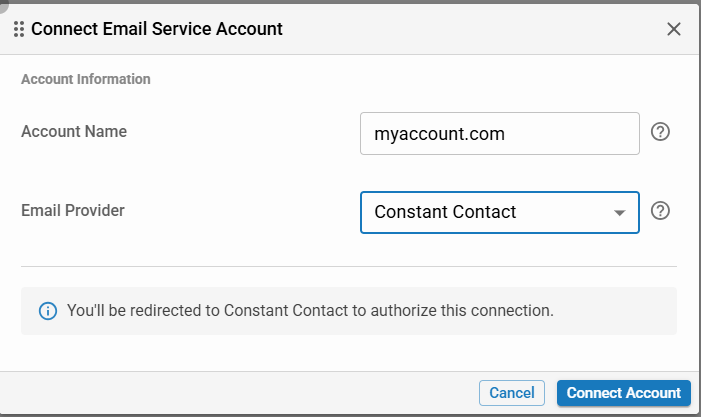
Click the New button in the top-left of the Accounts view.
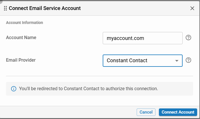
A modal will open with two fields:
Click Connect to begin the authorization process.
You will be redirected to the Constant Contact login screen.
Use your vendor credentials.
Upon successful login, you’ll return to the Accounts view with:
You can repeat this process to test behavior with multiple accounts.
Account Detail Modal
Clicking on an account row opens the Account Detail Modal.
This modal allows users to:
📝 If a default account is deleted, the system may be left without a default temporarily.
Delete Account Confirmation
When deleting an account:
A confirmation modal will appear.
You must type the exact name of the account to proceed with deletion.
Once confirmed, the account will be removed from the list.
Permissions
Email Reach: Full Access
A permission titled Email Reach: Full Access is required to access or modify the Accounts section. Without this permission, the All Accounts view will display an "Action Restricted" message.
mailinglist/main/Full access
In addition to the above, users must also have mailinglist/main/Full access to view or interact with the Accounts section at all.