In BLOX NXT Email Reach, you can filter your email contacts by email address or by list.
Email Reach supports multiple account setup.
In BLOX NXT Email Reach, you can add and edit contacts for your email distribution lists.
In BLOX NXT Email Reach, you can add and edit contacts, and add and remove them from email distribution lists.
BETA
Contact Management Overview
Updated
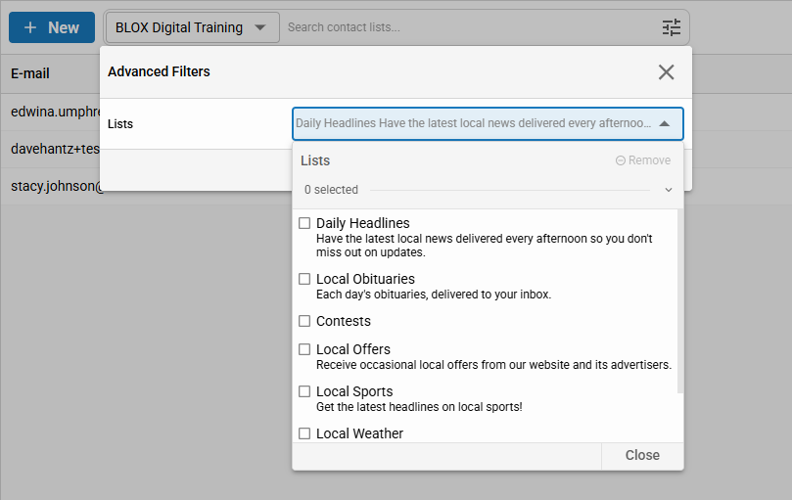
In BLOX NXT Email Reach, you can filter your email contacts by email address or by list.
Readers have the ability to independently sign up and manage newsletter subscriptions, however users can be manually be added or removed from an email list, directly within BLOX Email Reach within the Contacts section of Email Reach in BLOX NXT. The contacts are directly synced to your Constant Contact database and is updated with all users who are entered or edited in either system.
📝 Access to the Email Reach Contacts requires the mailinglist/main/Full access permission. Users without this permission will see an "Action Restricted" message.
How to navigate between accounts
Email Reach supports multiple account setup.
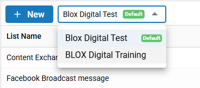
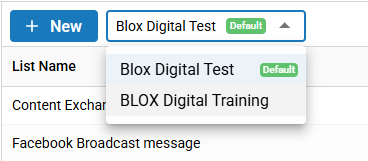
If you have multiple Constant accounts tied to your BLOX Email Reach you can navigate between accounts using the dropdown at the top of the page. When switching between accounts, the contacts for that account will populate in the search pages.
Adding a contact to your lists
In BLOX NXT Email Reach, you can add and edit contacts for your email distribution lists.
To add a user to a list, select the Contacts option within the BLOX NXT Email Reach navigation. On this page, you can search by email to see if the person is already a contact in your database. You can also narrow your contact search by specific list. By default, the search results will display all contacts.
(PHOTO)
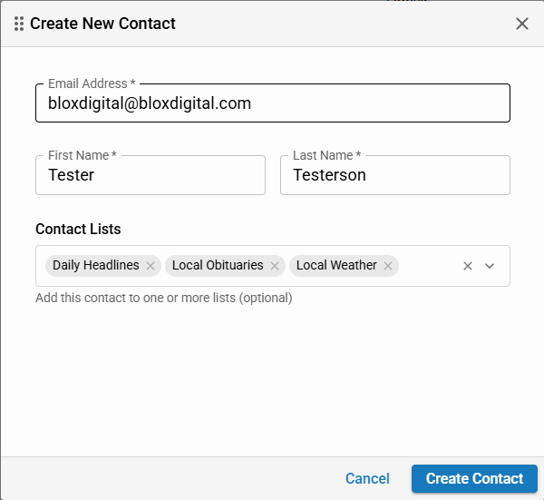
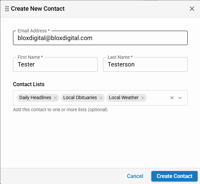
To add a user who is not in the database, select the “+New” button to open the “Edit Contact” pane. If the users is already in the database, select the user to open the “Edit Contact” pane.
In this pane, you can edit:
Email Address: The email address of the recipient
First Name: First name for the recipient. Can be used for personalization on your templates.
Last Name: Last name for the recipient
Associated Lists: To add this user to the list, use the dropdown on the right side, and select the list you want to add for this user. To remove a user from a list they already belong to, click the X next to the list name to remove it.
If you'd like to manually add or remove a user from another List, repeat the same steps as above.
Edit or delete a contact
In BLOX NXT Email Reach, you can add and edit contacts, and add and remove them from email distribution lists.
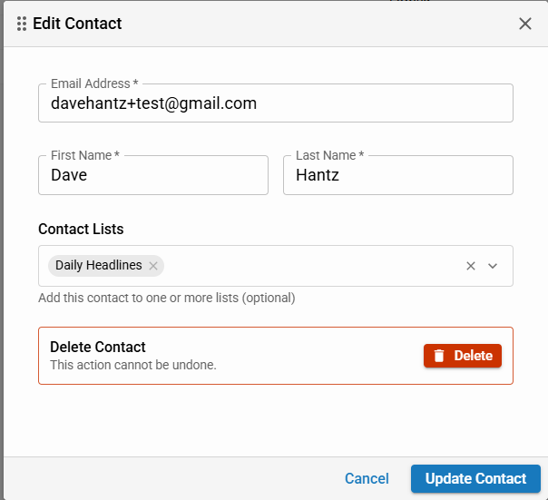
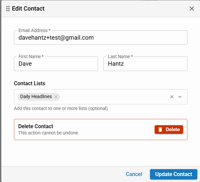
To edit a contact, search for the contact you want to edit and select the user to open an editing modal. In this view you can edit email address, first name, last name, or the list that the person is a part of.
You can delete the contact by selecting “Delete Contact” in this modal. This action cannot be undone and will delete the contact in your Email Reach database and in your Constant Contact database.
How to add .csv files of users to a list
To add multiple contacts via CSV, log into the Constant Contact portal and import using their contact importing options.