With BLOX NXT Email Reach List Management, you can create and edit new and existing lists that are associated with your ESP account.
📝 Access to the Email Reach Lists section requires the mailinglist/main/Full access permission. Users without this permission will see an "Action Restricted" message.
What is a List?
A Lists represents a specific topic, such as Breaking News or Garage Sales, that readers have the opportunity to subscribe to. Any list associated with your Constant Contact account will be automatically imported into your BLOX Email Reach List Management page - whether the list is created in BLOX or in Constant Contact.
How to navigate between accounts
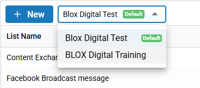
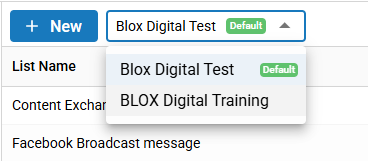
Changing Accounts in BLOX Email Reach.
If you have multiple Constant accounts tied to your BLOX Email Reach you can navigate between accounts using the dropdown at the top of the page. When switching between accounts, the lists for that account will populate in the search pages.
Creating a New List
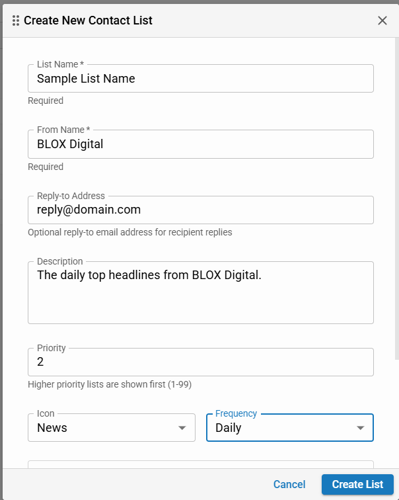
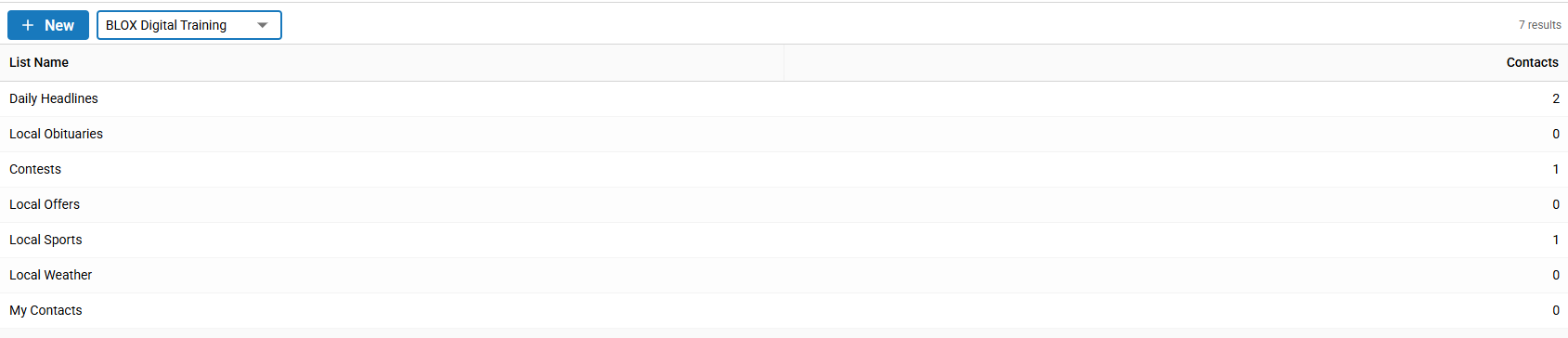
Within BLOX Email Reach, Navigate to the Lists page. This will show you all of the lists that you have created to this point. Click the +New button to create a new list.
List Name: The name of the mailing list. This title will display on the front end for users. This is a required field.
From Name: The name that will display as the "From" email recipient in the mailing list email that users receive. This is a required field.
Reply-to Address: This address will not be used as the from address, but lets you set an optional different address for users to send any replies to.
Description: This is the description about the mailing list. This will be displayed on the front end so that your users know exactly what they can expect from this list.
Priority: This priority level on individual lists allows the user to set a sort order beyond either alphabetical or by title. This priority level will be used on newsletter sign-up blocks.
Icon: When selected, it will place an icon on the Manage Newsletter section of the user dashboard and on any page using the Utility: Newsletter Signup block.
Frequency: This allows you to set a frequency for how often a recipient on this list will receive emails, and will show on the Manage Newsletter section of the user dashboard and on any page using the Utility: Newsletter Signup block.
Anonymous List: When this is checked the reader does not need to be registered on your site, or if they are already registered, does not need to be signed in.
Display on Signup: If this box is checked, this list will display on the website when users register as a user for your site. The newsletter will be an option for them to subscribe to as part of the registration process.
Hide List: This will hide the list from readers. It will remain in the admin giving you the option to toggle it on and off as you need to.
Updating an existing list
Any existing list can be updated by selecting the list to open the list editor.
Lists can also be deleted by opening the list editor.
Contact Counts
On the list results page, you can view the current contact count for each list. These contact counts update real-time as users are added or removed from your lists.