What changed
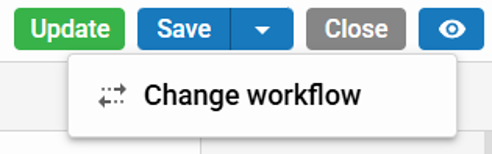
BLOX NXT previously gave you two separate controls: Save for drafts and workflow actions, and Update/Publish for going live. Which one you needed wasn't always obvious.
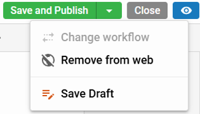
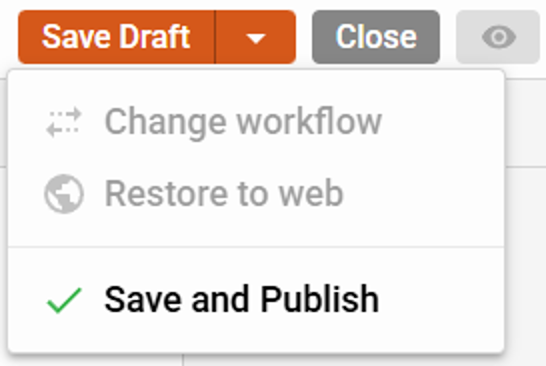
You now have one Save button. Its color and label tell you exactly what will happen when you click it. Everything else lives in the dropdown next to it.
The three states
The Save button always looks like one of these:
Button | Meaning |
🟠 Save Draft | Changes save as a draft. Changes are not live on your site. |
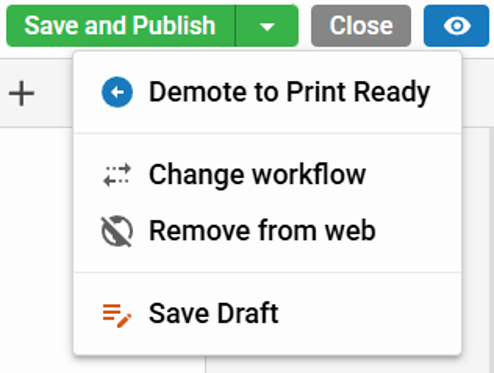
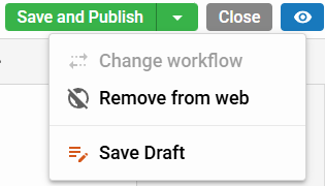
🟢 Save & Publish | Changes go live the moment you click. |
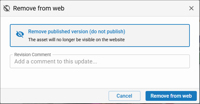
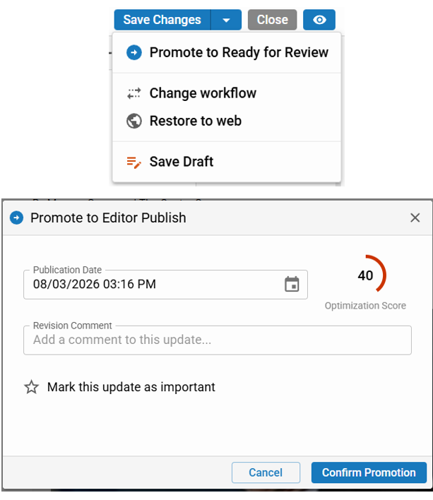
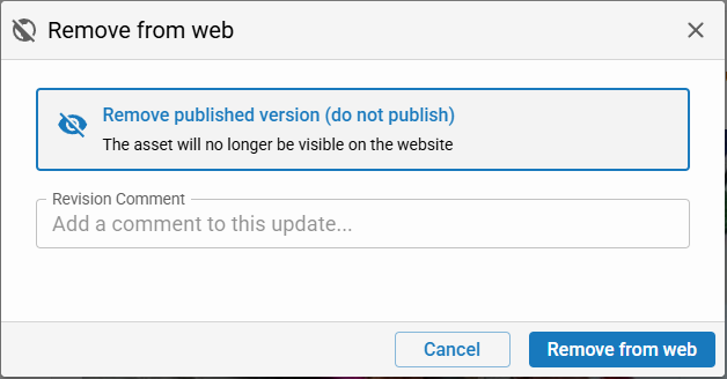
🔵 Save Changes | The asset is removed from the web. You're saving edits, but nothing publishes. |
If you remember one thing: green means live. If the button isn't green, your readers aren't seeing your changes yet.
Your first article, start to finish
Start writing. The Save button is orange — Save Draft. Click it as often as you like while you work.
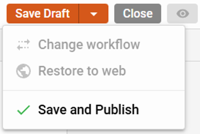
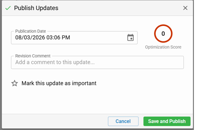
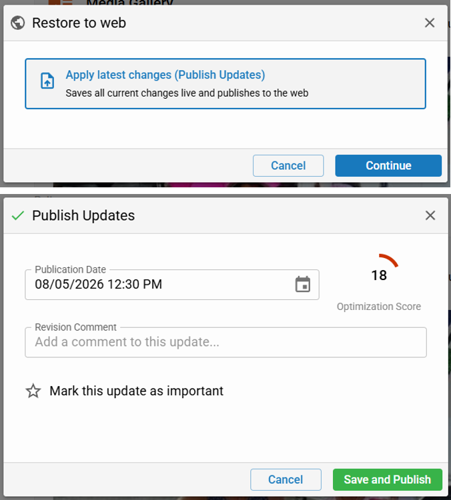
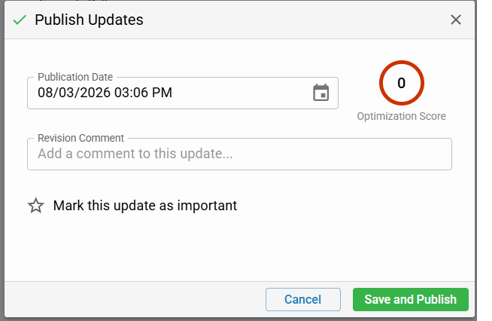
Ready to go live? Open the dropdown and choose Save & Publish. The Publish Updates modal appears with publication date, revision comment, and the other fields you already know.
Confirm in the modal. Your asset is live, and the Save button turns green.
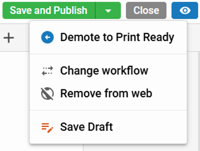
Editing something already live? Clicking green Save & Publish pushes those edits out immediately. To stage changes without touching the live page, choose Save Draft from the dropdown first — the button returns to orange until you publish again.
Two habits worth breaking
1. "Save" no longer means "publish" — but it also isn't just for drafts. If you came from legacy BLOX, Save always pushed changes live. In NXT it used to always mean draft. Now it means whatever state the asset is currently in. Check the color before you click.
2. There is no Update/Publish button anymore. If you're hunting for "Update," it's the green Save & Publish. Everything publishing-related now lives on the Save control or in its dropdown.
Taking content offline and bringing it back
These replace the old Do Not Publish checkbox that was buried inside the Publish modal.
If your site uses workflows
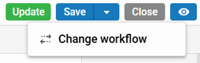
The Save dropdown also carries your workflow actions.
Your current workflow step is displayed alongside the Save control at all times.
Two things that will surprise you
Autosave is turned off while an asset is live. This is deliberate — it prevents accidental overwrites of published content. While an asset is live, every change must be saved by clicking the button. Autosave still protects your work while you're in draft.
Remove from Web and Restore to Web require a permission. If those options are grayed out in your dropdown, you don't have the Change publish status permission. Your site administrator can grant it.
Quick Reference
Quick reference
| If you want to… |
Do this |
| Save a draft of a new article |
Click orange Save Draft |
| Publish for the first time |
Save dropdown → Save & Publish → confirm in modal |
| Publish edits to a live article |
Click green Save & Publish |
| Stage edits without affecting the live page |
Save dropdown on a live asset → Save Draft |
| Take a live article offline |
Save dropdown → Remove from Web |
| Put an offline article back online |
Save dropdown → Restore to Web |
| Move through a workflow |
Save dropdown → Promote / Demote |