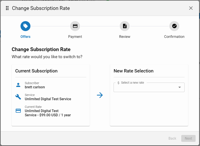
Step 1 of the Change Next Subscription Rate Wizard - Next Rate Selection
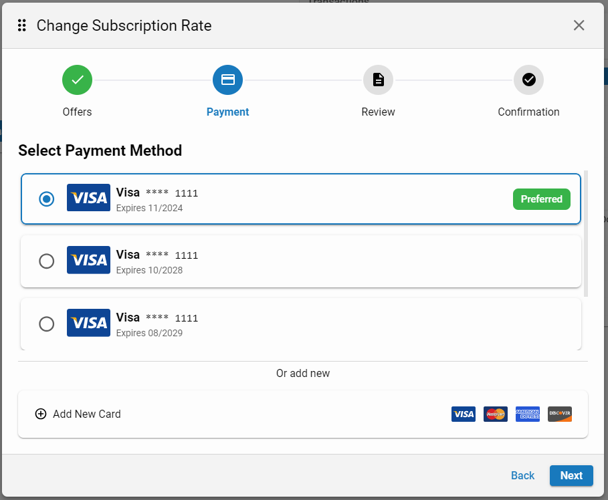
Step 2 of the Change Next Subscription Rate Wizard - Payment Details
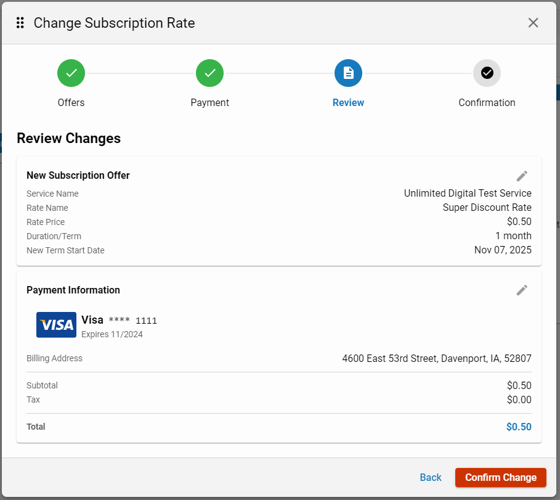
Step 3 of the Change Next Subscription Rate Wizard - Review
Step 4 of the Change Next Subscription Rate Wizard - Confirmation
blox nxt
Change Next Subscription Rate Wizard
Overview
This overview details the steps of the Change Next Subscription Wizard staring with Next Rate Selection, Payment Method Confirmation, Review, and Confirmation.
Step 1 of the Change Next Subscription Rate Wizard - Next Rate Selection
Step 2 of the Change Next Subscription Rate Wizard - Payment Details
Step 3 of the Change Next Subscription Rate Wizard - Review
Step 4 of the Change Next Subscription Rate Wizard - Confirmation
Change Next Subscription Wizard
Step 1 of the Change Next Subscription Rate Wizard - Next Rate Selection
Step 2 of the Change Next Subscription Rate Wizard - Payment Details
Step 3 of the Change Next Subscription Rate Wizard - Review
Step 4 of the Change Next Subscription Rate Wizard - Confirmation
Step 1 - Next Rate Selection
Step 1 of the Change Next Subscription Rate Wizard - Next Rate Selection
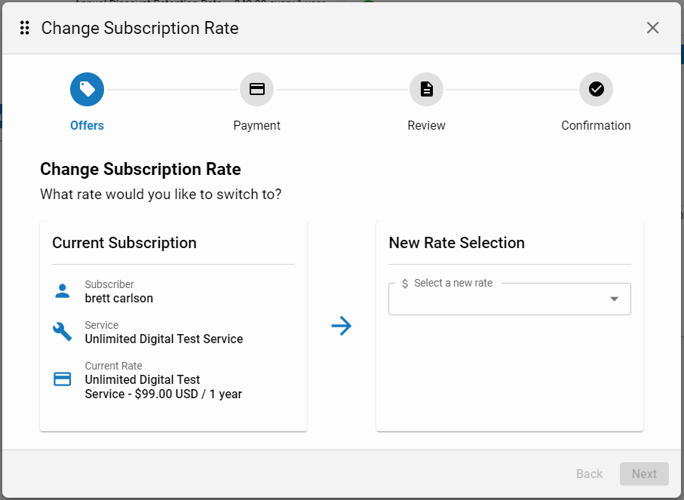
The first step of the Change Next Subscription Rate Wizard allows the Customer Service Representative (CSR) to select a new, next or renewal rate for their subscription.
📝 This next rate selection is limited to Purchase Rates configured on their current Subscription Service. The current renewal rate is displayed in the Subscription Information on theSubscription Detail View.
After selecting a new renewal rate, the CSR clicks ‘Next’ to proceed to the next step, Payment Method Confirmation.
Step 2 - Payment Method Confirmation
Step 2 of the Change Next Subscription Rate Wizard - Payment Details
The second step of the Change Next Subscription Rate Wizard allows the CSR to select or provide Payment Information. By default, all active credit cards that have been previously added to the Contact’s wallet will be available for selection.
Add New Card
If the customer doesn’t have any cards in their wallet, or would rather pay with a different card, the CSR may click ‘Add New Card’ to add a new card to the Contact’s wallet.
After selecting a Payment Method, the CSR clicks ‘Next’ to proceed to the next step, Review.
Step 3 - Review
Step 3 of the Change Next Subscription Rate Wizard - Review
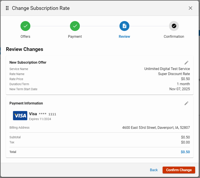
The Review allows the CSR the opportunity to review the previous selections including the Next / New Subscription Offer and Payment Information with the subscriber and change anything as needed, prior to confirming the next subscription rate.
If any information needs updating, the CSR may click the edit option next to either New Subscription Offer or Payment Information to make changes and then click ‘Next’ to continue through the Change Next Subscription Rate Wizard.
To continue with changing the subscriber’s next rate, the CSR clicks ‘Confirm Change’.
Step 4 - Confirmation
Step 4 of the Change Next Subscription Rate Wizard - Confirmation
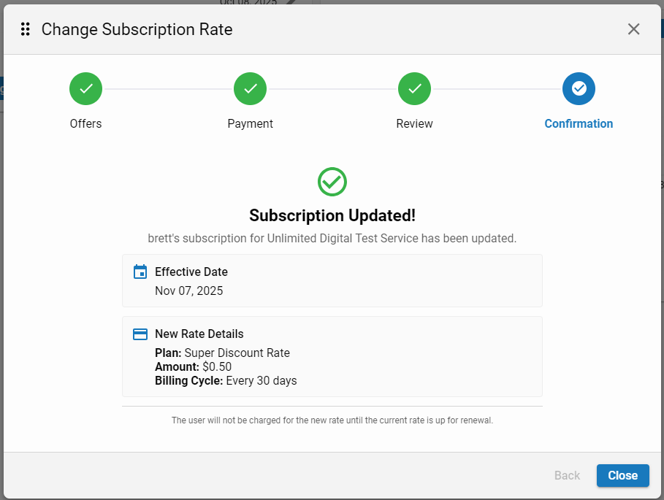
The Confirmation allows the CSR to reiterate details of the Effective Date and Rate Details of the newly selected rate. If the new rate change is successful, the confirmation will have a ‘Subscription Updated!’ message.
📝 The subscriber will not be charged for the new rate until the current rate is up for renewal.