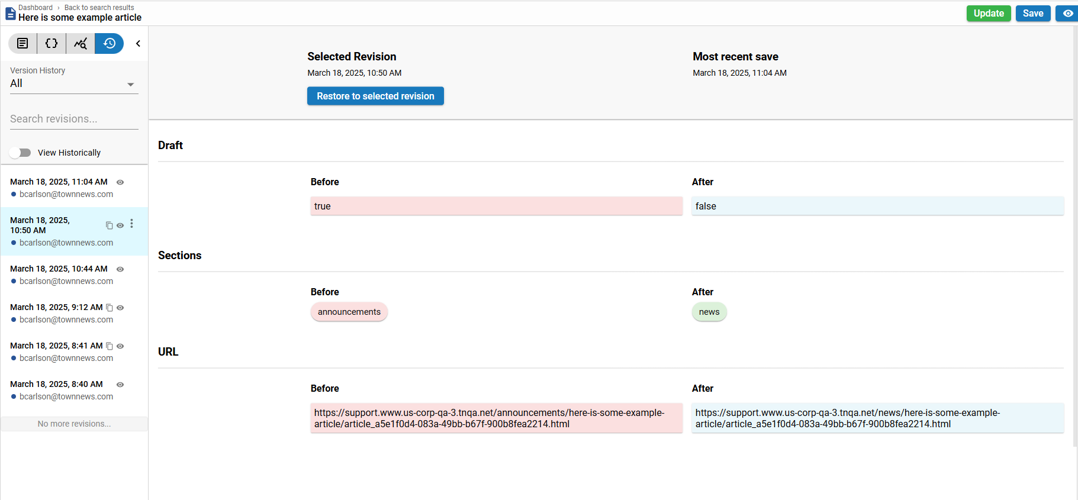
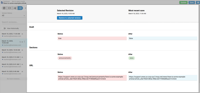
The Editorial Asset Revisions view within Content Management.
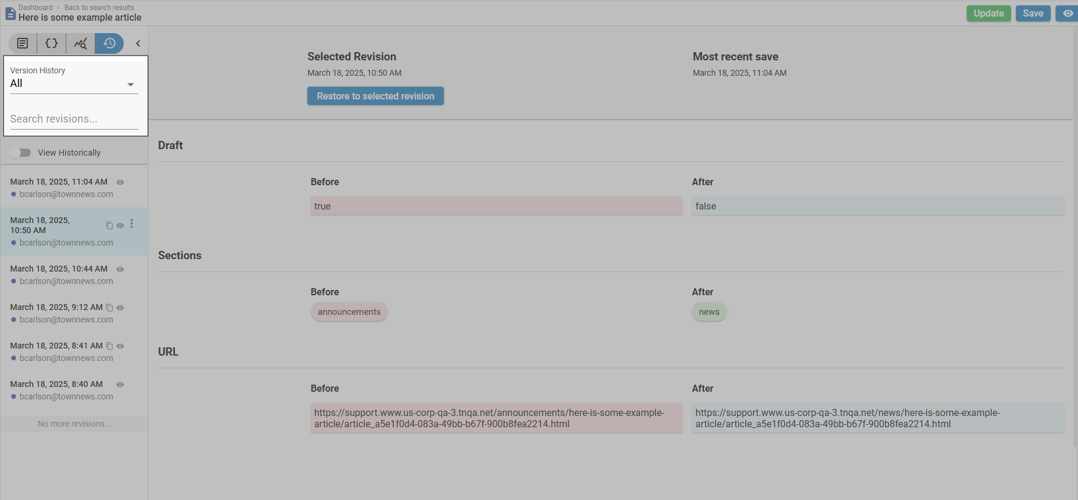
The Editorial Asset Revisions view within Content Management highlighting the Version History Filter and Search.
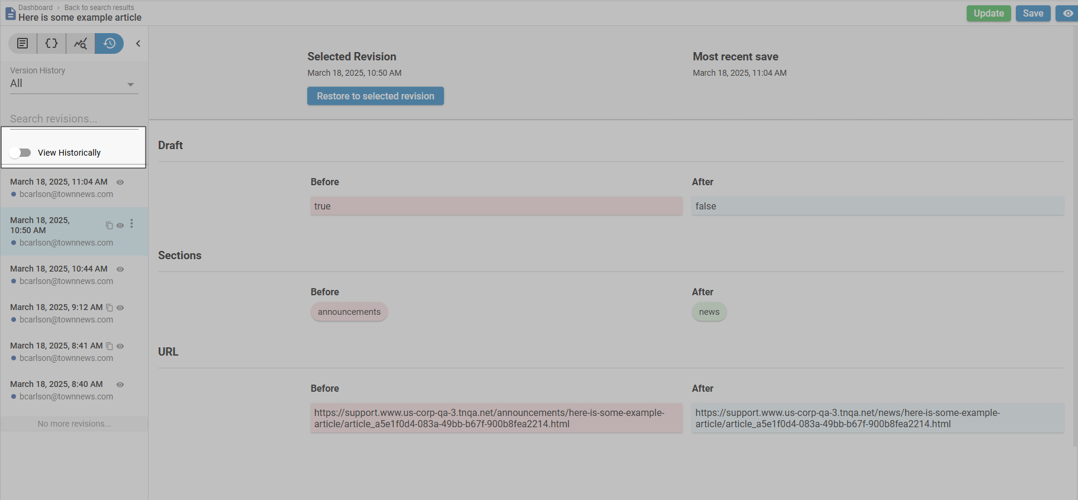
The Editorial Asset Revisions view within Content Management highlighting the ‘View Historically’ option.
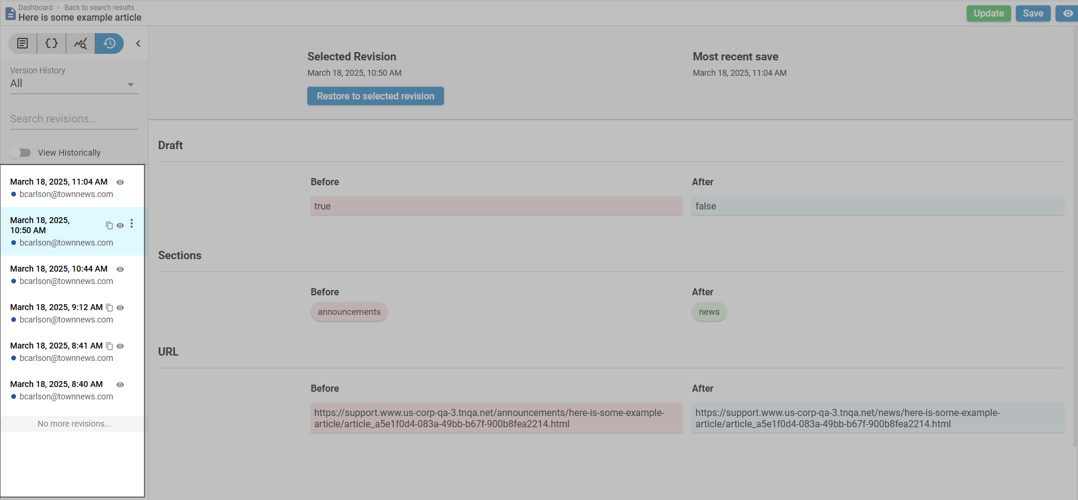
The Editorial Asset Revisions view within Content Management highlighting the Revisions List.
The Editorial Asset Revisions view within Content Management highlighting the Revision View.
blox nxt beta
Editorial Asset Revisions
Updated
Overview
Revisions allows an editor to visually see updates that have been made to an asset over time by displaying a side by side view of previous saves. The Version History Filter and Search, ‘View Historically’ option, and the Revisions List work together allowing the editor to select how they would like to compare the asset’s revisions within the Revisions View. The Revision View displays a revision diff (revision differences) between two selected revisions side by side.
⚠️ BETA. Please pardon our dust, this area is under construction. ⚠️
The Editorial Asset Revisions view within Content Management.
Version History Filter and Search
The Version History Filter and Search allows an editor to either focus on a specific set of revisions by filtering the Revisions List.
Select ‘Your Revision History’ from the Filter to view revisions that were created by your user. Select ‘All’ to view revisions created by all users. The Version History Filter is set to ‘All’ by default.
The Search may be used to view revisions that were created by another user (for example, ‘bcarlson’) or used to find a specific revision based on the optional Revision comment provided at the time of Publish / Update.
The Editorial Asset Revisions view within Content Management highlighting the Version History Filter and Search.
View Historically
When the ‘View Historically’ option is disabled, the Revision View will display a revision diff with the most recent save on the right and the selected revision on the left. When the ‘View Historically’ option is enabled, the Revision View will display a revision diff with the selected revision on the right and the previous revision on the left. The ‘View Historically’ option is disabled by default.
The Editorial Asset Revisions view within Content Management highlighting the ‘View Historically’ option.
Revisions List
The Revisions List allows an editor to select revisions to compare within the Revision View and optionally Restore a Previous Version. The most recent revision is displayed at the top.
📝 For hosted partners, the latest 10 published revisions will be viewable. For Total CMS partners, the latest 50 published revisions will be viewable.
The Editorial Asset Revisions view within Content Management highlighting the Revisions List.
Restore a Previous Version
In some cases, an editor may wish to update an asset to one of its previous revisions. This can done without the need to create a new asset or the need to manually copy and paste.
To restore an asset to a previous version, follow the directions below.
Click to select the revision you want to restore
Review the Revision View to ensure you have the correct asset selected for restore
Click the three dot menu to the right of the selected revision
Click ‘Restore to this revision’
Click Confirm
📝 Once restored, a new version will be displayed at the top of theRevisions List. The new version will contain a note, ‘reverted to revision ‘YYYY-MM-DDTHH:mm:ss’
Revision View
The Revision View contains the side by side revision diff of the two selected revisions. The diff is broken down into sections (for example Headline, Sections, etc.) for readability. Additions will be highlighted in green, deletions will be highlighted in red, and modifications will be highlighted in blue.
Only differences between the two selected revisions are displayed. If the two selected revisions are identical, the Revision View will be blank.
📝 If the most recent revision is selected in the Revisions List and the ‘View Historically’ option is disabled, the Revision View will always be blank because you are comparing the most recent save with the most recent revision which will always be identical. If the first revision is selected in the Revisions List and the ‘View Historically’ option is enabled, the Revision View will always be blank because you are comparing the first save with a previous revision that doesn’t exist.
The Editorial Asset Revisions view within Content Management highlighting the Revision View.