
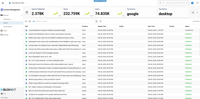
This overview describes the various areas of the Editorial Search Interface, including the Application Navigation, Create Shortcut option, Key Metric Display, New Asset option, Search Results View Options, Search Filter, Advanced Filters, Save Search Option, and Search Results.


The Editorial Key Metric Display contains several Editorial related Key Performance Indicators (KPI) including Assets Published, Views, Total Users, Top Source, and Top Device.

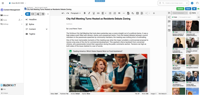
This overview describes the various areas of the Asset Interface within Content Management, including the Application Navigation, Create Shortcut button, Breadcrumb Navigation, Publish, Save, and View Options, Content Overview Panel, Content Details Panel, Article Toolkit Panel, Asset Information, and Article Statistics.

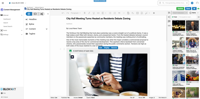
Frequently asked questions related to the Content Management application.

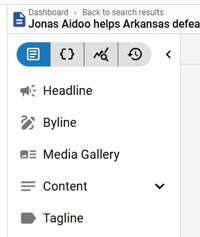
This overview provides descriptions for an article asset’s content fields, including Headline, Byline, Content (Body), Tagline, Hammer, Kicker, Subheadline, Media Gallery, and Additional Content fields within the Content Details Panel.

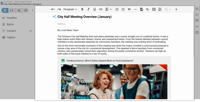
The Article Content Panel within the Content Details Panel is where the main body copy of an article may be composed. It contains a WYSIWYG Rich Text Editor and has multiple features and options to assist the creation of the article content including Collaboration, a Formatting Palette, Content Assistant, Asset Placeholders, an Insert Action Button, and a Floating Action Menu along with corresponding Keyboard Shortcuts.

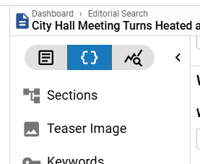
This overview provides the comprehensive set of options for defining the an article asset’s Metadata, crucial for discoverability, categorization, and content management.

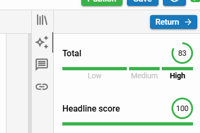
The Article Toolkit Panel is designed to enhance the content creation and management process. It offers quick access to several key features, allowing editors to efficiently find, insert inline, and manage related media via Relationships (‘link’ icon) and Asset Library (‘books’ icon) Tools respectively, diagnose article content quality via the Assistant (‘sparkle’ icon), and view and respond to internal comments via the Comments Tool (‘speech bubble’ icon).

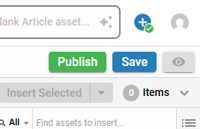
The Save button provides editors the ability to perform draft saves on the open asset. The Publish / Update options allow editors to update the Publication date and set the ‘Do not publish’ flag in addition to a couple other options. The View Options allow the editor to preview the asset or view it’s current live view.

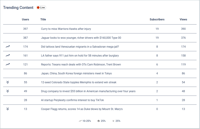
Providing data where you work, the Editorial Dashboard contains several widgets including Trending Content, Views by Traffic Source, Views, Bandwidth, Top Articles, Top Sections, Views by Content Topic, Top Content Producers, Content Producer Lookup, Total Users, Subscribers Percentage, Traffic Source, Devices, Meter Stops, Asset Conversion Leads, Article Lookup, Article Asset Details, Video Asset Details, e-Edition Asset Details, and Audiences Reached.

Content Management Settings provide administrators a centralized location to toggle features on or off for an entire site so they may be aligned with your content management preferences. The settings are divided into sections for organization. The following is meant to provide an overview of the available Content Management Settings, including AI Settings and Related Content Styles.

The Content Overview Panel serves as the central hub for managing both content elements and metadata. It is divided into three main tabs, a Content Tab, a Metadata Tab, Stats Tab, and Revisions Tab each providing specific tools and options for editors.

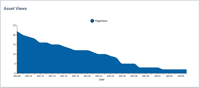
The Editorial Asset Dashboard contains several widgets and KPI including Asset Views, Audiences Reached, Trending Content Rank, Meter Stops, Total Users, Subscribers Percentage, Asset Conversion Leads, Content Longevity, Asset Devices, and Traffic Source. The following is meant to provide an overview explaining each and, where applicable, an explanation on how it is calculated and where the data is coming from.

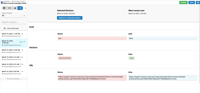
Revisions allows an editor to visually see updates that have been made to an asset over time by displaying a side by side view of previous saves. The Version History Filter and Search, ‘View Historically’ option, and the Revisions List work together allowing the editor to select how they would like to compare the asset’s revisions within the Revisions View. The Revision View displays a revision diff (revision differences) between two selected revisions side by side.

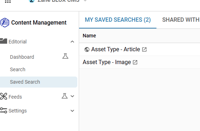
Many BLOX NXT applications provide an option called Saved Search. The Saved Search option will be displayed in the application navigation under applications that support it. Saved Searches are used for saving frequently used search criteria and can save considerable time. The following is meant to provide an overview of the Saved Search functionality, including how to Create a Saved Search, how to Use a Saved Search, and how to Make a Saved Search your default search.


