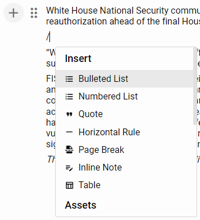
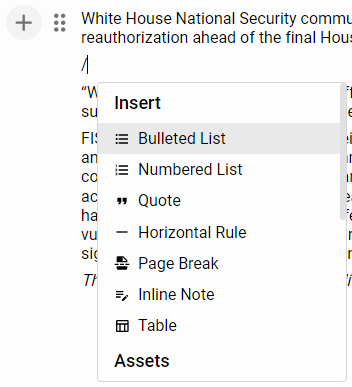
The Floating Action Menu (FAM) with the FAM Insert Options shown to the left of the paragraph where the mouse is located.
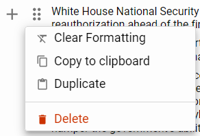
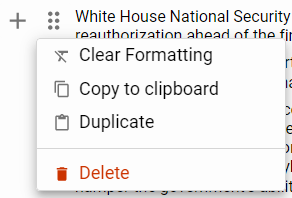
The Floating Action Menu (FAM) Additional Options Menu shown to the left of the paragraph where the mouse is located.
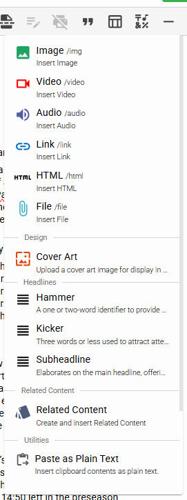
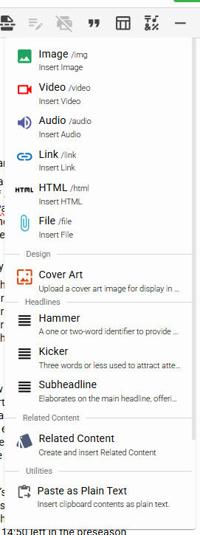
The Insert Action Button (+) with the Insert Options shown.
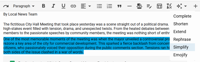
The AI-Powered Content Assistant Button (‘sparkle’) with the Content Assistant options shown.
The Formatting Palette
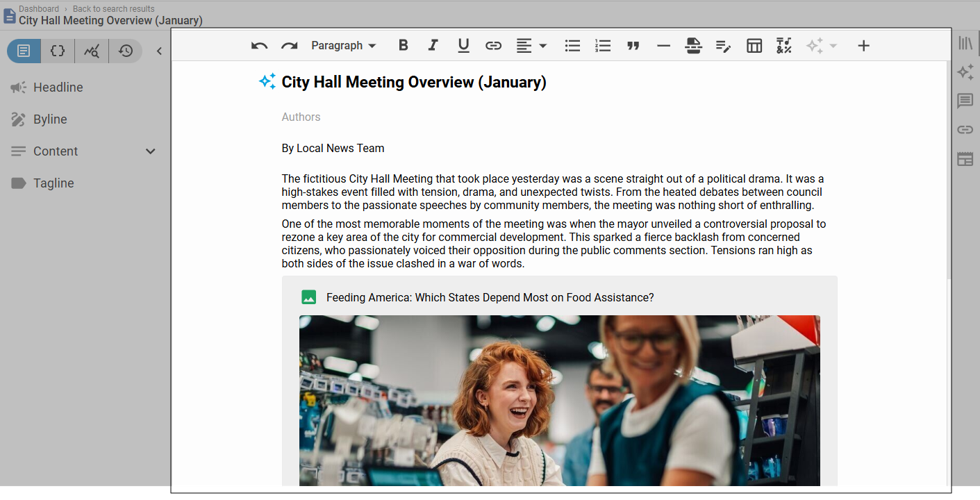
Content Management with an article asset open highlighting the Article Content Panel and Rich Text Editor.
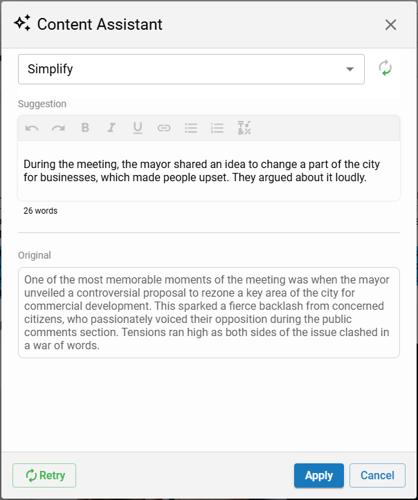
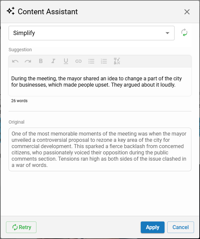
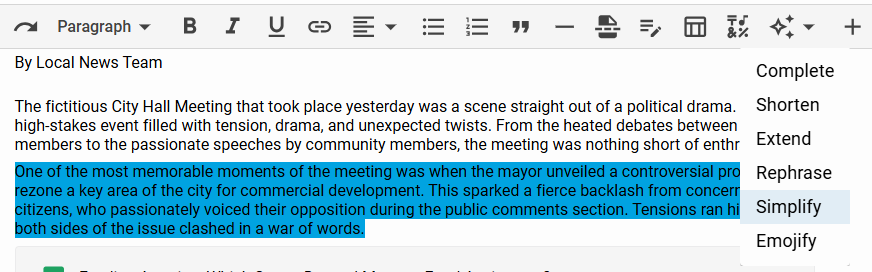
The AI-Powered Content Assistant displaying the suggestion based on the selected Content Assistant option allowing the editor to preview and confirm changes.
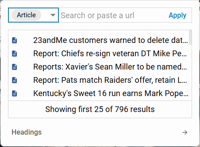
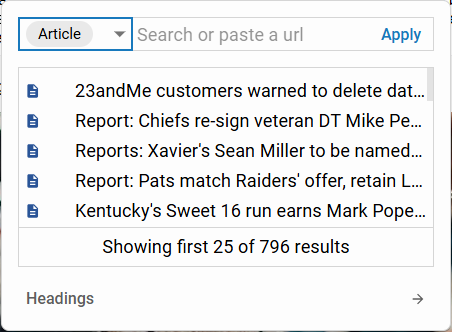
Insert Link options showing an option to search for an existing asset, an option to paste or type in a URL, and an option to choose a heading from the current article.
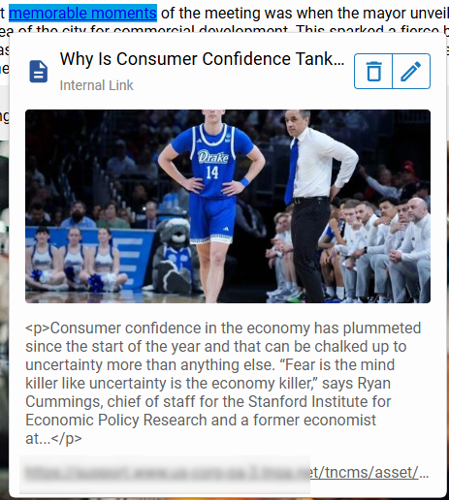
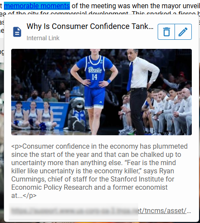
The right click Insert Link preview showing an option to ‘Remove link’, an option to ‘Edit link’, and an option to see the ‘Live View’ at the bottom.
blox nxt
Article Content Panel
Updated
Overview
The Article Content Panel within the Content Details Panel is where the main body copy of an article may be composed. It contains a WYSIWYG Rich Text Editor and has multiple features and options to assist the creation of the article content including Collaboration, a Formatting Palette, Content Assistant, Asset Placeholders, an Insert Action Button, and a Floating Action Menu along with corresponding Keyboard Shortcuts.
Content Management with an article asset open highlighting the Article Content Panel and Rich Text Editor.
Prerequisites
Certain features described within this documentation may require additional software, abilities, settings, or may only be accessible under specific conditions.
Permission to Edit assets: Only users assigned a Group containing the ‘Ability: Editorial / Assets / Full access’ or the ‘Ability: Editorial / Assets / Edit assets’ will be able to open and edit an asset.
Content Assistant availability: Only sites that have the ‘Enable Assistant Suggestions’ AI Setting enabled will have the ‘sparkle’ icon enabled within the Formatting Palette of the Rich Text Editor. See Content Management Settings for additional information.
Collaboration availability: Only sites with the AI settings enabled will be able to collaborate.
Floating Action Menu appearance: Only users using larger viewports will see the Floating Action Menu.
PDF Placeholders availability: The PDF Placeholder option within the Insert Action Button and Floating Action Menu Insert Options is only available on sites where it has previously been used. The File Media Placeholder should be used instead.
YouTube Placeholders availability: The YouTube Placeholder option within the Insert Action Button and Floating Action Menu Insert Options is only available on sites where it has previously been used. The Video Placeholder should be used instead.
Rich Text Editor
The WYSIWYG [wiz-ee-wig] (What You See Is What You Get) Rich Text Editor is a powerful tool within Content Management that allows editors to format and style their article content easily. It provides a user-friendly interface where text can be customized with bold, italics, links, lists, along with other formatting options. This editor supports multimedia integration, allowing the insertion of images, videos, and other media directly into the article content. The Rich Text Editor ensures that what you see during editing closely matches the final published version, making article content creation and editing straightforward and efficient.
Collaboration
The Collaboration feature in the Rich Text Editor enables multiple editors to work together seamlessly on the same article, allowing real-time editing where changes are immediately visible to all collaborators, ensuring that everyone has the most recent version of the article.
Formatting Palette
The Formatting Palette
Insert Link options showing an option to search for an existing asset, an option to paste or type in a URL, and an option to choose a heading from the current article.
The right click Insert Link preview showing an option to ‘Remove link’, an option to ‘Edit link’, and an option to see the ‘Live View’ at the bottom.
Undo / Redo: Arrows to undo or redo recent changes. Shortcut: ctrl+z / ctrl+y
Find & Replace: Easily find and replace words or phrases in the article. Supports case-sensitive queries. Includes next/previous navigation, replace, and replace all options. Shortcut: ctrl+f
Paragraph Styles: Dropdown to select different Heading styles (H1 to H6) or normal Paragraph.
Bold (B): Text styling applies bold styling to selected text. Shortcut: ctrl+b
Italic (I): Text styling applies italic styling to selected text. Shortcut: ctrl+i
Underline (U): Text styling underlines the selected text. Shortcut: ctrl+u
Strikethrough: Text styling applies a line through the selected text. 📝Strikethrough is only available via the Shortcut. Shortcut: ctrl+shift+s
Insert Link: Allows insertion of hyperlinks. The editor can search to find another asset, paste or type in a URL, or choose a heading from the current article.
Additionally, right clicking on an existing link where an asset was selected will display a preview of the selected asset.
Alignment Options: Align text left, center, right or justify.
Unordered List: Creates a bulleted list.
Ordered List: Creates a numbered list.
Blockquote: Formats text as a blockquote for emphasis.
Horizontal Line: Inserts a horizontal line to separate sections of content.
Page Break: Inserts a page break, useful for dividing content into separate pages.
Inline Note: Allows editors to add notes to the asset that are not visible to site visitors. These notes are highlighted in green and can include comments or reminders.
Trim for Print: Allows editors with TotalCMS installed to select various sections of text to omit when pulled into InDesign for page pagination and design.
Insert [ad-hoc] Table: Provides options for inserting and editing ad-hoc tables within the content. 📝Ad-hoc Tables should generally be avoided based on how ad-hoc tables lack formatting when they are displayed. Table Assets should be utilized instead.
Insert Special Characters: Select special characters or symbols to add to the text.
Content Assistant
The AI-Powered Content Assistant Button (‘sparkle’) with the Content Assistant options shown.
The AI-Powered Content Assistant displaying the suggestion based on the selected Content Assistant option allowing the editor to preview and confirm changes.
The AI-Powered Content Assistant contains options to update selected article text. Editors can choose to Complete, Shorten, Extend, Rephrase, Simplify, or ‘Emojify’ the selected text. It appears as a ‘sparkle’ icon at the right of the Formatting Palette. This Content Assistant option will be disabled when no text is selected.
After the selection, the Content Assistant will be displayed allowing the editor to preview and confirm the changes before the article text is updated.
Insert Action Button
The Insert Action Button (+) with the Insert Options shown.
The Insert Action Button is a versatile tool that allows editors to dynamically insert a Hammer, Kicker, or Subheadline into their article.
In addition, the Insert Action Button allows editors to easily insert various types of media and Asset Placeholders into their articles. It appears as a ‘+’ symbol at the right end of the Formatting Palette.
Asset Placeholders
Each Asset Placeholder offers intuitive options like drag-and-drop upload, library selection, and URL insertion, tailored to the specific content type. They also provide a consistent and user-friendly interface to manage their alignment, width, and presentation.
Image Placeholder: Add inline image assets and edit their Title, Byline, and Caption. Select Use URL link to embed external images.
Video Placeholder: Add inline video assets and update their Title, Byline, and Description. Video assets can be created via Use URL from video platforms such as youtube.com and vimeo.com.
📝NOTE: When using the Use URL feature to embed external videos and images, if the external links change, they will break the link to your website.
Audio Placeholder: Add inline audio assets and update their Title, Byline, and Description.
Link Placeholder: Add inline link assets and update their Title and URL.
HTML Placeholder: Add inline HTML assets and update their Title, Byline, Description, and HTML.
File Placeholder: Add inline File assets and update their Title, Byline, and Description.
Collection Placeholder: Add inline collection assets and update their Title, Byline, and Description.
Table Placeholder: Add inline Table assets and update their Title, Byline, and Description.
Poll Placeholder: Add inline Poll assets and update their Question and Description.
PDF Placeholder: Add inline PDF assets and update their Title, Byline, and Description.
YouTube Placeholder: Add inline YouTube assets and update their Title, Byline, and Description.
Cover Art: Add a Cover art image and change the appearance styles for where Kicker, Headline, Author, Byline and more are placed on top.
Related Content: Insert related content styles like Bio Boxes, Corrections and more inline.
Paste as Plain Text: Insert contents of clipboard as plain text. Note: you must grant permissions for your browser to access the clipboard. If you denied the clipboard access you’ll need to allow it.
If the current paragraph is empty, the Insert Action Button inserts the selected inline Asset Placeholder into the current paragraph. If the current paragraph is not empty, the Insert Action Button starts a new paragraph directly below the current paragraph with the selected inline Asset Placeholder.
Floating Action Menu
The Floating Action Menu (FAM) with the FAM Insert Options shown to the left of the paragraph where the mouse is located.
The Floating Action Menu within the Rich Text Editor provides quick access to various formatting and content options. It appears as a ‘+’ symbol and an ‘Additional Options’ menu that appears to the left of the paragraph where the mouse is located. While much of the functionality included within this button is available within the Formatting Palette, the Floating Action Button serves as a convenient shortcut.
Appearance: The floating action menu is only available on larger viewports. On smaller viewports, Editors will need to use either the Insert Action Button located in the Formatting Palette or Keyboard Shortcuts.
Floating Action Menu Options: Like the Insert Action Button, the floating action menu includes options to quickly insert various types of media and Asset Placeholders. It also contains a few formatting options.
If the current paragraph is empty, the floating action menu inserts the selected inline Asset Placeholder into the current paragraph. If the current paragraph is not empty, the action menu starts a new paragraph directly below the current paragraph with the selected inline Asset Placeholder or formatting.
Additional Options Menu: The floating action menu includes additional options to Reorder, Clear Formatting, Copy to Clipboard, Duplicate, and Delete.
The Floating Action Menu (FAM) Additional Options Menu shown to the left of the paragraph where the mouse is located.
Reorder Paragraphs & Inline Media: Drag and drop the paragraph to rearrange content.
Clear Formatting: Clear all formatting from the selected paragraph.
Copy to Clipboard: Copy content from the selected paragraph to your clipboard.
Duplicate: Duplicate the selected paragraph. The duplicate paragraph will be placed directly below the original.
Delete: Delete the selected paragraph.
Keyboard Shortcuts
The Rich Text Editor supports a trailing slash command (‘/’) to access the Floating Action Menu insert options. These options are the same as are available within the Floating Action Menu Insert Options.
An editor needs to type the '/' character while editing the content. This action automatically triggers the contextual menu, displaying a list of available content options. The editor can then start typing keywords related to the desired content element, such as "image" or "quote," and the list will narrow down to show only the relevant options. The editor can select the desired action from the filtered list to insert it into the article.
📝Keyboard Shortcuts for the Floating Action Menu only work if you're at position 1 within an empty paragraph.
Undo / Redo: Arrows to undo or redo recent changes. Shortcut: ctrl+z / ctrl+y