
This overview describes the various areas of the Asset Interface within Content Management, including the Application Navigation, Create Shortcut button, Breadcrumb Navigation, Publish, Save, and View Options, Content Overview Panel, Content Details Panel, Article Toolkit Panel, Asset Information, and Article Statistics.
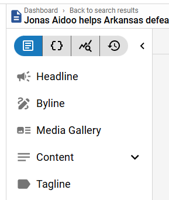
This overview provides descriptions for an article asset’s content fields, including Headline, Byline, Content (Body), Tagline, Hammer, Kicker, Subheadline, Media Gallery, and Additional Content fields within the Content Details Panel.
The Article Content Panel within the Content Details Panel is where the main body copy of an article may be composed. It contains a WYSIWYG Rich Text Editor and has multiple features and options to assist the creation of the article content including Collaboration, a Formatting Palette, Content Assistant, Asset Placeholders, an Insert Action Button, and a Floating Action Menu along with corresponding Keyboard Shortcuts.
This overview provides the comprehensive set of options for defining the an article asset’s Metadata, crucial for discoverability, categorization, and content management.
The Article Toolkit Panel is designed to enhance the content creation and management process. It offers quick access to several key features, allowing editors to efficiently find, insert inline, and manage related media via Relationships (‘link’ icon) and Asset Library (‘books’ icon) Tools respectively, diagnose article content quality via the Assistant (‘sparkle’ icon), and view and respond to internal comments via the Comments Tool (‘speech bubble’ icon).
By default, the title and description meta tags for editorial assets are populated by the asset’s title and description. But, with the latest …
By default, social media meta tags are populated by the title, description and image used in the asset. But, with the 1.62 BLOX Core release, …
