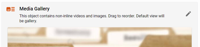
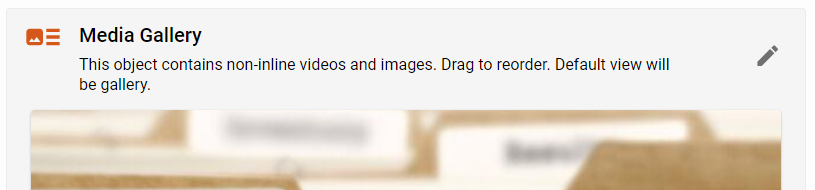
The Media Gallery Placeholder showing the edit option on the right.
The Additional Content Placeholder showing the edit option on the right.
blox nxt
Article Content Fields
Overview
This overview provides descriptions for an article asset’s content fields, including Headline, Byline, Content (Body), Tagline, Slug, Hammer, Kicker, Subheadline, Media Gallery, and Additional Content fields within the Content Details Panel.
Prerequisites
Certain features described within this documentation may require additional software, abilities, settings, or may only be accessible under specific conditions.
Hammer, Kicker, and Subheadline field visibility: The Hammer, Kicker, and Subheadline fields must be manually added by the editor to be visible
AI-Powered Suggestions and AI-Powered Tone Adjustments availability: Only sites that have the ‘Enable Content Extensions’ setting enabled will see the ‘sparkle’ icon to access AI-Powered Suggestions and AI-Powered Tone Adjustments. See Content Management Settings for additional information.
Slug
The Slug serves as a short, internal identifier used by editors and production teams to track and organize content—particularly in print workflows, where it often functions as a project ID or placeholder before a headline is finalized.
The Slug now appears as a top-level field in the Content Outline panel, positioned above the Kicker and Subheadline fields. This placement makes it more visible and accessible for newsrooms that rely on Slugs early in the content creation process.
When a Slug is present, it is also displayed in brackets before the headline in the asset title bar and breadcrumb navigation—for example:
[120923] Louisiana school scores rise for third straight year, but a tougher road ahead.
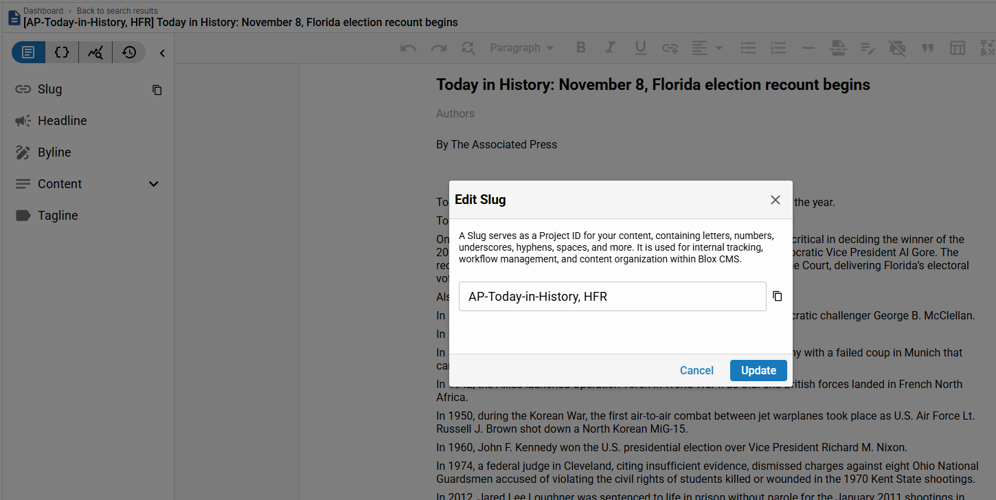
Editors can click the Slug field to open a modal that allows viewing, editing, or copying the Slug ID. A copy icon is also available directly beside the Slug field for quick access, supporting efficient coordination between print and digital workflows.
Hammer
The Hammer headline is three words or less used to attract attention to a major Article.
Hammer is available only if added by the editor from the Insert Action Button. For additional information on the Insert Action Button within the Formatting Palette of the Rich Text Editor, see Article Content Panel.
Kicker
The kicker is a one or two word identifier to provide an informal classification of an article displayed in a smaller, underline font just above the headline.
Kicker is available only if added by the editor from the Insert Action Button. For additional information on the Insert Action Button within the Formatting Palette of the Rich Text Editor, see Article Content Panel.
Headline
The headline field is a required field for all articles. It allows editors to set the main title of the article, which appears at the top when viewing the article.
AI-Powered Suggestions and AI-Powered Tone Adjustments for the Headline are available from the Assistant tool within the Article Toolkit Panel. These AI-Powered Suggestions and AI-Powered Tone Adjustments are also accessible from the ‘Headline Assistant’ option (‘sparkle’ icon) that appears to left of the Headline when viewing in larger viewports.
Subheadline
The Subheadline is displayed below the headline.
Subheadline is available only if added by the editor from the Insert Action Button. For additional information on the Insert Action Button within the Formatting Palette of the Rich Text Editor, see Article Content Panel.
Byline
The byline field provides space for the author's name or contributor's information. It appears below the headline, offering attribution and often including the author's title or affiliation, giving readers insight into who created the content.
Media Gallery
Media Gallery is a placeholder for non-inline related child assets that are either image or video in type.
The Media Gallery Placeholder will dynamically appear if the article includes non-inline child image or video assets. This static Media Gallery Placeholder automatically gathers these non-inline media assets and places them below the Byline field and above the Content (Body), providing a centralized location for visual content.
The Media Gallery Placeholder showing the edit option on the right.
Editors can click the edit option (‘pencil’ icon) on the Media Gallery Placeholder to drag and rearrange the order of media objects, however deletion of these objects through the placeholder is not permitted. Deletion must occur in the Relationships option found within the Article Toolkit Panel.
Content (Body)
The Content (Body) is where the main content of the article is written within the Rich Text Editor. It allows editors to craft the full narrative, including text, images, and other media elements, forming the bulk of the article's content. For additional information on the Rich Text Editor and the options therein, see Article Content Panel.
Tagline
The tagline field is used for a brief descriptive phrase or summary that complements the headline. It offers additional context or insight into the article's content, helping to engage readers.
Additional Content
Additional Content is a placeholder for non-inline related child assets that are neither video nor image in type.
The Additional Content Placeholder will dynamically appear if the article contains non-inline child assets other than videos or images. This static placeholder gathers these assets and places them below the Tagline field.
The Additional Content Placeholder showing the edit option on the right.
Editors can click an edit option (‘pencil’ icon) on the Additional Content Placeholder to drag and rearrange the order of objects, however deletion of these objects through the placeholder is not permitted. Deletion must occur in the Relationships option found within the Article Toolkit Panel.