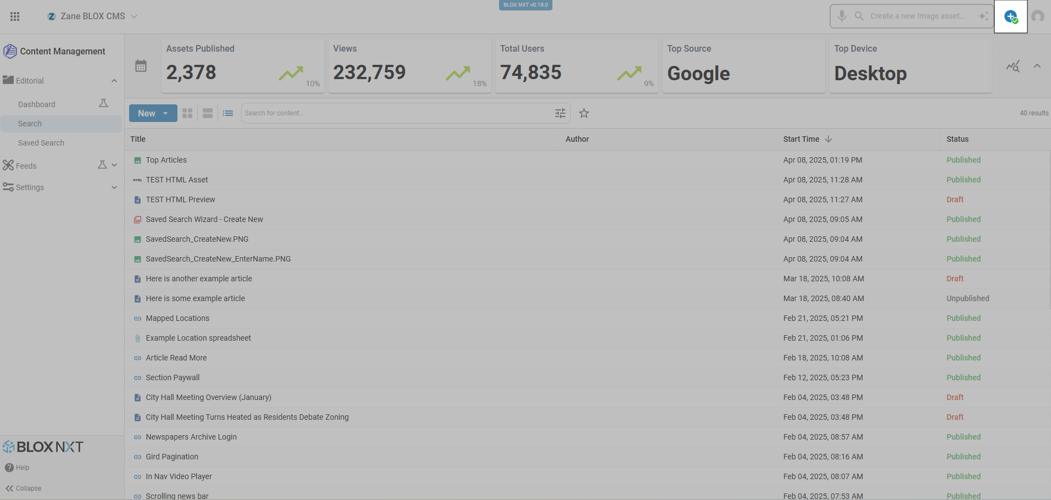
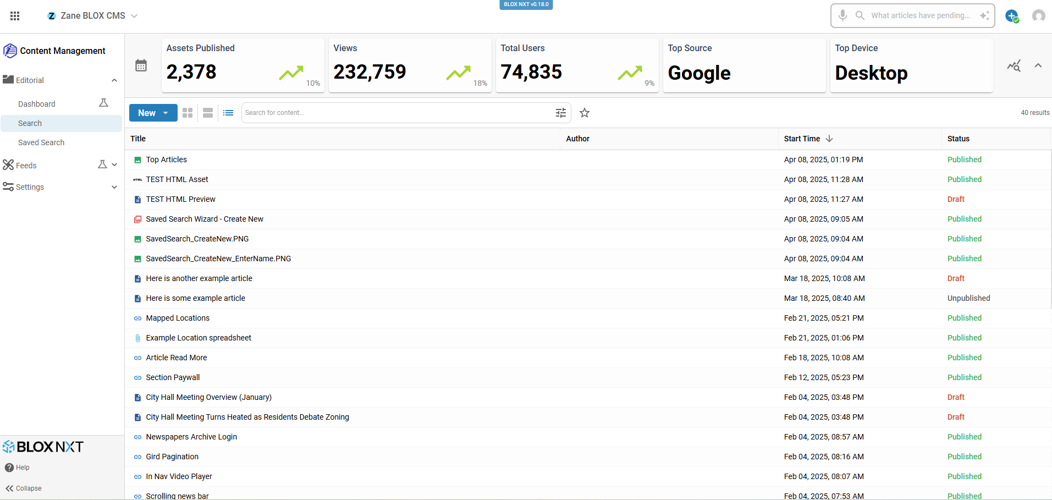
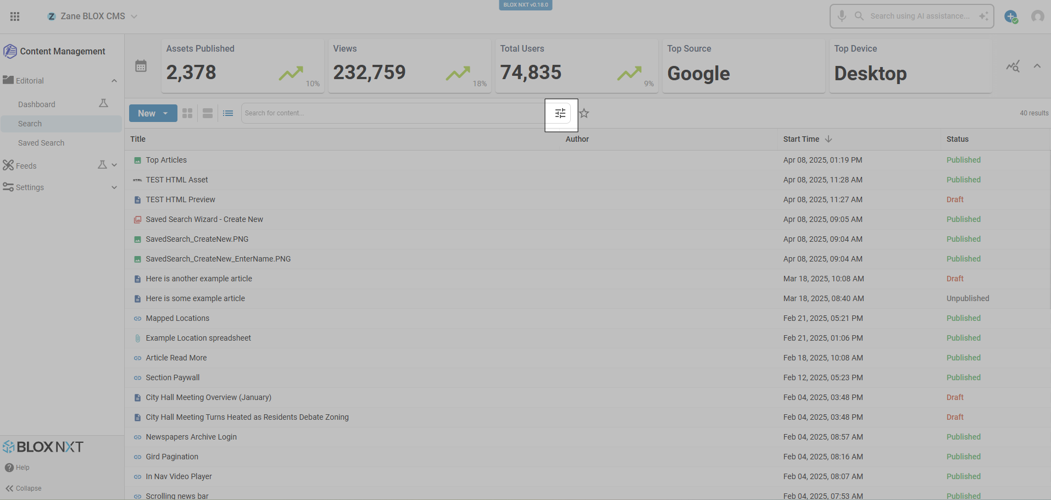
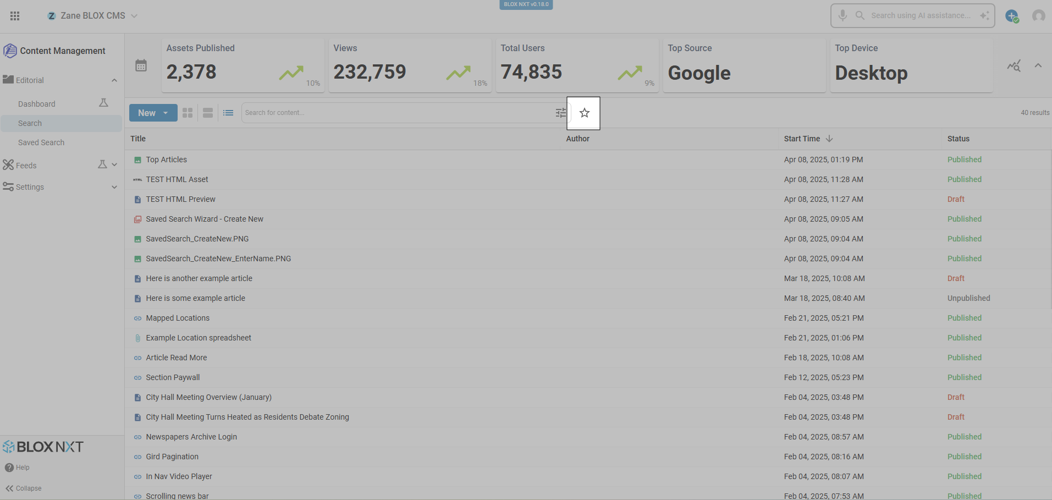
The Search Interface within Content Management highlighting the Create Shortcut option.
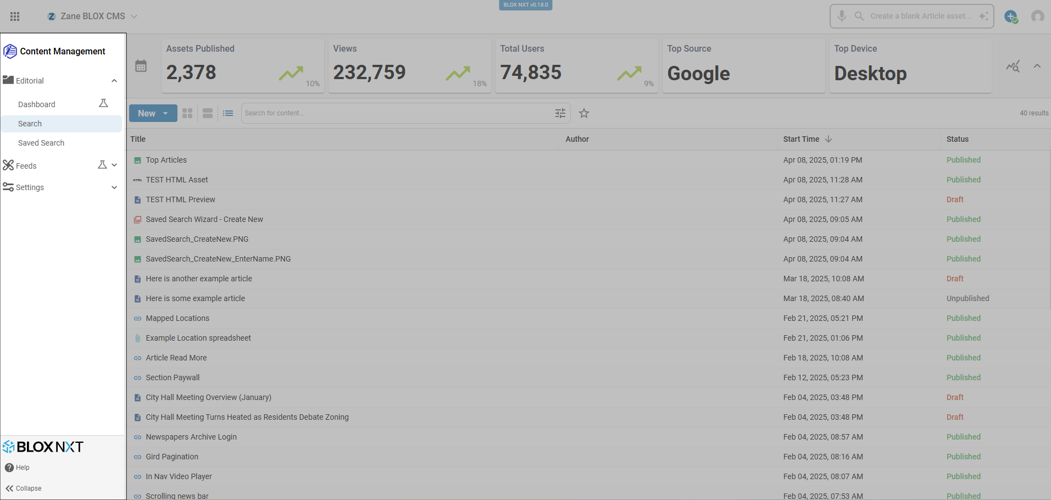
The Search Interface within Content Management highlighting the Application Navigation.
The Editorial Search Interface within Content Management.
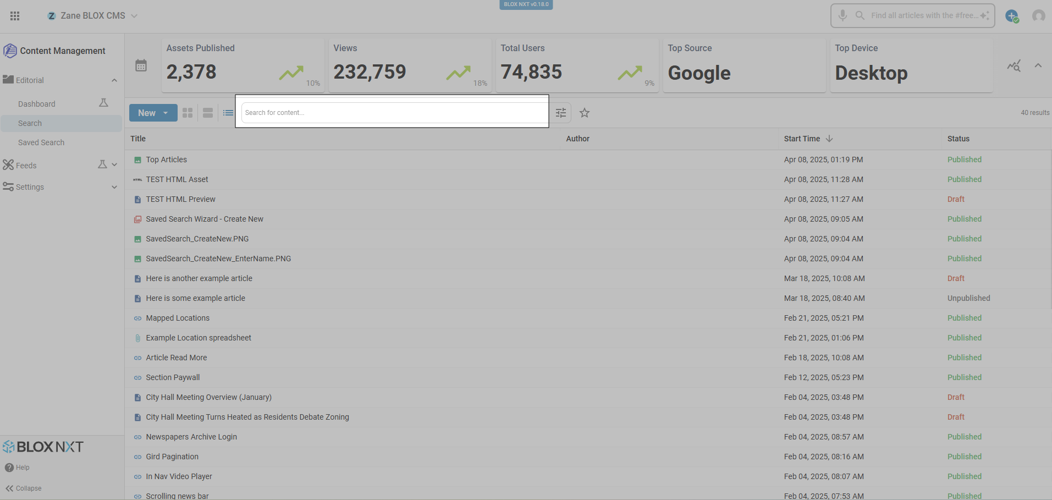
The Search Interface within Content Management highlighting the Search Filter.
The Search Interface within Content Management highlighting the Advanced Filters.
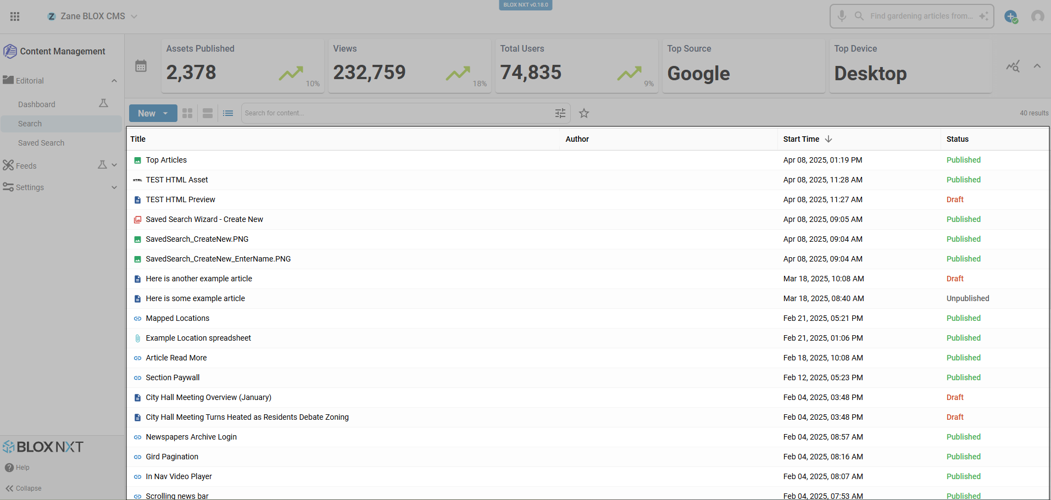
The Search Interface within Content Management highlighting the Search Results.
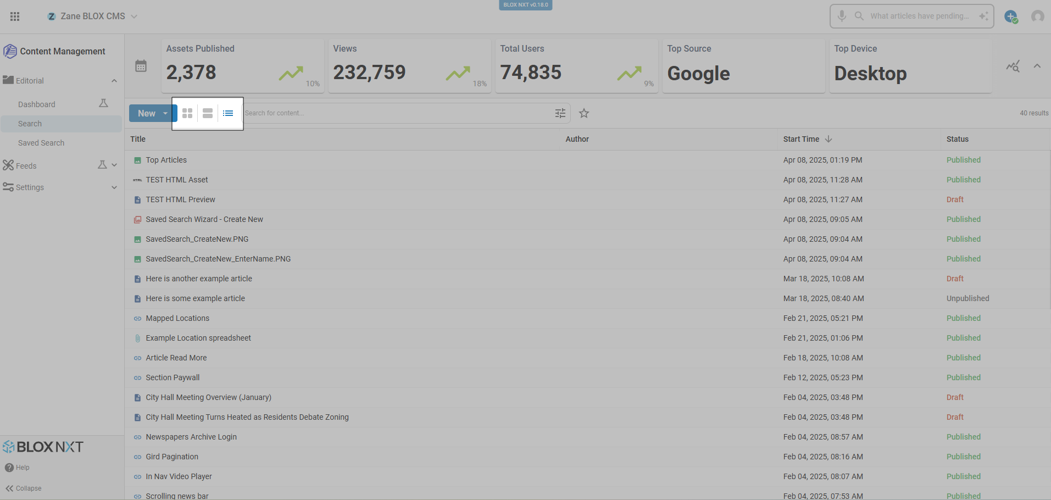
The Search Interface within Content Management highlighting the Search Results View Options.
The Search Interface within Content Management highlighting the Saved Search Option.
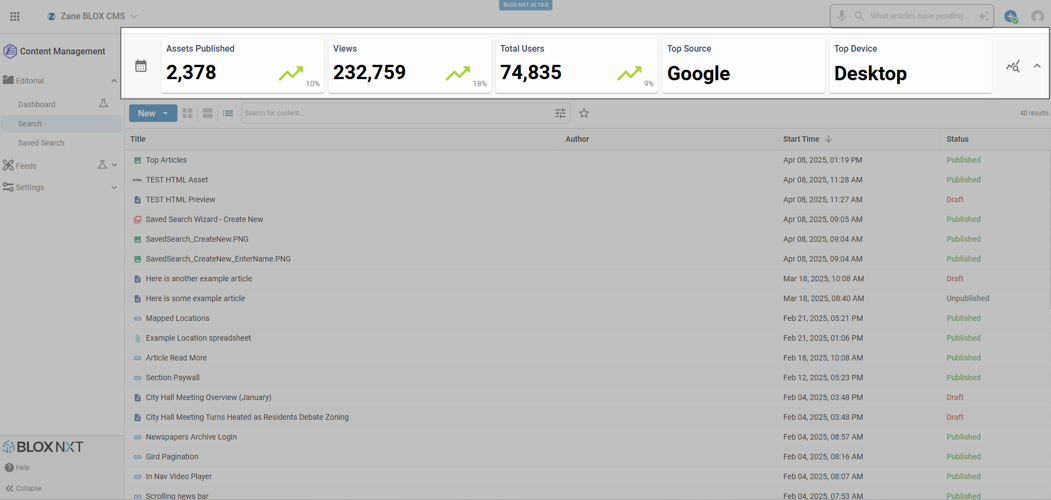
The Search Interface within Content Management highlighting the Key Metric Display.
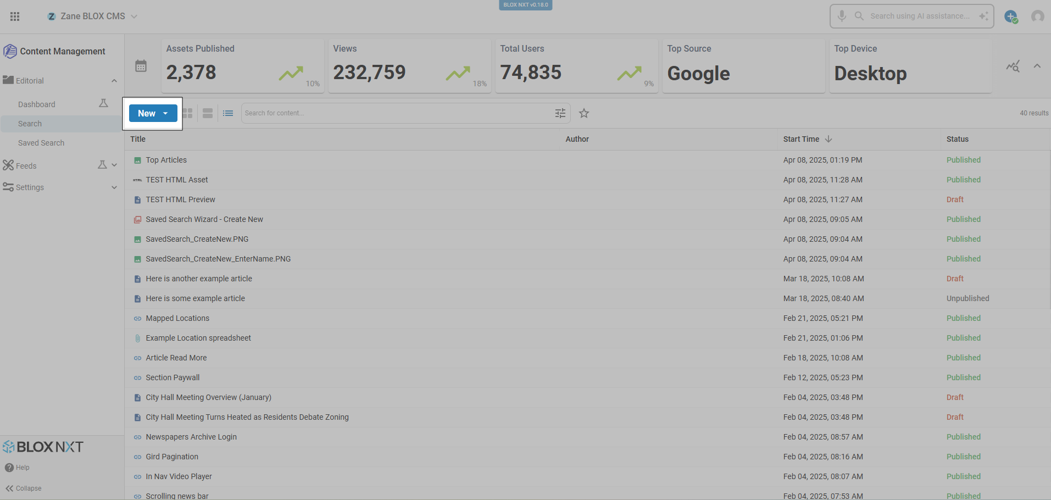
The Search Interface within Content Management highlighting the New Asset option.
blox nxt
Asset Search Overview
Overview
This overview describes the various areas of the Asset Search Interface, including the Application Navigation, Create Shortcut option, Key Metric Display, New Asset option, Search Results View Options, Search Filter, Advanced Filters, Save Search Option, Search Results and Batch Edit & Selection Bar.
The Editorial Search Interface within Content Management.
Prerequisites
Certain features described within this documentation may require additional software, abilities, settings, or may only be accessible under specific conditions.
Content Management Access: Only users assigned a Group containing the ‘Ability: Editorial / Assets / Full access’ or any ability under ‘Editorial / Assets’ will be able to access the Content Management Application.
Application Navigation
The Application Navigation allows navigation within the selected application. For example, while in the Content Management application, Application Navigation allows navigation between Asset Search, Asset Dashboard, Feeds, etc.
In addition, Application Navigation offers options to return to the Home Dashboard, access help documentation, and to collapse or expand the Application Navigation.
The Search Interface within Content Management highlighting the Application Navigation.
Create Shortcut
The Create Shortcut option lets users quickly create any number of items such as an asset or a user account. It offers recommended options based on the current application and allows users to pin frequently used items.
The Search Interface within Content Management highlighting the Create Shortcut option.
Key Metric Display
The Key Metric Display provides pertinent Asset Dashboard related key performance indicators (KPI). Click the caret ‘^’ icon on the right to minimize the Key Metric Display.
📝 When minimized this is treated like a user preference, persisting across page reloads and subsequent visits. It will continue to be minimized until the user chooses to click ‘KPIs’, located in place of the caret (‘^’) icon, to display again.
The Search Interface within Content Management highlighting the Key Metric Display.
New Asset
Similar to the Create Shortcut option, New Asset allows users to quickly create a new asset by selecting the desired asset type after clicking New. This provides fast access to commonly created content.
Available asset types include:
Article
Audio
Collection
File
HTML
Image
Link
Poll
Table
Video
Import (BETA)
The Search Interface within Content Management highlighting the New Asset option.
Search Results View Options
The Search Results View Options allow for the Search Results to be displayed in a Grid View, Summary View, or the default List View.
The Search Interface within Content Management highlighting the Search Results View Options.
Search Filter
The Search Filter allows the user to enter ‘search text’ to filter the search results. Type text or paste text within this field to query the title / web headline, body copy, or asset summary.
The Search Interface within Content Management highlighting the Search Filter.
Advanced Filters
The Advanced Filters allows for filtering by asset Type, Start Time (From and To), Slug, Draft, Sections, Workflow, Publish Status, Author, Deleted, Flags, Value Added Content, Contributed, App, Workflow, Photo Sales, Print Ready, Print Depth, Print Publication, Print Publication Date Range, and Print Publication Status.
Notes:
📝 Print Ready, Print Depth, Print Publication, Print Publication Date Range, and Print Publication Status are available for sites that have BLOX Total CMS.
📝 that for ‘Start Time (From and To)’ relative time selections of ‘Today’, ‘Yesterday’, ‘‘Last 30 Days’, and ‘Next 30 Days’ are now available for selection.
The Search Interface within Content Management highlighting the Advanced Filters.
Quick Filters
The Quick Filters option allows frequently used combinations of search filters to be saved as a Quick Filter.
See Quick Filters for details on how to Save, Use, and set a Default Quick Filter.
The Search Interface within Content Management highlighting the Saved Search Option.
Search Results
Assets matching the search and search filters entered will be listed in the Search Results.
Click on an individual asset in the Search Results to open that asset in the Asset Interface.
Hover over a Search Results column name to view column options (Sort where applicable, Pin, Hide, and Manage columns).
Hover over any column header to see a three-dot menu where you can access a "Manage Columns" option to add / remove the following columns:
Checkbox Selection – Allows users to select one or more assets to perform bulk actions such as edit, move, or delete.
Title – Displays the headline or title of the asset. Clicking the title opens the asset for review or editing.
Sections – Indicates the section(s) or category assignments associated with the asset (e.g., News, Sports, Opinion).
Last Updated – Shows the date and time when the asset was most recently saved or modified.
Author – Lists the asset’s assigned author(s) or contributor(s).
Publication Date – Displays the scheduled or actual date and time the asset was published.
Display Priority – Reflects the asset’s assigned priority for display within blocks, feeds, or other automated listings.
Photo Sales – Identifies whether the asset is available for purchase through integrated photo sales features.
Primary Status – Displays the asset’s main publishing state, such as Published, Scheduled, Draft, Processing, or Unpublished. These tags indicate whether the content is live, set to publish at a future date, in progress, or removed from publication.
Status – Shows contextual indicators that provide additional insight into the asset’s current state, such as whether it’s locked for editing, blocked by workflow, placed on a page, or has unpublished changes. Multiple icons may appear, each with a tooltip describing its meaning.
Delete Date – Displays the date and time when the asset is scheduled for deletion or has been removed.
Slug – Lists the internal slug or short label used to identify the asset in URLs or internal workflows.
Workflow – Displays the assigned workflow or approval process the asset is currently part of.
Last Modified By – Shows the email address of the last user who edited or updated the asset.
You can now right-click on any asset row to access a context menu with quick actions including Edit, Preview, Duplicate, Archive, and more.
The Search Interface within Content Management highlighting the Search Results.
Batch Edit & Selection Bar
Editors can now take bulk action on multiple assets using the new Selection Bar, which appears when one or more assets are selected from the search results. This bar is accessible from any view mode (List, Grid, or Summary) and provides options to batch edit key metadata fields.
Selections can be made using standard keyboard conventions:
Shift+Click for selecting a range
Ctrl/Cmd+Click for selecting/deselecting individual assets
Select All is supported for the full search result set
Batch editing options for selected assets include:
Publish Status
Workflow
Sections
Keywords
Flags
Site Tags
Authors
Presentation (Article, Image, Collection)
Type of Work
Photo Sales
Byline
Slug
Display Priority
Publication Date
Archive Date
Delete Date
📝 All batch edits run as background tasks and are logged for auditing. The interface adapts based on the number of selected assets—for example, "Edit" vs. "View" depending on single vs. multi-select.
Export Assets (Beta)
The Export option allows users to download asset data directly from search results, providing parity with export functionality available in the legacy CMS.
From the search results view, users can select one or more assets and choose Export from the More menu or the right-click context menu. Export is enabled when at least one asset is selected. If no assets are selected, using Export from the right-click menu will export the asset that was clicked. Assets are exported in order from newest to oldest.
Selecting Export queues an export job and triggers a CMS notification indicating the export is Processing. When complete, the notification updates to Ready to download and includes options to Download the file or Delete the export. Export files expire automatically after 24 hours. Multiple export jobs can be run at the same time, with each appearing as a separate notification.
Exports are delivered in BPM / NITF format and include the metadata visible in search results, such as Title, Sections, Update Time, Start Time, Status, Author, and Workflow.