Audience+ can now identify Former, Active or In-Grace Subscribers dynamically, giving you the ability to orchestrate a separate journey just for them. You can display a customized “Winback” offer to Former subscribers from specific Services, and give them a special paywall limit, such as a hard paywall.
Like the basic Formers criteria, BLOX Audience+ dynamically evaluates the user’s status against Subscription records and the other rules that are established.
This powerful new audience is exclusively available to Audience+ partners. For more information about Audience+ reach out to your sales rep or put in a ticket.
Before creating the access criteria and new dynamic rule, in BLOX Subscription, identify the Service and Rate you will be using to attract Formers to resubscribe.
Create the access criteria for your new rule
In Access Control, click the gear to open application settings
Click on Access criteria
Click New
Select Subscriber Status from the dropdown menu
NOTE: If your Access criteria dropdown is short and you do not see Subscriber Status in the list, you will need to upgrade from BLOX Audience to Audience+. BLOX Audience is a basic version of Access Control with limited features, but Audience+ includes dozens of dynamic, real time audiences to take your paywall to the next level. Contact your sales rep or put in a ticket for more information.
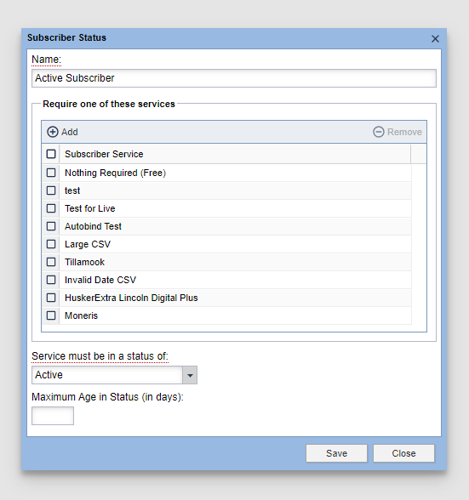
In the dialog box, give the criteria a name, then select the Services it should apply to. In this example, we have called it “Status = Active - All Services”.
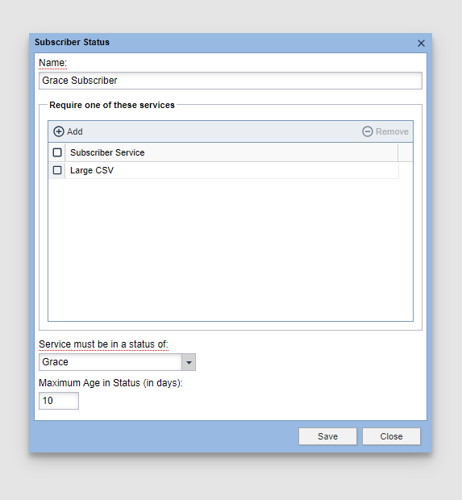
Under “Service must be in a status of” select the status of the user that the rule will apply to: Active, Grace or Former. In this example, we have selected Active.
Set Maximum age
Maximum age allows you to say how long they were in grace or as a former - so if you say 10 days - then the rule only applies while they are a former for a maximum of 10 days after they became former on the selected services. You might, for instance, treat a former as a new start after 90 days with trial offers again.
Before we create this new dynamic rule, let’s review our recommended BEST PRACTICES to make the most out of this functionality:
Use a high display priority
Use appropriate access methods and settings
Create a new offer group to customize the paywall messaging
Next, let’s create the new dynamic rule
Create a new dynamic rule
Start in the main Access Control rules panel by clicking New to create a new rule, then select Web.
Name the rule according to the audience you selected.
Access method group:
Former subscribers: hard paywall or meter of 1
Active subscribers and subscribers in Grace: use a higher meter limit, and choose Nag Mode under wall behavior in the settings panel of the method group. This ensures that the subscriber can close the window.
Access offer group: Click New to create a new offer group.
Name according to the audience you selected.
Customize the paywall headline to grab the attention of the user, and explain why they’re seeing the message.
Click the offers tab, then click New > Start with a rate.
Select the Service and Rate you identified in step No. 1.
Modify the Title, Featured message, Rate, Limits and other fields to market directly to the users will see this wall.
Save and close out of the offer and offer group.
In the Access criteria box, click Add, select the access criteria you created, then click Select. You may choose other access criteria if you wish to make the rule more narrow.
Click Save to close out of the rule.
By default, your rule will be disabled after it is created. Click the checkbox next to your rule, then click Enable to make it live.