Creating a New Transaction
Your staff can create new transactions through the BLOX admin using the Subscription Wizard. This might be used if one or more of your services are hidden, and your users cannot sign up for them on the front end.
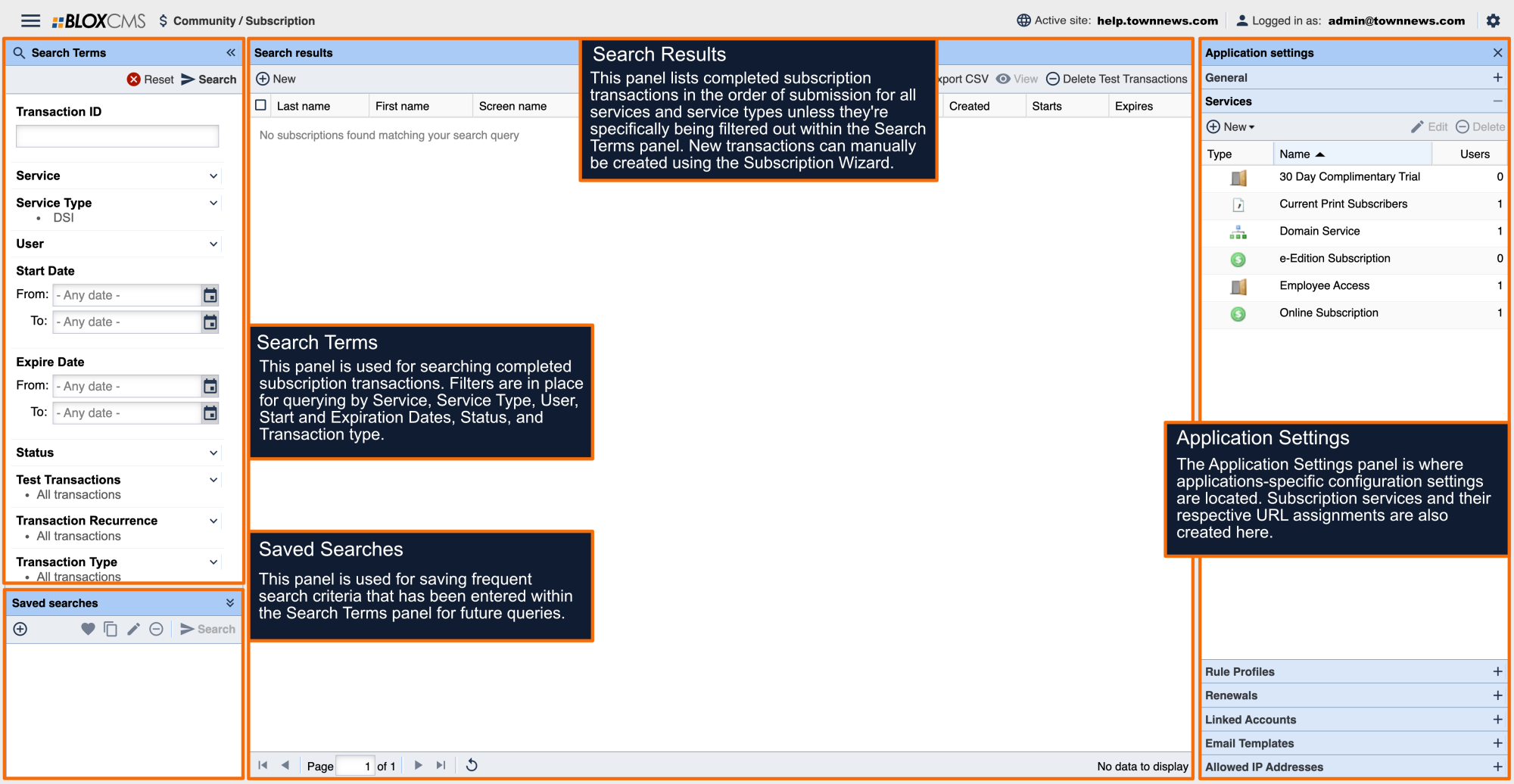
To create a new transaction for a user, select New in the upper left hand corner. The Subscription Wizard window will then display.
Note: Since each service type requires different information, the wizard screens will vary based on the service selected. The examples shown below are for a Subscription service type with a delivery address required.
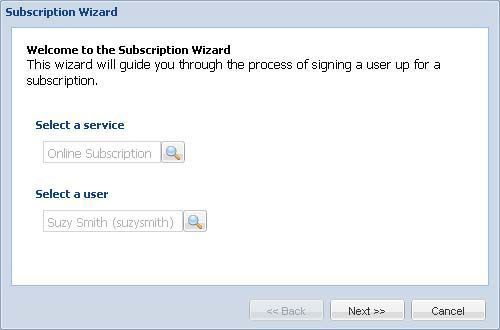
The Subscription Wizard requires that a user already exist in the system. This can either be created before opening the Wizard under Community / User Accounts or your staff can collect the user name from the customer beforehand. You can then Select a Service and Select a User. Both are required in order to continue.
Note: when selecting a service, there is an option to Edit, Delete, or create a New service. Once a service and user have been selected, choose Next.
As this service requires a Delivery Address, the next screen allows you to input all relevant address information. Select Next to continue or Back to return to a previous screen.
For this service, the next window requires you to select a Rate. Select Next to continue or Back to return to a previous screen.
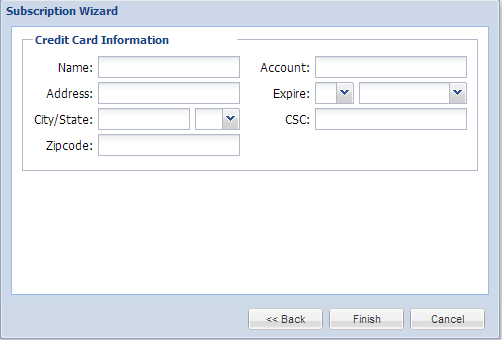
The next window for this service requires the Credit Card Information.
Once all of the required information has been entered, select Finish. The transaction has now been added and should display in the Search Results panel along with the other transactions.
Note: Canadian Postal Codes are accepted in the following formats: ANB NBN, anb nbn, ANBNBN or anbnbn where n is {0-9}, A is {A-CEGHJ-NPR-TVY}, a is {a-ceghj-npr-tvy}, B is {A-CEGHJ-NPR-TV-Z} and b is {a-ceghj-npr-tv-z}.