Set Up Linked Accounts
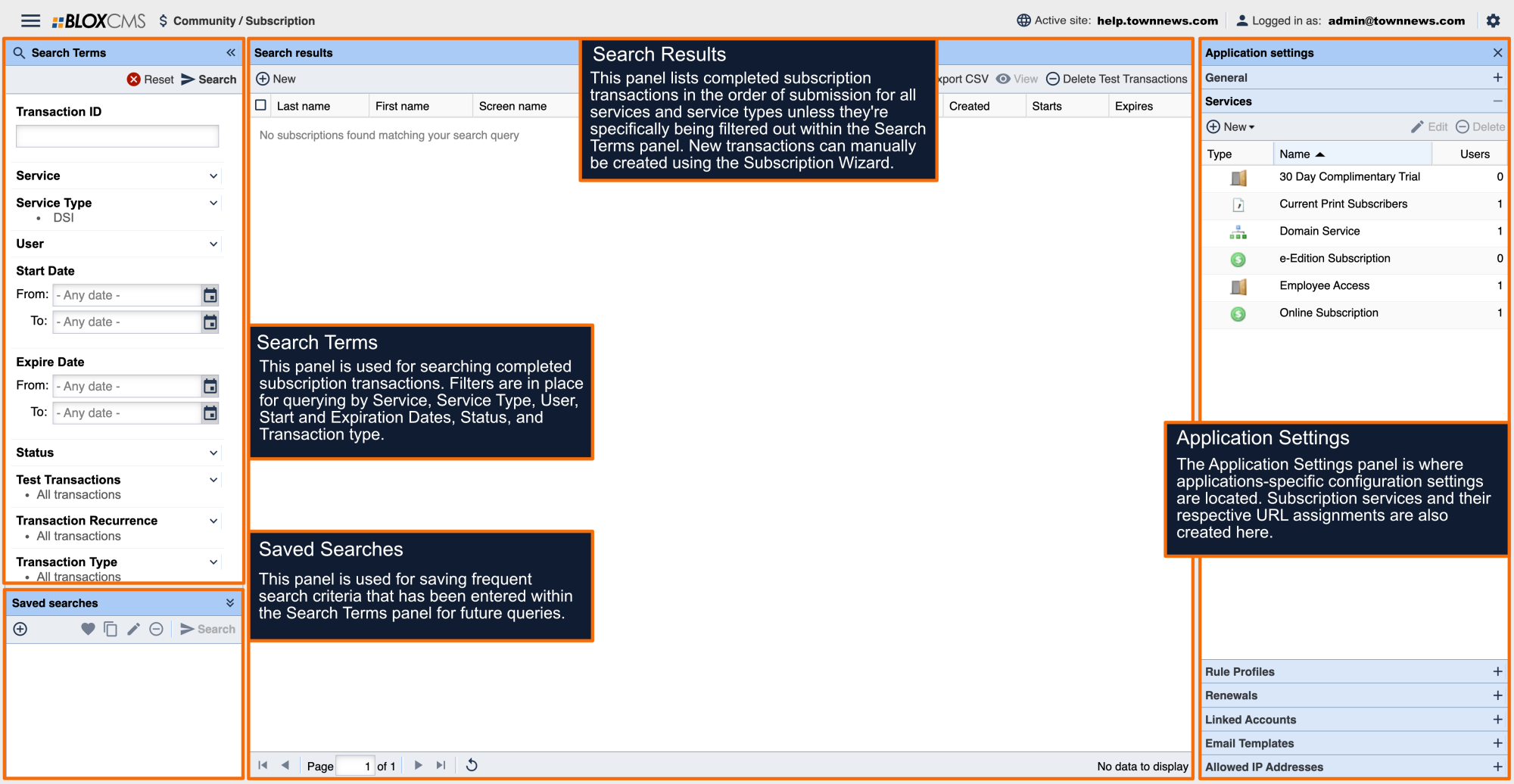
From the dropdown in the the upper left choose Community / Subscriptions.
Open Application Settings by clicking on the Gear icon in the upper right corner next to your login information.
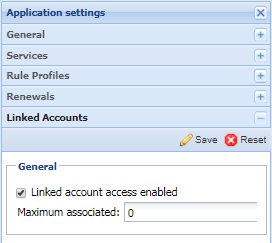
In Linked Accounts click the checkbox for Linked Account Access Enabled, and set the maximum number of users a single subscriber can share their subscription with. Click Save.
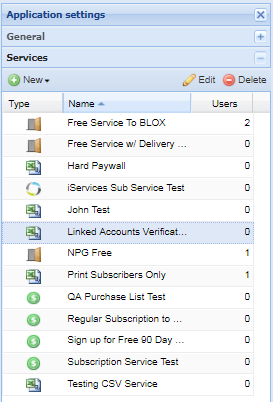
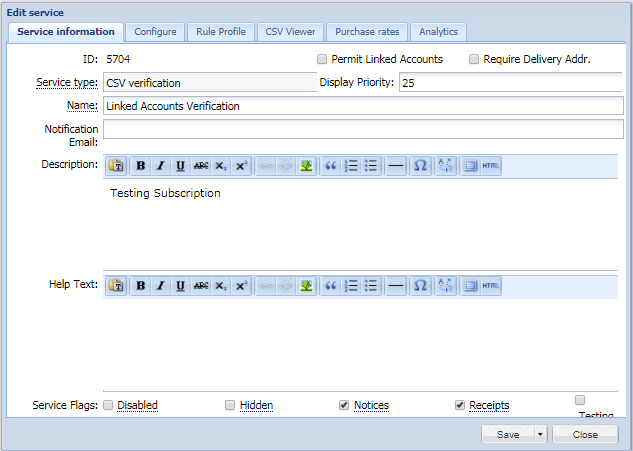
In Services open the service that you want to allow linked accounts in.
Under Service Information, click the checkbox for Permit Linked Accounts. Click Save and Close.
How To Link Accounts
Accounts can be linked from the front end, which is the most common, or from the admin, requiring assistant from the newspaper staff.
From The Front End
An Existing subscriber can add a friend or family member.
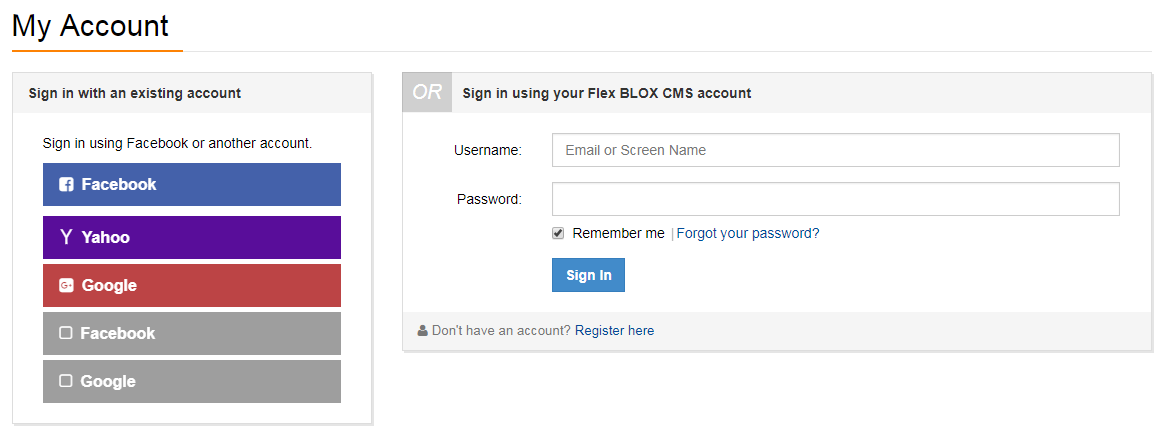
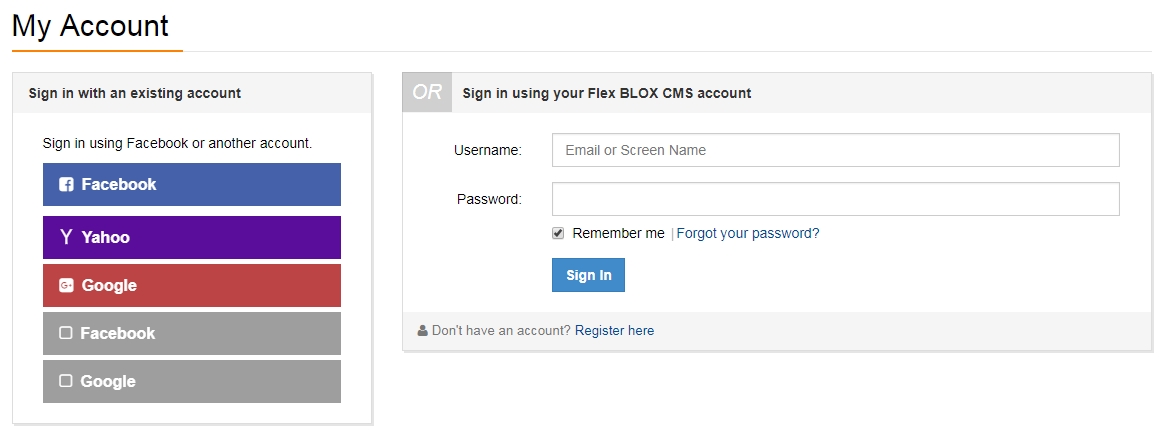
On the front page of your site, click on Log In. You'll be directed to the Login Page.
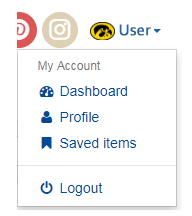
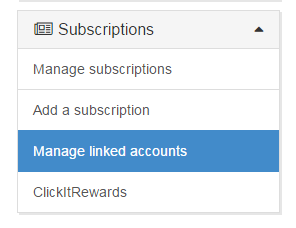
Once logged in, navigate to the User Dashboard and then click on Subscriptions to the menu options. Click on Manage Linked Accounts.
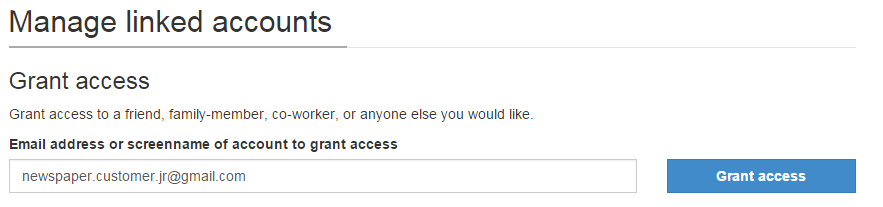
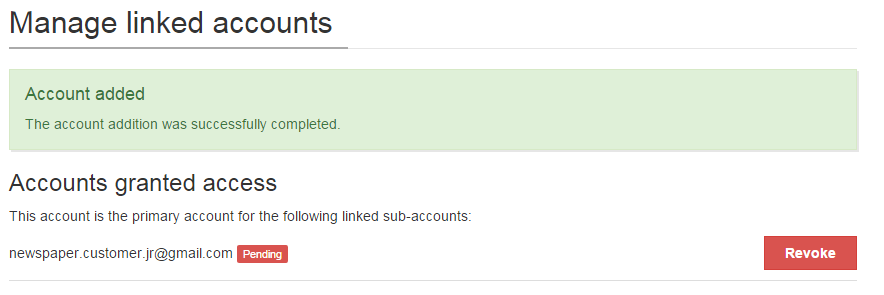
Type in the Email Address of the person they wish to share their subscription with. Click Grant Access. The page will refresh and the subscriber will be told they have granted access to another person.
Note: If the other user is a registered user on your website they will NOT be notified that they have been granted access. If they are NOT a registered user they will receive an email from the subscriber:
Once a reader has been granted access and is a registered user, they can sign into your site and gain access to the content provided by that service.
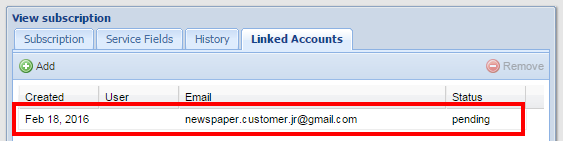
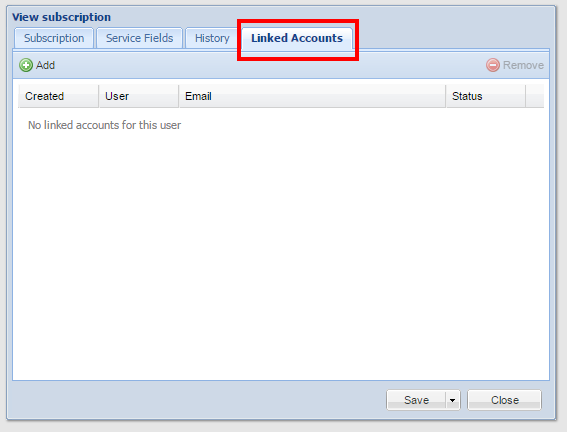
Check a Subscribers Account to see if they are Sharing their Subscription. In Community / Subscription in users account under Linked Accounts you can see if the user has shared, or has any pending shares of their subscription.
Find the Subscriber that you want to check. Double-click their name to open the View Subscription window.
Non Subscriber Request
A reader that is NOT a subscriber, can request access from a subscriber. The requester must be a registered user on your site.
On the front page of your site, click on Log In. You'll be directed to the Login Page.
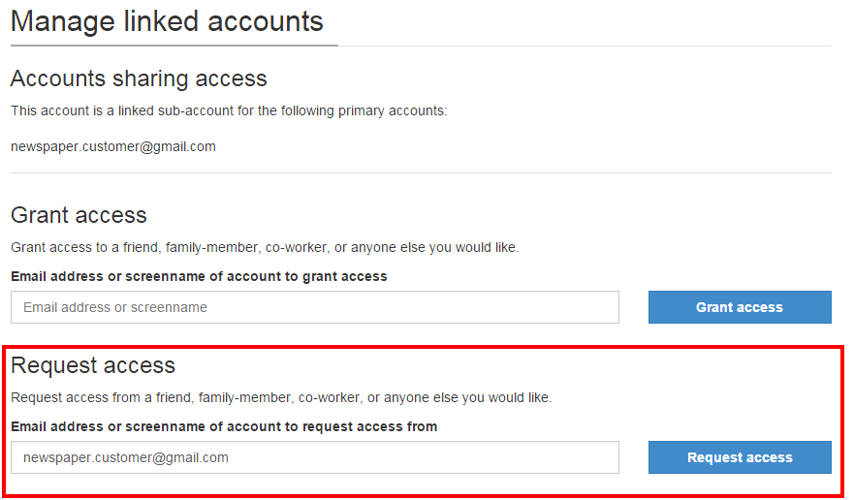
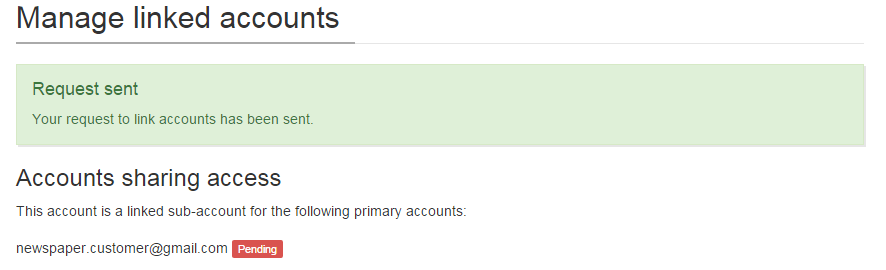
Go to the User Dashboard. Click on Subscriptions to open your Manage Linked Accounts. Click Manage Linked Accounts.
Type in the Email Address of the subscriber they wish to share a subscription with. Click Request Access.
The subscriber will receive an email:
A user with screen name newspapers customer jr and e-mail address newspaper.customer.jr@gmail.com is requesting you to share your subscription access with him/her on If you would like to grant access to your subscription to this user, you can follow the links to either
Approve or Deny the request.
From The Admin
From the dropdown in the the upper left choose Community / Subscription
Find the subscriber that wants to share their account. Double-click their name to open the View Subscription window.
Click Linked Accounts. Click Add.
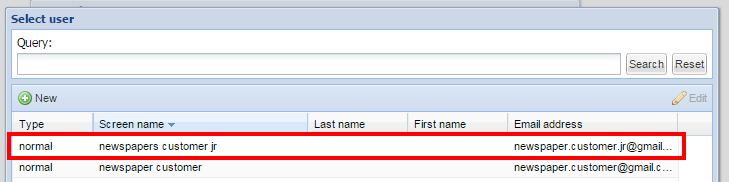
Search for the registered User that you want to add. Click Select User.
Note: You can manually register a user but it is not recommended.
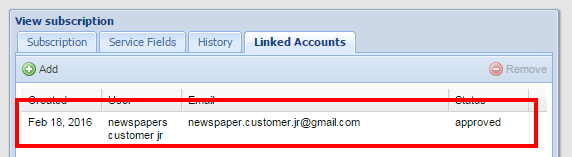
The user will now appear in Linked accounts. Click Save and close.
Note: If the other user is a registered user on your website they will NOT be notified that they have been granted access.
To Revoke a Linked Account
The subscriber needs to log into the front end and go to the User Dashboard.
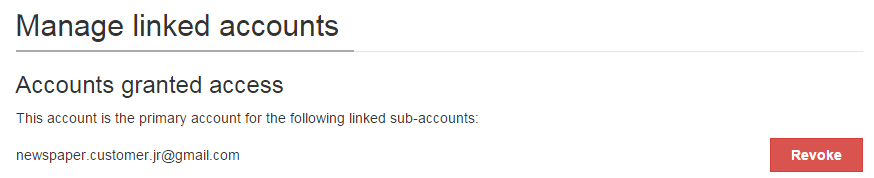
There will be a list of users sharing their subscription. To Revoke the shared User, click Revoke.
The page will refresh and display a message that the user's Account has been removed from your subscription.