
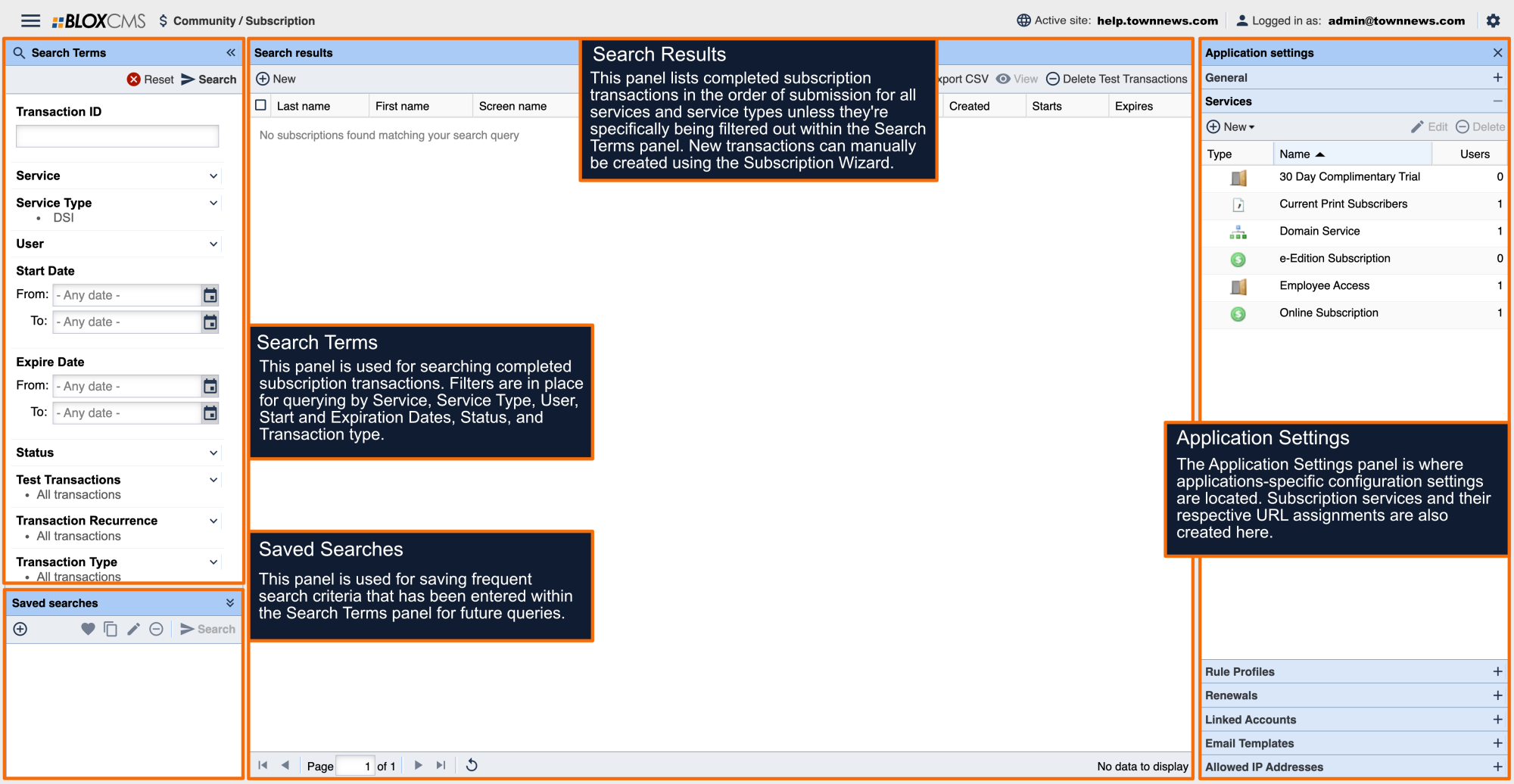


What is a Free Service?
A Free service grants readers permission to paywalled content, without having to purchase a subscription. Free services can be useful for granting your readership with complimentary site access. Free services can also be used for granting staff with ongoing paywall access.
Interface Overview
A service type consists of the following tabbed panels:
Service information panel: Within this panel, service name, notification email, description and user help text is defined.
Configure: Within this panel, options relating to subscription and payment handler are defined.
Rule Profile: A Rule Profile is comprised of a section or set of sections that encompass a service. A service can also be targeted to work with multiple rule profiles.
Purchase rates: The pricing and duration of the service is defined here. Pricing is expressed in dollars and days. Rates can be scheduled for automating subscription rates. Promo Codes can also be set as a requirement for service purchase.
Analytics: Statistics relating to the service can be viewed here.
Service Information

ID: Once Save or Save and close is selected, the system will automatically assign a unique ID number to the service. This service ID will be referenced in notification emails and in the data/feeds FTP directory.
Permit Linked Accounts: This setting allows the subscriber to share their subscription with family and friends. This box will only be visible if your publication has activated this feature in Community / Subscription / Application settings / Linked Accounts.
Require Delivery Addr.: This box should be checked if all subscribers must provide a delivery address. If this box is checked and there is no delivery address associated with the account in the CSV file, the account will not be activated.
Service type: This is set automatically when you create the account. There are several available service types in BLOX CMS: APT Falcon, CSV verification, Domain, DSI, Free, iServices, Mediaspan, Subscription.
Display Priority: This setting is used to sort the order the services appear on the front end of the site. The higher the display priority number the higher in the list the service will appear. If no display number is entered the services will be listed in alphabetical order.
Name: The name for your service is a required field. You want to name your service something that makes sense to the users of your site (examples: Online Subscriber Access, Print Subscriber Access, Free 14 Day Trial). The name of the service will show on the front end to users.
Notification Email: You may enter up to three email addresses (separated by commas) that will receive an email notification when A) a change is made to the CSV file in a CSV Validation service and B) a user subscribes to the service.
Preview: A preview image for the service can be included.
Description: The description field is not a required field but should generally be used, as it will display for the users of the site. In most cases, you'll want to provide the users with a description of the service they are purchasing.
Help Text: The help text field will be displayed on the subscription page after the user logs in and selects the service. This field can give your subscribers more detailed information and instructions on how to sign up for a service. It can be especially useful for CSV verification services if you need to instruct your customers how to reference validation fields. This field does support HTML code.
Service Flags
Disabled: If checked, the service will be completely disabled. The associated transactions will still remain, but the service will not be visible on the front end, and it will display in the admin with gray text.
Hidden: If checked, the service will remain active but not display on the front end. This means that the URLs that are blocked by this service will still continue to be blocked, but users will not be able to sign up for this service to gain access.
Notices: When checked, users subscribed to this service will be sent notices that their subscription is about to expire, and when it has expired.
Receipts: When checked, users will receive an email receipt on subscription purchase and renewal.
Testing: If checked, every transaction gets marked as a test transaction in the transactions list. (For more information on the Transaction log, see the Transactions Overview below.) If a payment handler is set up and configured, such as PayPal or Authorize.net, it will run the transaction through the payment handler's test processor but not actually take any money.
Configure

Duration: This field is used to specify the amount of days the trial period will last. If no value is specified or a value of 0 is specified, the free trial will never expire.
Trial: If set to "No", a user can resign up for the trial over and over again. If set to "Yes", the user can only sign up for the service once. The default is "No".
Auto Signup: If this field is set to "Yes", a user will automatically be subscribed to this service when they create an account. The default is "No".
Rule Profile

Rule Profile sets which pages are behind a paywall. Readers will not be able to access the URLs covered by that particular rule profile unless they are signed up for a particular service that protects that URL. You can have multiple services covering URLs and the reader will only need purchase access to one service. Simply select the radio button that corresponds to the rule profile you wish to employ. If you hover over a rule profile a bubble will appear that shows you what URLs that profile restricts.
Analytics

The Analytics panel provides analytics relating to the specific service.