The Signup Blocking Rules allows admins to prevent front-end users from signing up for a User Profile. This can be helpful when problematic users need to be blocked for various reasons.
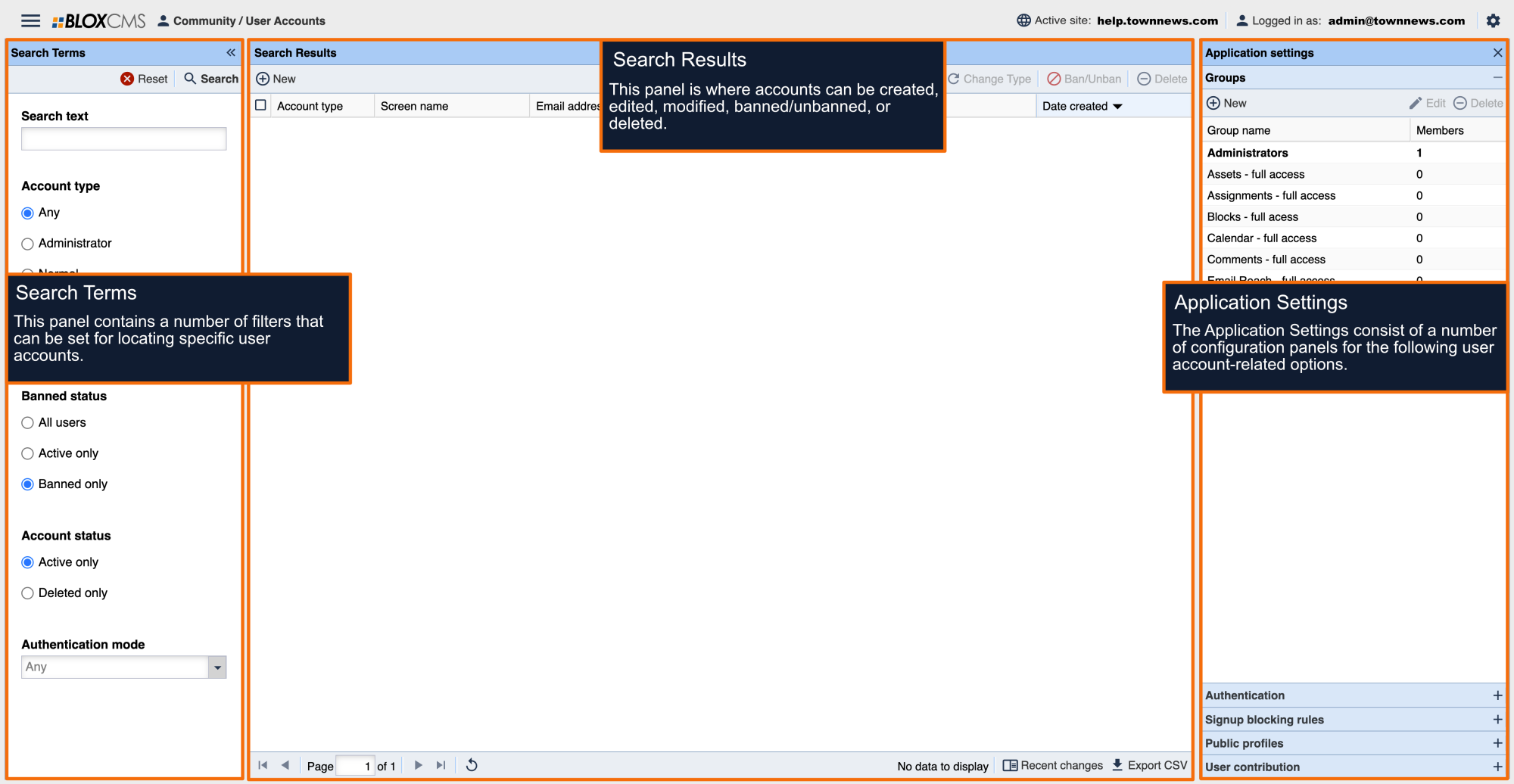
From the dropdown in the the upper left choose Community / User Accounts then click on the Application Setting button and select Signup blocking rules.
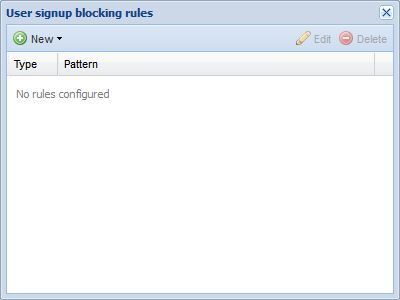
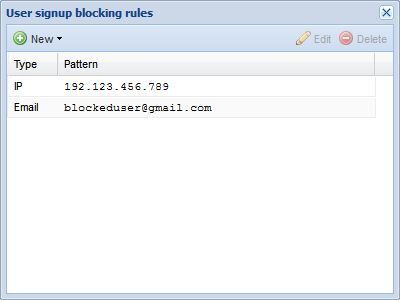
This will bring up the User Signup Blocking Rules window. The User Signup Blocking Rules window offers two methods of blocking front-end users from signing up for User Profiles: Block By IP Address or Block By Email Address. The User Signup Blocking Rules window displays all of the IP and Email Addresses of users that have been blocked from User Profile signup.
Blocking by IP Address
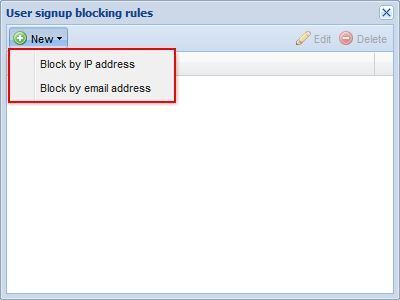
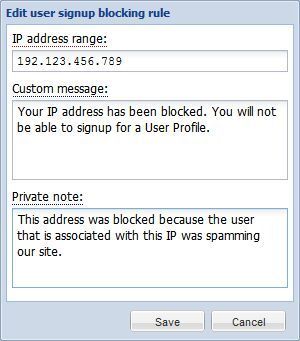
To block by IP address, select the + New button, and then select the Block By IP Address option from the dropdown menu. This will open an Edit User Signup Blocking Rule window where we can enter our blocking patterns.
IP Address Range: A single IP address or range of addresses in the CIDR notation. This field is required.
Custom Message: Optional custom message to display to users blocked by this rule. When a blocked user attempts to signup on the front-end, a custom message will display information relating to why the user was blocked.
Private Note: Optional private note visible only to admins.
When your IP address blocking pattern has been setup, select the Save button to finalize your pattern.
Block by Email Address
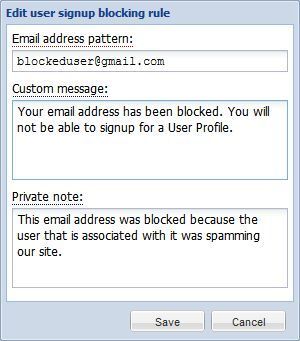
To block by email address, select the + New button, and then select the Block By Email Address option from the dropdown menu. This will open an Edit User Signup Blocking Rule window where we can enter our blocking patterns.
Email Address Rule: Rule to check the user's email address against. An asterick (*) is a wildcard which matches any number of characters. This field is required.
Custom Message: Optional custom message to display to users blocked by this rule. When a blocked user attempts to signup on the front-end, a custom message will display information relating to why the user was blocked.
Private note: Optional private note visible only to admins.
When your email address blocking pattern has been setup, select the Save button to finalize your Rule.
Note: A User's Account is tied to their email address. If a User has their account blocked, they can still log into their Dashboard. If they try to change their email address, they will receive an error message (Customized per the Administrator) denying them the ability to change it.
Editing/Deleting Blocking Rules
A blocking pattern can easily be edited by either double-clicking on the blocking pattern, or selecting the pattern, and then selecting the Edit button.
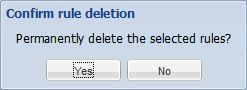
To remove a blocking pattern, select the pattern, and then select the Delete button. You will be prompted to verify the deletion within the Confirm Rule Deletion window. Select the Yes button to finalize your decision.