What are Pinned Assets?
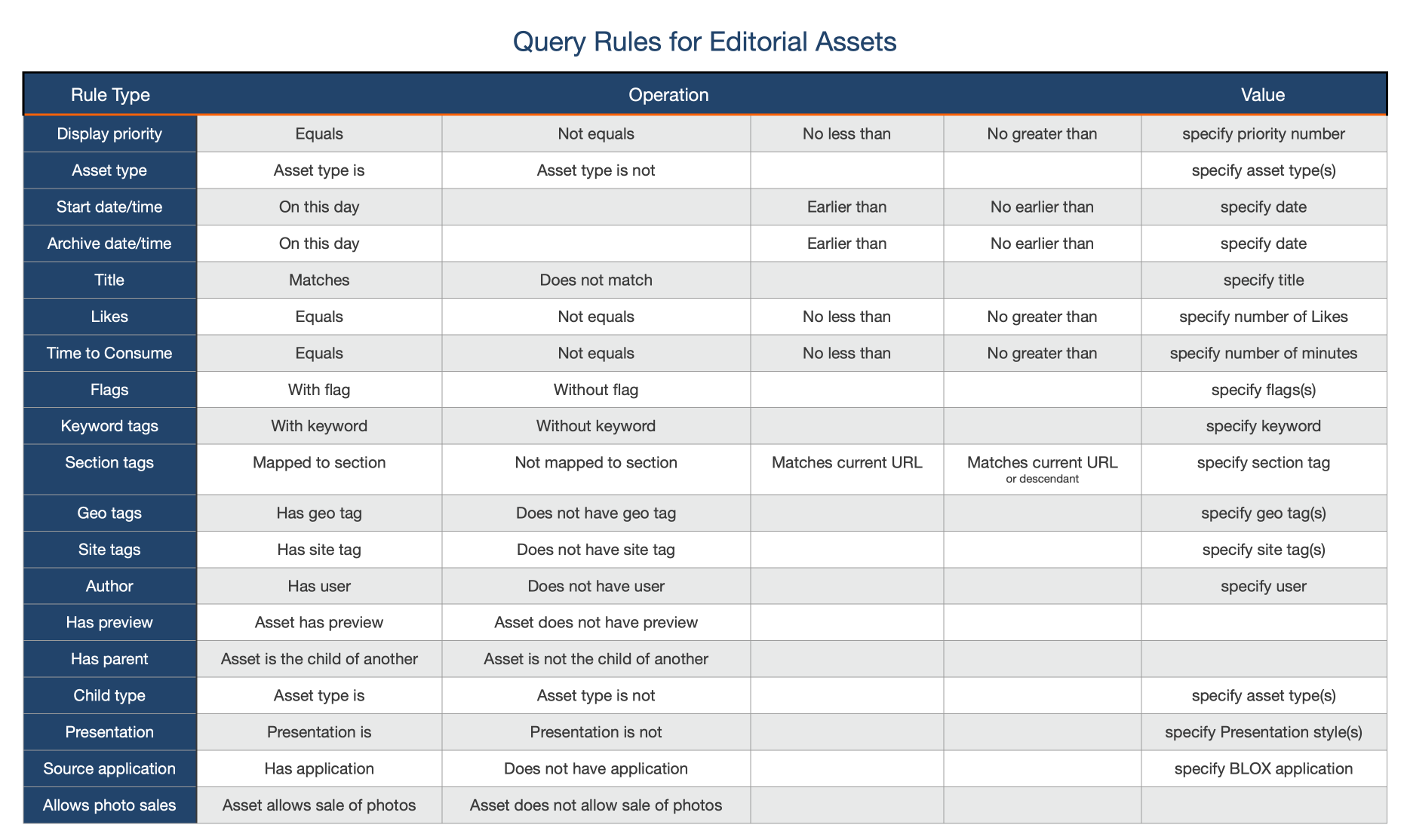
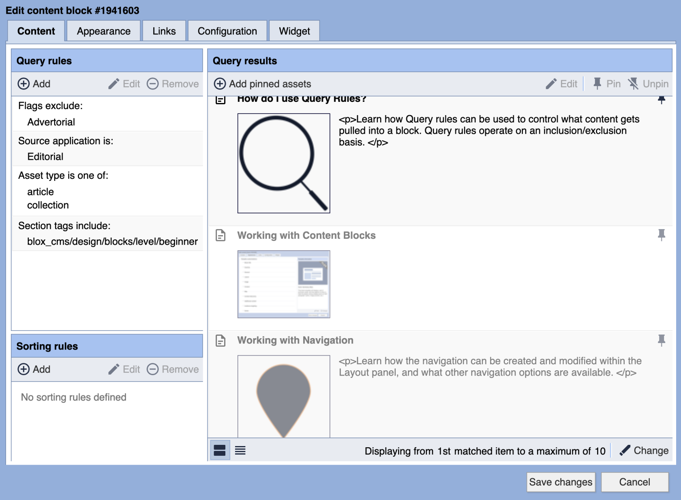
Most non-static blocks are designed to in pull content based on defined Query Rules, but assets can be manually added to completely bypass these rules. This is known as "pinning" an asset.
How to pin an asset
To pin an asset, select +Add pinned assets from the toolbar.
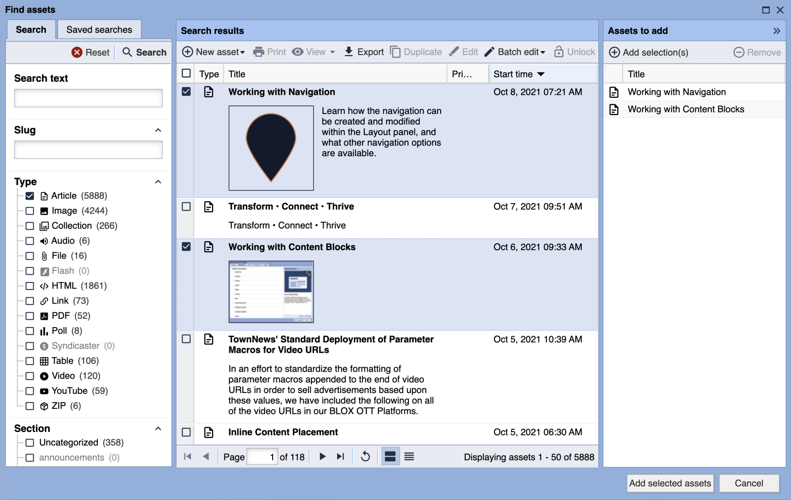
Next, use the search tools to locate the asset or assets that you'd like to pin to the block. Multiple search queries may be completed within a single "Find assets" search session by selecting the asset(s) that you'd like pinned and then selecting +Add selection(s) from within the Assets to add panel, along the right-hand side.
If you're satisfied with your selection(s), select the Add Selected assets option along the bottom. If you'd like to include additional assets, in addition to the ones added from the initial search query, simply complete a new search. The originally-selected assets will remain within the Assets to add panel until the Add Selected assets option has been chosen below.
Schedule unpinning
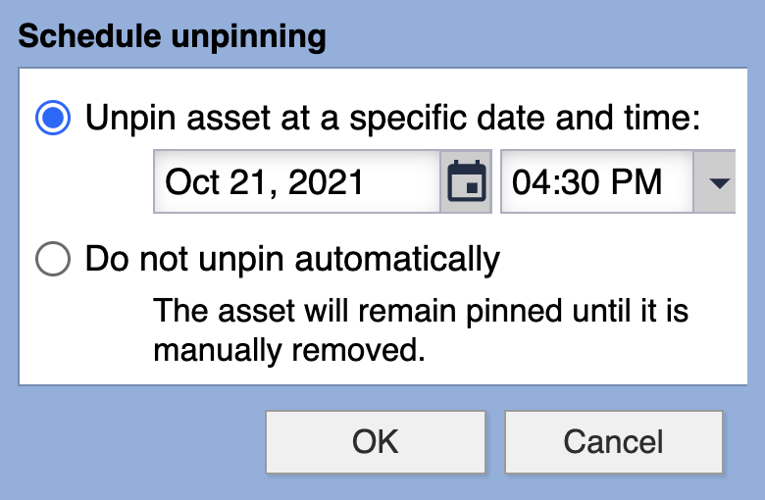
By default, assets pinned to a block will remain pinned indefinitely unless they're manually unpinned. This can be accomplished by selecting the asset(s) and then choosing the Unpin option within the toolbar. Assets may also be scheduled to be unpinned. This can be effective for instances when you'd like content to appear at the top of a block for a foreseen period of time.
To schedule unpinning, right-click on the asset(s) and then select the Schedule Unpinning option.