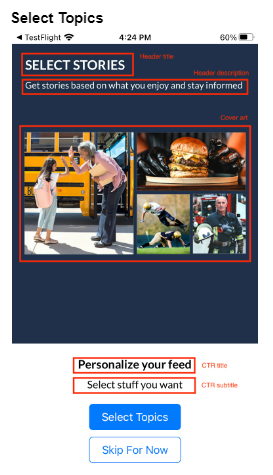
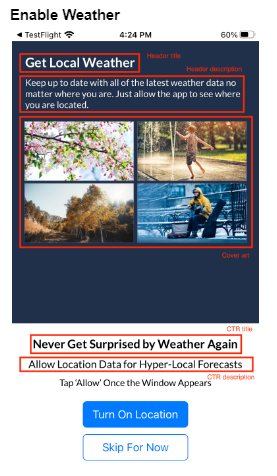
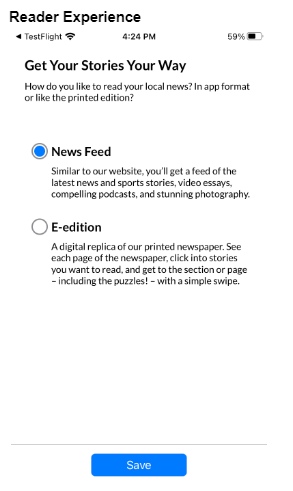
Optionally we provide an onboarding flow which shows on the initial install of the app or the first open after updating to the native version. This onboarding flow offers five configurable views for login/subscription, notifications, “Your Stories”, weather, and unique “reading experience”. The copy and artwork associated with these views are configurable with AppMan under “Navigation”.
How to turn on the onboarding flow
- Go to AppMan and select your app’s profile.
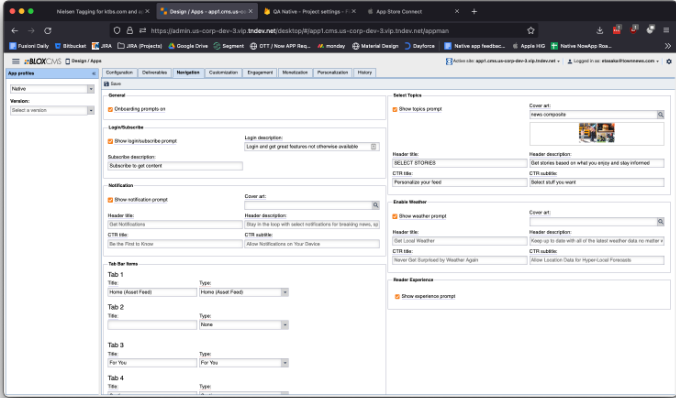
- Click “Navigation” from the tab bar. You will see sections for each onboarding prompt type.
- “General” allows you to completely turn off the onboarding prompts. The other five sections allow you to turn on or off each prompt in the flow and configure the copy and art associated with each. Each prompt has a default value if nothing is entered.
- The “Weather Experience” prompt should not be turned on. If it is, Apple will reject the app due to the app not using location services for a feature.
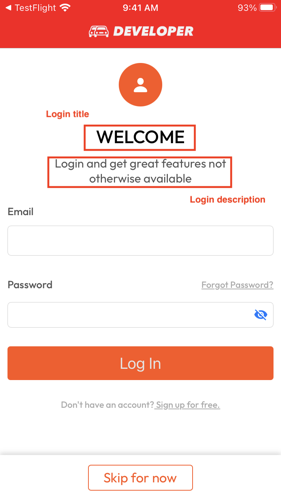
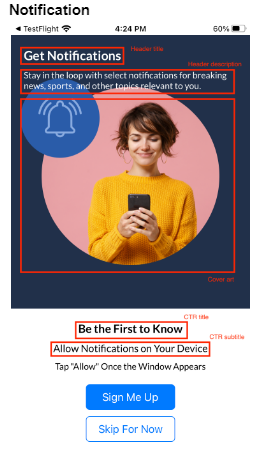
- Below you can see each prompt and what field matches to elements on the prompt.
- When finished make sure to click “Save” and navigate back to “Configuration” and either “Make live” or “Publish version”.
NOTE: If saving fails you need to select the second dropdown under “Tab 2” and change it to “None”. This will make the text field disappear and allow saving.