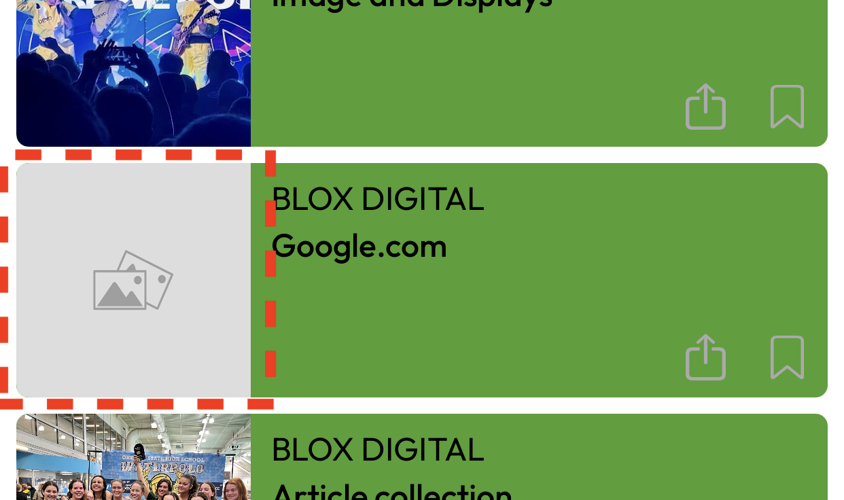
An example NX Mobile App highlighting an entry displaying without a cover image and without a default image placeholder set.
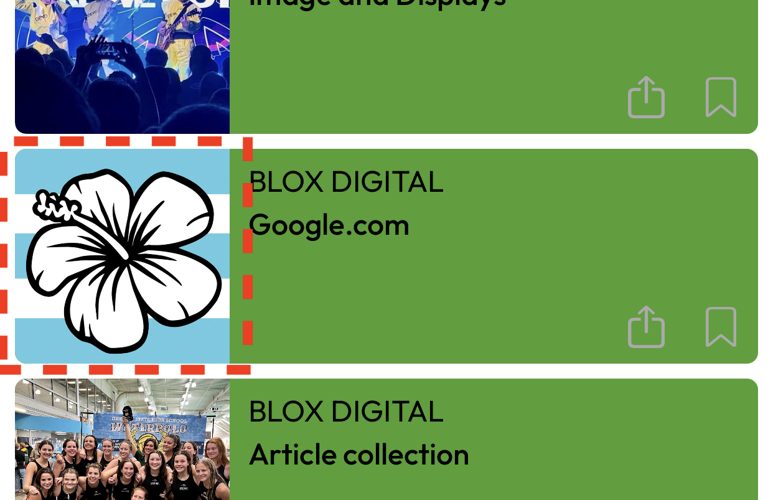
An example NX Mobile App highlighting an entry displaying without a cover image and with a default image placeholder set.
How do I change the image placeholder in my BLOX Mobile NX app?
Updated
Prerequisites
Minimum app version: 213.0
Overview
The BLOX Mobile NX app has many different block types to use to display content. Many of the block options have an image view which allows a cover image to be displayed alongside the asset headline. In some rare cases, content will appear within these blocks without a cover image (typically due to improper configuration). By default, we use a generic placeholder image to fill in the space. You have the option to upload an image to better represent your Mobile NX app and branding.
An example NX Mobile App highlighting an entry displaying without a cover image and without a default image placeholder set.
To change the image placeholder, follow the directions below.
Open Design/Blocks
Navigate to the endpoint powering your app
📝This will typically be under “nowapp” or “native”.
On the right side, scroll down to ‘Default image upload’
Upload three images (JPEG or PNG) for the different screen/device sizes
Default image upload large (2048x1152)
Default image upload medium (380x422)
Default image upload small (750x422)
Click ‘Save changes’
Wait 5-10 minutes for cache to clear
For any asset without a cover image presented in a block with image view, the uploaded placeholder will be used.
An example NX Mobile App highlighting an entry displaying without a cover image and with a default image placeholder set.