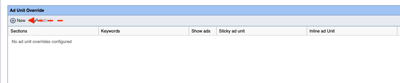
The ‘Article Page Ad Settings’ section of the ‘Monetization’ tab highlighting the “+ New” option within ‘Ad Unit Override’ table as called out in step 3 and 4.
How to override the article detail ad unit based on section or keyword
Overview
If you wish to use a unique GAM ad tag to display banner ads on assets in specific sections or tagged with a keyword then you will need to create an override. When the app opens an article detail page, it will look at the sections and keywords associated with the selected asset. If the asset has one or more sections and/or keywords then it will use the ad unit set in the override settings. This feature can also be used to remove ads from assets with a specific section or keyword.
Prerequisites
This guide requires BLOX Mobile NX version 1.11.0 (App version 215.0)
How to
To override the article detail ad unit based on section or keywork, follow the directions below.
The ‘Article Page Ad Settings’ section of the ‘Monetization’ tab highlighting the “+ New” option within ‘Ad Unit Override’ table as called out in step 3 and 4.
Open the ‘Apps’ Application from the Application Navigation menu
Click the ‘Monetization’ tab
Scroll down to the section labeled ‘Article Page Ad Settings’ and find the table labeled ‘Ad Unit Override’
Click the button labeled “+ New” to open the override modal.
Enter a section and/or keyword to create an override. Clicking the “Sections” field will show the Sections list from the Asset Catalog. For keywords, they can be entered manually in. Multiple keywords can be entered, separated by a comma.
📝When the app opens an asset in an article detail view it will check the asset’s sections and keywords against the created overrides. The overrides are processed in terms of order they appear in the table.
💡If you wish to show no ads then “Show Ads” should be unchecked. The other fields match the same functionality as the “default” fields in an article detail view.
Click “Save” when finished to create an override.
📝Any override shown in the table will be used within the app. If you wish to remove one then select the row in the table and click “Delete” in the top right of the table.
Click “Save” at the top of the bar when finished
Click the ‘Configuration’ tab
Click ‘Publish version’
Click ‘Make live’
📝After clicking ‘Make live’, the overrides will be used to evaluate article detail view ad placements. This could take up to 15 minutes to reflect in the app due to cache.