The App Store page is an important page for new users discovering your app. Whether they find your app through a link on your website or find it organically through search a user will almost always see the app page before downloading. One piece of the app store page and search results page is the ratings and reviews which gives your app a 1-5 star rating based on feedback from those who have downloaded your app. Users can rate your app through the App Store or be prompted to review within the app.
The app ratings should be thought of similar to a Yelp review. Only very upset or very happy customers will visit the page directly (and unprompted) to leave a review. Those who enjoy the app may never go back to the App Store page but will continue to open and engage with your app daily. By asking for them directly while in the app, you can capture a better understanding of your user-base and help to improve downloads and engagement.
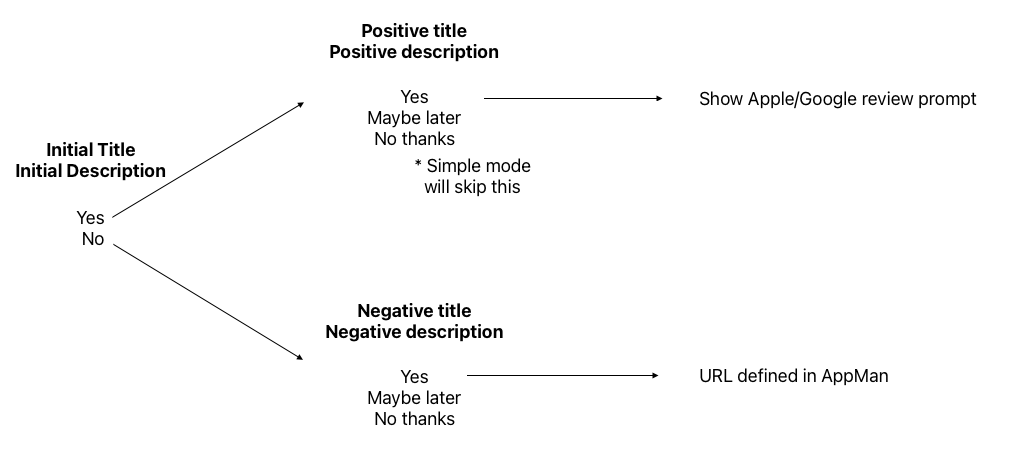
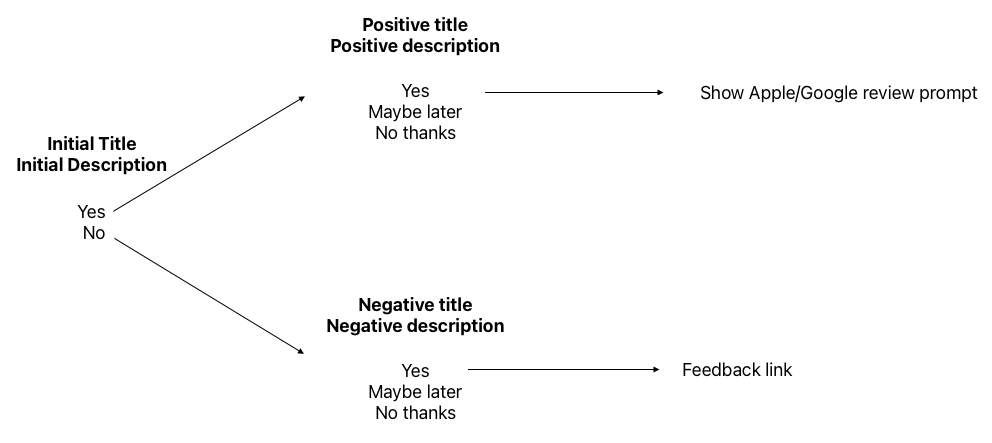
Beginning in version 1.5.0 of NX mobile, a prompt to ask users for feedback can be configured to appear based on predetermined actions. Some of these actions include reading an e-edition, reading an article, or sharing an asset. These actions were chosen because they result in a completed desired action by the user. Once the prompt appears the user will be shown a yes or no question, configured by you. Depending on whether the user responds “Yes” or “No” they will be taken on the positive or negative response track asking for either an app store review or feedback via an online form (set up and managed by you).
Configuration
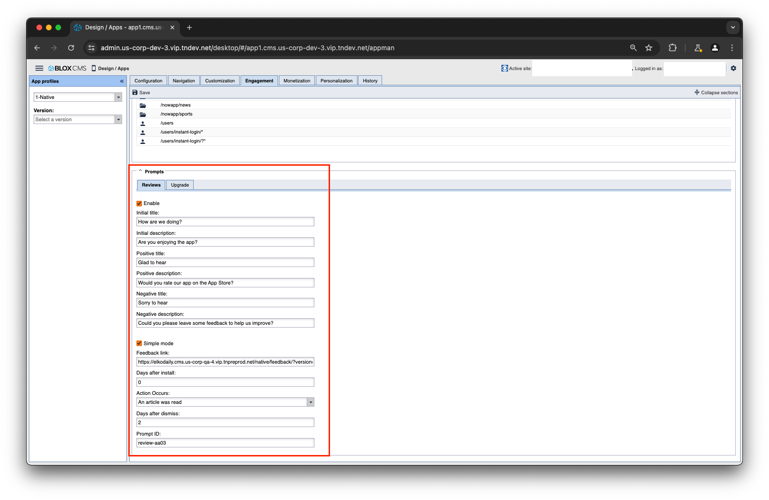
The review prompt can be configured within AppMan by navigating to the “Engagement” tab in your app’s profile. Please note only one review prompt can be configured at a time. We do not currently offer A/B testing of prompt configurations. However you are able to set a “Prompt ID” which will be provided alongside each Google Analytics 4 event sent as part of this feature to measure the effectiveness of your messaging and configuration. It should also be noted a user can only leave a review through the App/Play Store every 365 days. The following sections will explain each part of the review prompt flow. Please note each field needs to be filled in.
Days after install, Action Occurs, Days after dismiss
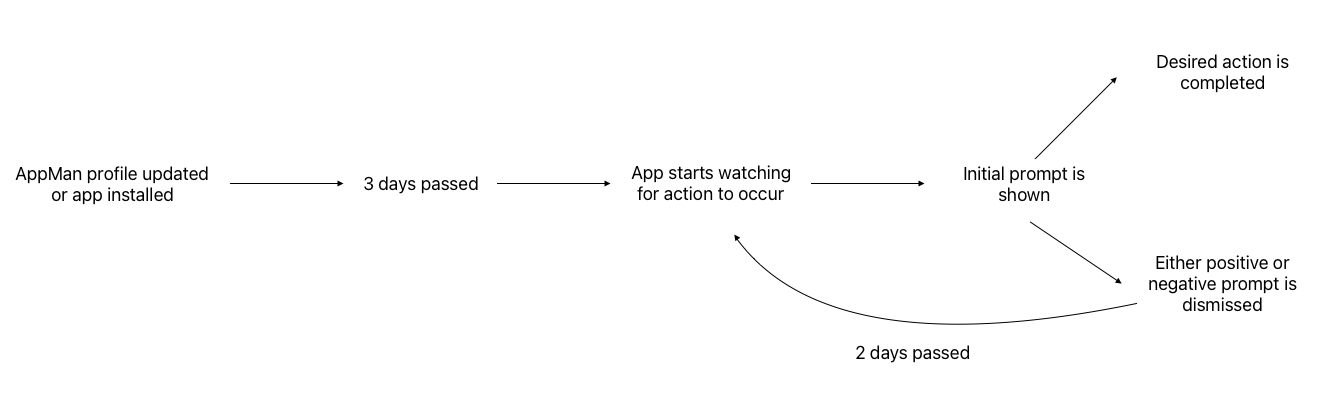
The first thing to think about when configuring the review prompt is how long after the user installs do you want to ask them for feedback and what action do you want them to take for the prompt to appear. As a recommendation, we suggest waiting at least 3 days before showing the prompt. If you do it too early the user may not be completely familiar with the app to give a positive review. If you do it too late you may lose some users who have dropped off the app who can offer valuable feedback. Please note “Days after install” includes users who have the app and update the 1.5.0 (or newer) version and not only new users. Their “days” will begin upon update and will not retroactively date back from their initial install date.
Once you have entered the number of days you will need to select an action to occur. We offer many different actions from user state, editorial, and social events.
- App opens
- An article was read
- A video was completed
- An e-Edition was read
- App opened via push notification
- User logged in
- User subscribed
- Asset was shared
All of these events should trigger a positive experience for the user. Our intent is to capture positive feedback from the user and turn this into a ratings or positive review within the App Store.
In some cases, the user may be too busy or does not want to leave a review at this time. The secondary prompts (triggered by the “Yes” or “No” on the initial prompt) both have a “Remind me later” option. If they select this option then the prompt will close. The app will then wait days equal to the value provided in “Days after dismiss” to begin looking for the selected action to occur again. For example, if “Days after install” is set to 3 and “Days after dismiss” is set to 2 then after the user installs the app for the first time the app will wait 3 days. Once the 3 days have passed the app will begin looking for the action set in “Action occurs” to happen. Immediately after the action occurs and the user has either paged back (article to feed) or the action has finished (sharing) the prompt will show. If the user then responds with “Remind me later” the app will wait another 2 days then begin looking for the action to occur again. Please note the same messaging and total number of prompts are shown whether or not it is the user’s first or third time seeing the prompt.
In the case the user dismisses the prompt a second time then the same amount of days for “Days after dismiss” will be observed then the app will begin watching for the action again.
Initial Prompt
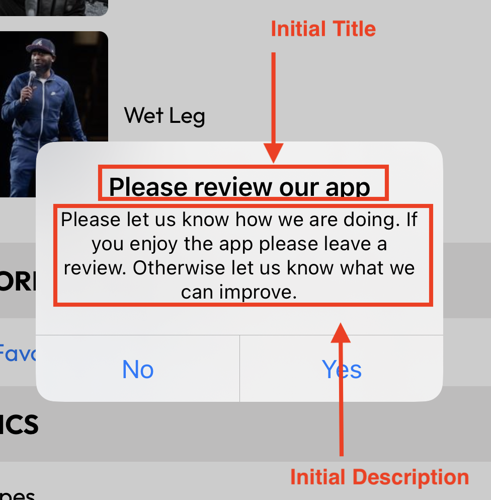
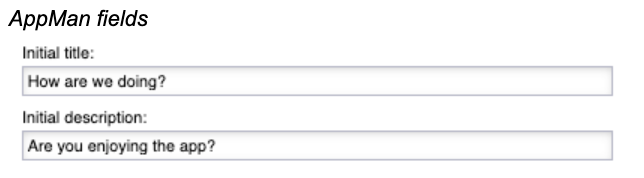
The initial prompt is meant to gauge the user’s feelings about your app. This should be a yes or no question which will express a positive or negative impression of the app. Some examples could be “Are you enjoying this app?”, “Would you recommend this app to a friend?”, “Has your experience using our app been positive?”. You should not use questions where “Yes” would yield a negative response such as “Does our app need work?”.
Prompt within the app
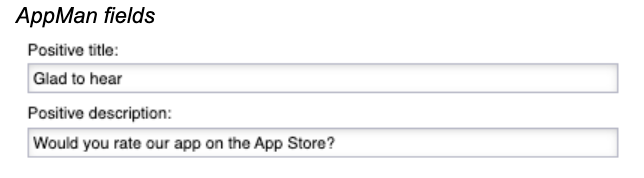
AppMan fields
Positive and negative prompts
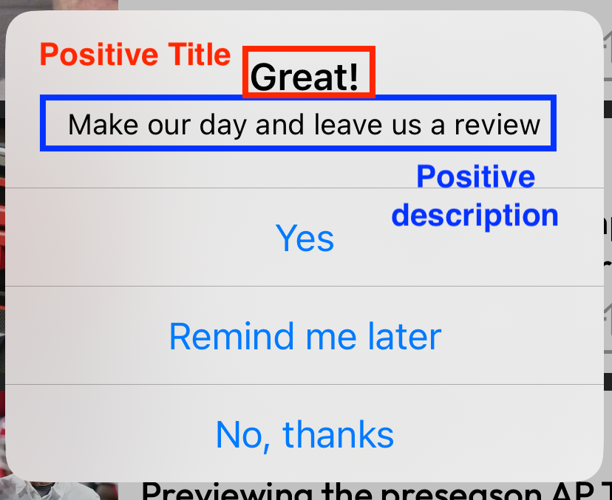
A “Yes” response will push the user into the positive flow where they will be asked if they are willing to leave a review. If “Yes” then they will be shown the system prompt to review. Once the user has reviewed the app they will be unable to leave another review for 365 days (as per Apple/Google’s rules).
Positive prompt example
AppMan fields
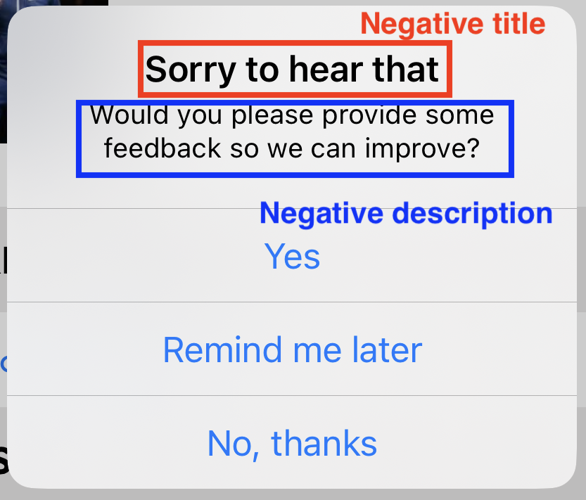
A “No” response will push the user into the negative flow where they will be asked if they are willing to leave feedback. If “Yes” then they will be pushed into a URL, set by you, where they can leave feedback. The URL should lead to a form or feedback sheet on a BLOX form, Google sheet, or another form vendor. You can add information to your form about the device and user by using URL macros. See the “Feedback link” section for more information.
Negative prompt example
AppMan fields
Feedback Link
In the 1.6.0 NX Mobile release, we allow URL macros to be added to the feedback link provided in AppMan. If you wish to know more about the user who is leaving feedback such as their device type or user account ID (if logged in) you can add macros to the end of the form URL. When added the app will replace the macros with the expected device or account information (if available). It will be the responsibility of the form owner to take these URL parameters and place them into the form to be submitted.
In most cases, if a value is not found it will appear blank.
| Name | Description | Macro | Possible Value |
| Domain ID | The identifier number/name of the device | {DEVICE_ID} | 7308d80a-9203-493a-9a44-c8c1d3cba5db |
| Bundle ID | App’s bundle ID | {APP_BUNDLE} | com.townnews.news |
| App Name | App’s name | {APP_NAME} | St. Louis Post Dispatch |
| App Domain | Domain powering the app | {APP_DOMAIN} | journalstar.com |
| App Version | App bundle’s version | {APP_VERSION} | 209.2 |
| User account ID | Logged in user’s UUID from BLOX or 0 if not logged in | {LOGGED_IN_USER_ID} | c714c426-ba6e-11eb-9ec7-5390c5f58bea |
| Device Operating System | The device’s operating system version prepended with platform | {OS_VERSION} | iOS 17.2 |
| Device User Agent | User agent of device | {DEVICE_USER_AGENT} | Mozilla/5.0%20(iPhone;%20CPU%20iPhone%20OS%2013_3_1%20like Mac OS X)%20AppleWebKit/605.1.15%20(KHTML,%20like%20Gecko)%20Mobile/15E148%20WebViewApp%20Townnews-Now/4.0 |
| Advertising identifier | Advertising identifier from the device. Sometimes this is called IDFA, Google Advertiser ID, or ADID | {AD_IDENTIFIER} | 97f9e0d535f683a8651731ce5846d4bb |
| Platform name | Name of device’s platform | {PLATFORM} | ios |
| IFA type | Type of advertising identifier; This is specific to the platform. | {IFA_TYPE} | adid or idfa |
Simple Mode
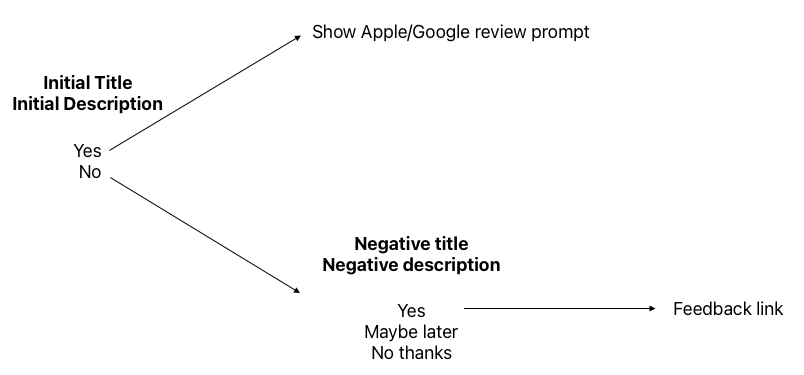
If you wish to simplify the review flow and move positive users to review quicker then you can activate “Simple Mode”. When activated the secondary positive prompt will be removed from the flow. This means if the user responds “Yes” to the initial prompt they will be shown the App Store review prompt immediately instead of being asked if they wish to leave a review. One thing to keep in mind is you will have one less prompt to “prime” the user before they leave a review.
Analytics
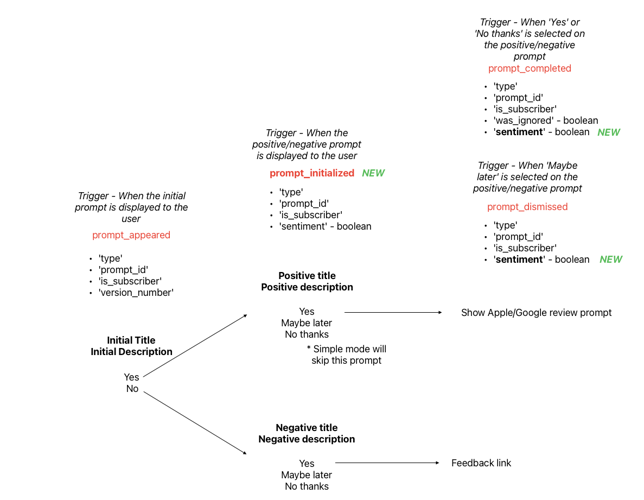
The chart below shows the path for a user who has entered the review prompt flow. Please note the events may differ if ‘Simple mode’ is turned on.
Event Trigger | Event Name | Parameters | Version Requirement |
When the prompt is displayed to the user | promp_appeared | type: review or upgrade prompt_id: ID string defined in AppMan under Prompt ID is_subscriber: Boolean equal to the logged in user's subscription status (False if the user is not logged in) sentiment: Boolean equal to the user's response from the initial prompt, where true is Positive or "Yes" - version_number: The installed app's version number
| 213.00 |
When the positive/negative prompt is displayed to the user | prompt_initialized | type: review or upgrade prompt_id: ID string defined in AppMan under Prompt ID is_subscriber: Boolean equal to the logged in user's subscription status (False if the user is not logged in) sentiment: Boolean equal to the user's response from the initial prompt, where true is Positive or "Yes"
| 213.00 |
When 'Yes' or 'No' is selected on the positive/negative prompt | prompt_completed | type: review or upgrade prompt_id: ID string defined in AppMan under Prompt ID is_subscriber: Boolean equal to the logged in user's subscription status (False if the user is not logged in) - was_ignored: False if user clicks 'No' to the feedback prompt
sentiment: Boolean equal to the user's response from the initial prompt, where true is Positive or "Yes"
| 213.00 |
When "Maybe later" is selected on the positive/negative prompt | prompt_dismissed | type: review or upgrade prompt_id: ID string defined in AppMan under Prompt ID is_subscriber: Boolean equal to the logged in user's subscription status (False if the user is not logged in) sentiment: Boolean equal to the user's response from the initial prompt, where true is Positive or "Yes"
| 213.00 |
Why is there no event for ‘Apple/Google’ review prompt completed or feedback link completed?
Both Apple and Google do not communicate whether or not the user has completed or has seen the review prompt. Because of this lack of information we do not attempt to guess whether or not the user has interacted with the review prompt. We simply note when our user flow has ended.
If the user navigates to the feedback link provided in AppMan, this event happens within a webkit view. The app does not log activity within a webview. These should be logged from the webpage’s analytics.