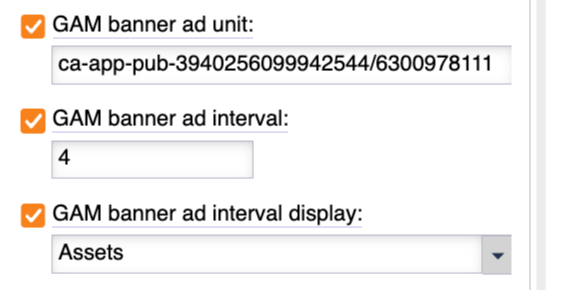
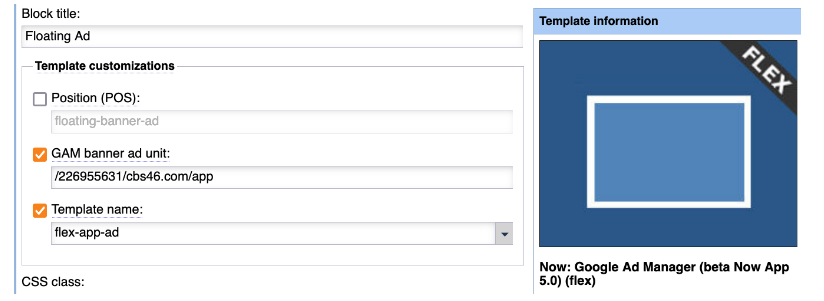
The ‘Advertising’ section of the ‘Page customizations’ showing the ‘GAM banner ad unit’, ‘GAM banner ad interval’, and ‘GAM banner ad interval display’ fields as called out in steps 5 and 6.
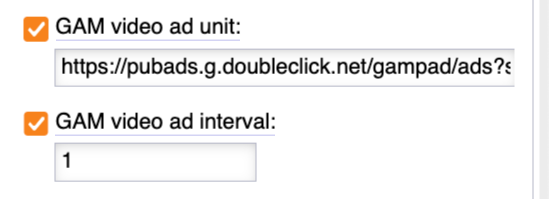
The ‘Advertising’ section of the ‘Page customizations’ showing the ‘GAM video ad unit’ and ‘GAM video ad interval’ fields as called out in step 5.
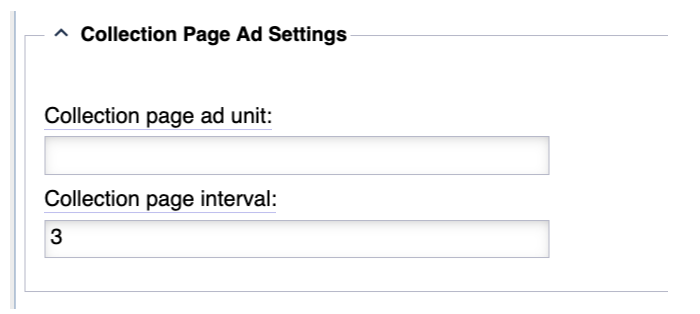
The ‘Collection Ad Settings’ section of the ‘Monetization’ tab showing the ‘Collection page ad unit’ and ‘Collection page interval’ fields as called out in step 5.
Native App Advertising
Splash screen (non GAM)
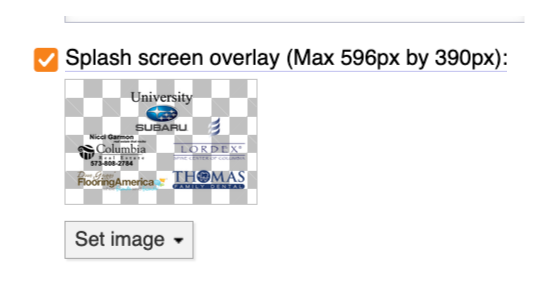
The native app allows for a splash screen static image to show at roughly the bottom third of the screen at launch. This image is shown immediately after the configuration file is retrieved from the backend and will remain on screen until the app is finished loading. At this time, there is no way to adjust the amount of time this image appears on screen.
The maximum size (and recommended size) for this image is 596px by 390px and changing the image does not require a rebuild of the app. This means you can change the image whenever you need to. To remove the ad, uncheck the box next to the title label when an image is uploaded. After 5-10 minutes you should see the image removed from your app. The ad tag for this placement is found in Blocks customization under “Advertising”. If there is no tag added then this placement will not work. There is no fallback tag used.
Splash screen (launch ad)
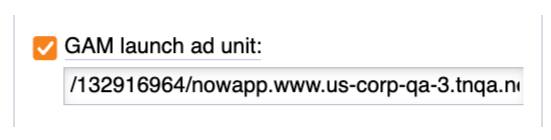
The native app uses the new “App open” ad. This is the required advertisement style by Google for apps which show an advertisement at launch and before content is shown. If enabled, this ad placement will show immediately after the app is finished loading, and right before transitioning the reader to the initial view (typically home asset). The ad tag for this placement is found in Blocks customization under “Advertising”. If there is no tag added then this placement will not work. There is no fallback tag used.
Banner ads can be displayed on the asset feed. We offer many different options depending on how your asset feed is set up. The ad unit shown between assets allows for 300px x 200px, 320px x 50px, 300px x 50px advertisements. The ad units will all use the same tag controlled by the “GAM banner ad unit” field found in Blocks customization under “Advertising”. The logic of how ad units are shown between assets is controlled with the “GAM banner ad interval display” field also found in Blocks customization under “Advertising”.
The ‘Advertising’ section of the ‘Page customizations’ showing the ‘GAM banner ad unit’, ‘GAM banner ad interval’, and ‘GAM banner ad interval display’ fields as called out in steps 5 and 6.
Assets
If “GAM banner ad interval display” is set to “Assets” then ad units will be shown between assets and regardless of block set up. The number set in “GAM banner ad interval” will be the count for how many asset cards will be shown before an ad unit is placed. Every asset card is counted as 1 except for horizontal sliders, personalization blocks (continue watching, notifications, etc), and grid blocks (portrait, square, two-column) where the whole block is counted as 1.
Blocks
If “GAM banner ad interval display” is set to “Blocks” then ad units will be shown between blocks. The ad unit will appear at the end of the block before the count reaches the interval and before the title (if one is shown) of the counted block. For example, if the interval is 3 then the first ad unit would show at the end of the second block and before the third block’s title.
Manual placement
Manual placement allows for more flexibility but requires more set up. Manual mode allows you to mix both the “Blocks” and “Assets” modes. If “GAM banner ad interval display” is set to “Manual” then you are responsible for specifying where the ad units will appear. There are two options when using manual mode and either can be used or mixed and matched. The first is using the “Now: Google Ad Manager” block type. This is a block placed in your asset feed which requires a GAM banner ad unit tag. The tag provided will be used for this banner ad and only this banner ad. You can place as many of the “Now: Google Ad Manager” blocks in the asset feed but more than stacking them on top of each other or between blocks with fewer than five assets may result in performance lag.
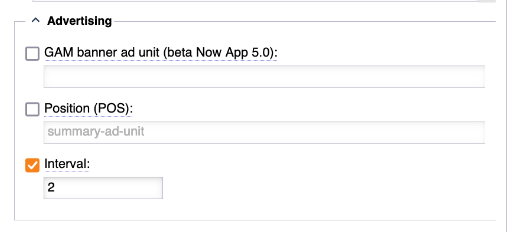
The second way of using manual mode is by overriding the block customization. If you click the “gear” icon on any “Now: Summary” block type and click “Appearance” you should see an option called “Advertising.” There will be two fields you need to provide information for: “GAM banner ad unit” and “Interval”. The ad unit tag provided will be used as the ad tag for the units between the assets controlled by the number entered in “Interval”.
NOTE: The “GAM banner ad unit” and “GAM banner ad interval:” found in the “Advertising” section of Blocks customization will not work if “GAM banner ad interval display” is set to “Manual”
Sticky ad
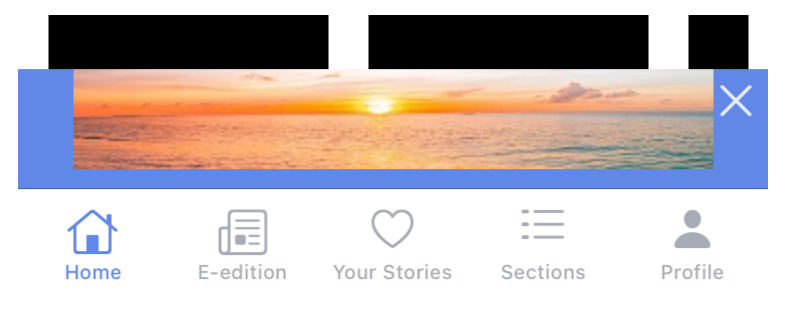
We offer sticky ad placements throughout the app. These are 300x50 ad placements which appear at the bottom of the screen and stay fixed to the bottom as the reader scrolls through the asset feed or through an article. The ad unit is dismissble with a small “x” shown next to the ad unit. The publisher has the option to customize it at a root level (by entering the ad unit at “/nowapp” or “/native”, depending on settings) or by overriding the root at a section level (example “/nowapp/sports”).
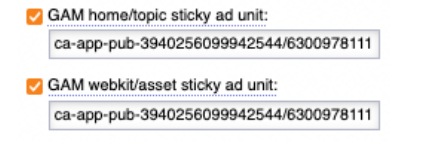
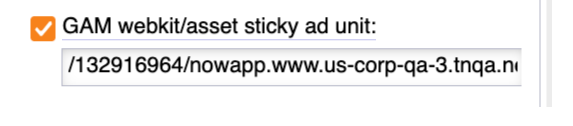
Each section from the blocks customization offers customization for the asset feed (GAM home/topic sticky ad unit) and for the article pages (GAM webkit/asset sticky ad unit). If you wish to have a sticky ad on the home asset feed but not on the section feeds then you will need to override the section by selecting the “GAM webkit/asset sticky ad unit” and not entering an ad unit.
Video assets
Native video assets played on multimedia player cards or within the video player or video assets played within article pages support VAST tag ad units. You can override the VAST tag per section (different from the root) or can set one VAST tag for the whole app from the root native setup. The frequency of when a video ad should be attempted to be played is controlled using the “GAM video ad interval”. The app will keep a global count and fire an ad call based on the count. For example, if the interval is set to 2 and a viewer clicks on a video inline on the home feed then there will be no ad call made. If the viewer then clicks on an article detail page and starts to play a video child asset then an ad call will be made because the count is now two. After the ad call is made the count is reset.
The ‘Advertising’ section of the ‘Page customizations’ showing the ‘GAM video ad unit’ and ‘GAM video ad interval’ fields as called out in step 5.
At this time, there is no way to set a specific VAST tag to an asset.
Article page
Inline (0.3.1 version and newer)
To make changes to the ad settings within native article pages, you will use a combination of fields found in AppMan and Blocks Customizations. Any field called “Inline __” will be found in AppMan. The rest of the fields are found in Blocks Customizations.
The ad tag used for the ad units shown on article pages between paragraphs and assets will follow this priority:
AppMan ad unit (Inline article ad unit)
Section override - Article sticky ad unit (GAM webkit/asset sticky ad unit)
Section override - Topic sticky ad unit (GAM home/topic sticky ad unit)
Root - Article sticky ad unit (GAM webkit/asset sticky ad unit)
Root - Topic sticky ad unit (GAM home/topic sticky ad unit)
Banner ad unit (GAM banner ad unit)
To turn off advertisements between paragraphs and assets, set “Inline article frequency type”, in AppMan, to “Paragraph” and “Inline article interval” to 0. The ad unit(s) allows for 300px x 200px, 320px x 50px, 300px x 50px advertisements.
There are two options for customizing the frequency of the ad units between paragraph and assets on asset detail pages. The first is by setting “Inline article frequency type” to “Advanced automatic”. This will use the same logic as the setting on the web where a character count is used to determine when an ad unit should be placed.
Tablet - 1st ad after 580 characters, next ad every 1164 characters thereafter.
Mobile - 1st ad after 580 characters, next ad every 776 characters thereafter.
The second option is setting “Inline article frequency type” to “Paragraph”. This allows for you to set the frequency based on paragraph count, regardless of how many words or characters make up each paragraph. This requires an interval number in the “Inline article interval” field.
Inline (0.3.0 version and older)
The tag provided in Banner ad unit (GAM banner ad unit), from Blocks customization, is used. There is an ad unit inserted after every fifth (5) paragraph.
Sticky
There is an optional sticky ad unit shown at the bottom of the screen of the article detail pages. This ad unit has an option for the reader to dismiss it after loading. The ad unit is controlled by the “GAM webkit/asset sticky ad unit” field found in Blocks customization. The ad unit will only accept 320px x 50px advertisements.
Interstitial
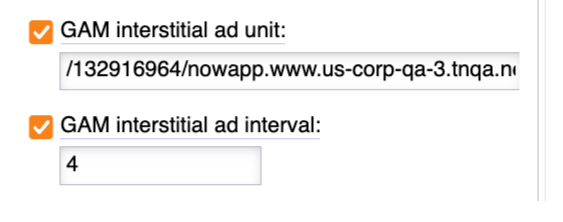
Interstitial ads will appear between N number of page views. The difference between Native and NowApp is the trigger. Native does not allow readers to swipe between articles. Instead we offer article suggestions at the bottom of the article based on additional stories within the block, recently published, and keywords. Because of this difference, we use an article view count as the trigger for interstitial. For example, assuming the interstitial count is at 2, if a reader reads one article, leaves the article, returns back to the home asset feed, then navigates to the “Sports” section and clicks an article the reader will see an interstitial ad.
Collection page
Inline (0.3.1 version and newer)
The ‘Collection Ad Settings’ section of the ‘Monetization’ tab showing the ‘Collection page ad unit’ and ‘Collection page interval’ fields as called out in step 5.
Sticky
Sticky ads appear the same way on collection pages as they do on article detail pages.
Interstitial
Interstitial ads appear the same way on collection pages as they do on article detail pages.