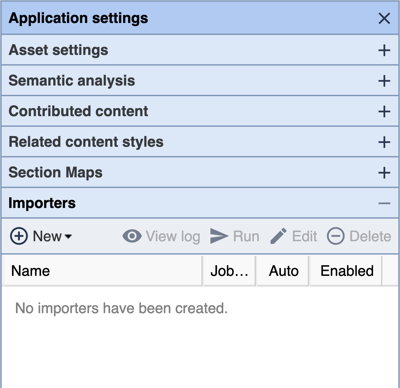
This is where you set up Content Importers for content coming in via email and how it is to be managed. Each Content Importer is setup for a Specific type of content and uses a dedicated email address for each type (e.g. News Section w/ Breaking Flag using an email account 'breakingnews@bloxcms.com'). When content comes in via email, it creates an Article Asset. Attachments are added as Child Assets and the Subject becomes the Headline. The email text (including signature) becomes the Body Copy.
To setup a new Content Importer, click on New and select Post-by-Email Service. This opens the Create a New Post-by-Email Service window.
- Give This Importer a Name - Enter a descriptive name, perhaps the publication Section that articles coming into that importer will be assigned to, whether or not they'll all have a Breaking flag, or if they'll publish immediately.
- Email Provider Supports Sub-addressing - If you select this option, you'll be prompted to enter the Unique Email Address that will only be used for this Content Importer. Click on Continue. The Configure Post-by-Email window opens.
- IMPORT SOURCE:
- Email Address - This is encrypted and displayed at the top (this is where you would change it or can send invitations - multiple recipients can be entered with a comma separating the email addresses). Also see, How Do I Send Assets via Email?
- Account Type - Set the type of email account this will be (e.g. POP3, IMAP, etc.).
- Host - Enter Host address (e.g. pop3.bloxcms.com).
- Username - Enter the username.
- Password - Enter the password.
- Mailbox - Set the mailbox you want content to come into (e.g. Inbox).
- INCOMING ASSETS:
- Place into Section(s) - Click Add to select the Section Tag of your site this content should use.
- Publish Immediately - If checked, all Assets will be published to the site immediately. Otherwise, the Do Not Publish checkbox will be checked on every Asset imported.
- Flag as Breaking - This is the only Flag available for this imported content. If checked, the Breaking Flag will be checked and the content will show up on your site where Breaking content is placed. Otherwise, no flags are used.
- OTHER SETTINGS:
- Importer Name - The name you entered for this importer can be changed here.
- Disable Importer - Check this to disable this importer from pulling in content.
- Email Provider Does Not Support Sub-addressing - If you are unsure or are using a Corporate Exchange Server, select this option. When you click Continue, you'll go through the same steps above as you do for Supported Sub-sections.
Other Content Importer options are:
- View Log - This is a running log of all mail activity with a date and time stamp for each entry.
- Run - Manually run the log instead of waiting for the system to run the job at the default interval.
- Edit - Use this to make changes to a Content Importer or Send Invitations, or Add/Remove Sections.
- Delete - This removes/deletes a Content Importer you no longer need or want. To disable it, use the Edit option and go to Other Settings and check Disable Importer. You will be prompted to confirm deleting the importer.