Overview
Vertical Photo Galleries is a Presentation option within Collection Assets. When this is used in conjunction with the In-Story Automatic ads, where each image is treated as if it were a paragraph in an article. This ad is designed to be mobile-first and optimized for touch scrolling on a smartphone or other devices. This increases the viewability of the ads.
Viewability
Viewability is the measurement of an Ad that is actually viewable on a website and not the count of an impression of the Ad when a page loads. There are new initiatives in the Marketing and Advertising industry that are developing ways to target the viewability of ads. BLOX CMS, has developed ad types that help sites meet the viewability standards being set. In addition to the ad types, we are adding in technology that manages how a page loads regarding speed, lazy loading, and the ability to target ads that are actually being viewed whether on desktop or mobile.
Implementation Steps
NOTE: These steps assume images/photos are already uploaded to BLOX CMS.
- Create the Collection Asset
- Make sure you select the Vertical Gallery presentation option at the bottom of the Collection Asset editing window.
Create Ad & Assign Ad Region
- Create the Ad.
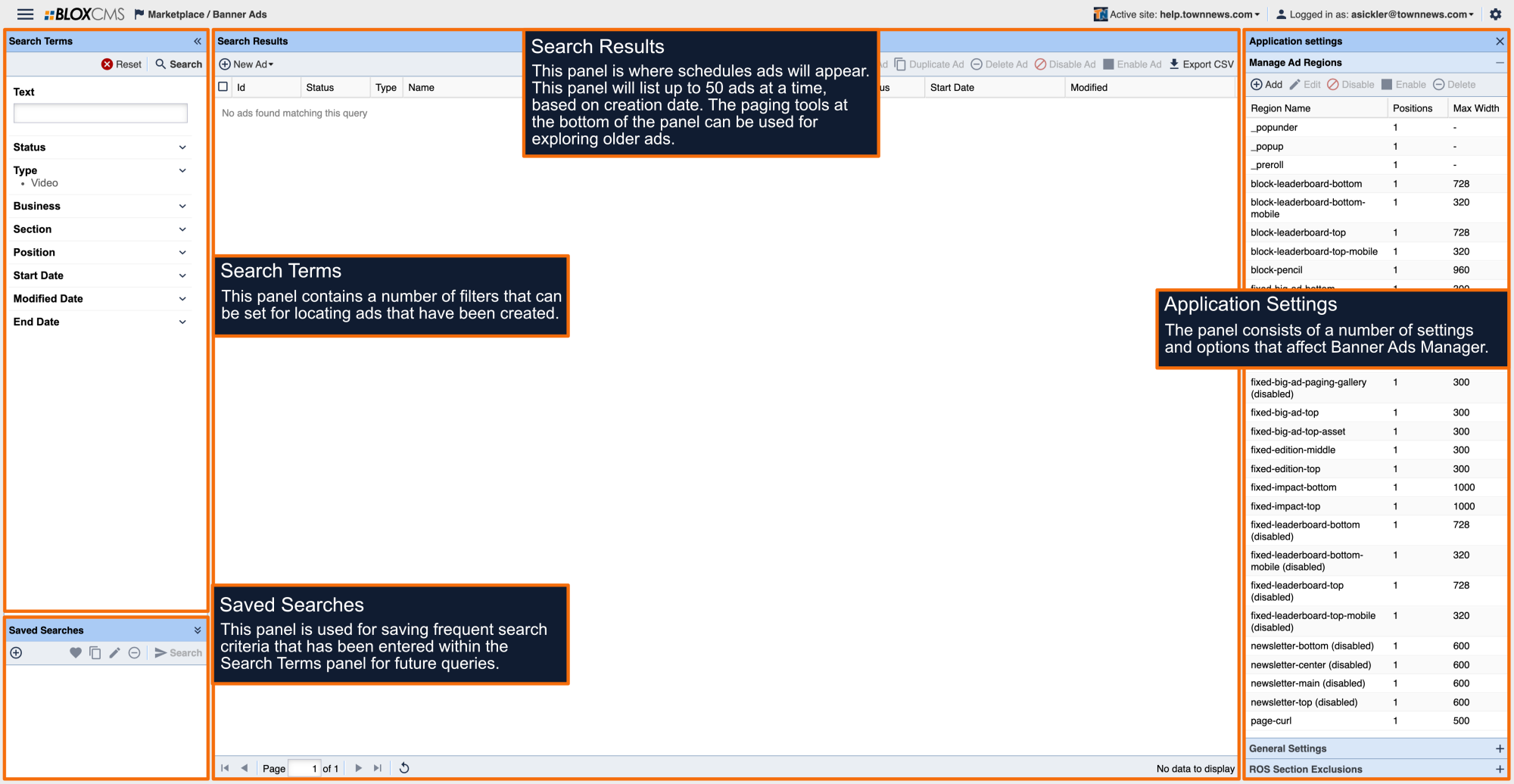
- Assign the Ad Region using the 'fixed-big-ad-gallery' ad region.
NOTE: For information on Banner Ads and assigning an Ad Region (ad position), click here.
Set Gallery Ad Insert Setting
- In the upper left corner, navigate to Design / Blocks (opens the Blocks application).
- Double click on the URL you want to open and layout to edit (this typically is the root URL).
- On the far right, expand Page Customizations.
- Scroll to Advertising and click to expand the Advertising properties.
- Scroll to the Photo Gallery Ad Insert setting and enter a numeric value. This determines the number of photos viewed before the ad is revealed. In a Vertical Photo Gallery, this setting can be more frequent (ie: 1 or 2) but its suggested the ads are thinner so they don't take up too much real estate (space) which can be detrimental to the user experience.
- Click on Save Changes at the top of Page Customizations.
- Click on Save Layout Changes on the Map Layout toolbar.