Overview
The Sticky Article Aside ad block uses a Utility Region to position the ad on the Left Rail of a Story if Related Content is added to the Article Asset (Story). Ads work particularly well in this region because the stickiness of the region, places the ad next to the article and keeps it there, improving Viewability. This ad block (ad) will follow the user down the page if there is enough content.
Related content includes:
- Sibling Assets
- Links
- Maps
- Photo w/ Mugshot Presentation
- Content Related assets such as If You Go
If a Left Rail does not exist, this ad will not appear.
Implementation Steps
NOTE: These steps assume the ad has been created and ready for placement.
Enable The Utility Region
- In the upper left corner, navigate to Design / Blocks (application opens).
- In the URL's, double click on the URL to open and lay it out.
- On the far right, next to Page Customizations, expand Utility Regions.
- Expand Article Only and click on Sticky Article Aside (this reveals the fields for the utility region).
Select/Create Ad Block Type
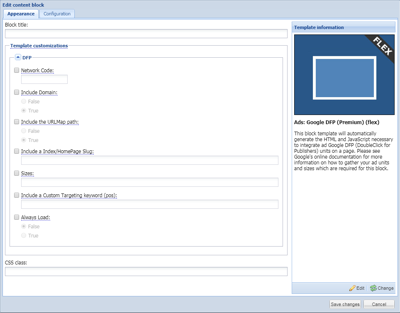
To capture Viewability metrics, you'll need to be using Google's DoubleClick For Publishers (GAM). Select the GAM Ad Block you need. To do so:
WARENING: Viewability metrics are only recorded using GAM Premium. While other GAM Ad Blocks can be used for Ads, GAM Premium is the one you need to use for Viewability.
- While in Design / Blocks, on the left, in the Blocks Library, click on New and select Content Block. The Blocks open.
- On the left, click on Static block type.
- Select the Ad Block you need and click on Continue on the lower right corner.
- Under Appearance, fill in the applicable information in the GAM fields.
- Under Configuration, add to the Name something more descriptive about the block.
- Click on Save (block closes and is not available in the Block Library).
Add The Ad Block in Utility Region
- While in Design / Blocks, find the Ad Block you created and select it.
- In the Article Only / Sticky Article Aside Utility Region you have enabled, click on the Add button towards the bottom. This positions the ad in the Utility Region. You can also left click on the Ad Block and drag it over to the Utility Region.
Save Layout Changes
- Once you've placed the Ad Block, on the Block Layout Map toolbar, click on Save Block Layout Changes.
Resources