NOTE: The Skyline Utility Region will not appear on Business Listings that are Featured and set to Storefront or are using the Marketplace Skin.
A Storefront display can be applied to a standard Marketplace Business Directory listing, transforming the listing into a page similar to a custom website or online 'storefront'. Available features in the storefront display are:
- Custom Masthead
- Custom Navigation Buttons
- Social Networking Links
- Custom Color Scheme
- Content Specific To The Business Listing
- Image Assets, Photo Galleries, Collections on Landing Page
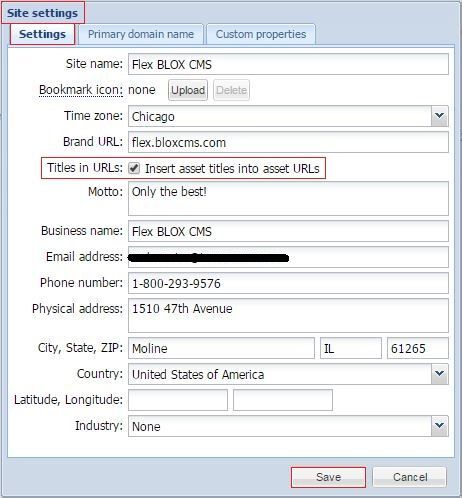
NOTE: In order to use Storefronts, you must have the Titles in URLs checkbox checked in Settings / Site.
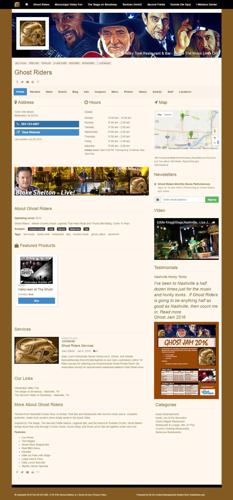
You can set a Business Listing as a Storefront. The result is a default Storefront presentation. It will create the Storefront as a separate page within your website. That means it will have your site's header, navigation menu, and footer content. Here is an example:
You can also Fully Customize The Storefront by following the process to set up the business listing as a Storefront and doing some more work to fully customize it. Using the Storefront interface in the Business listing, is where you customize the Business. Here is an example of a fully customized Storefront:
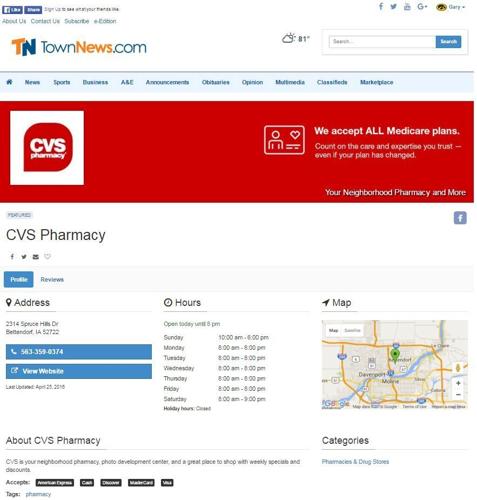
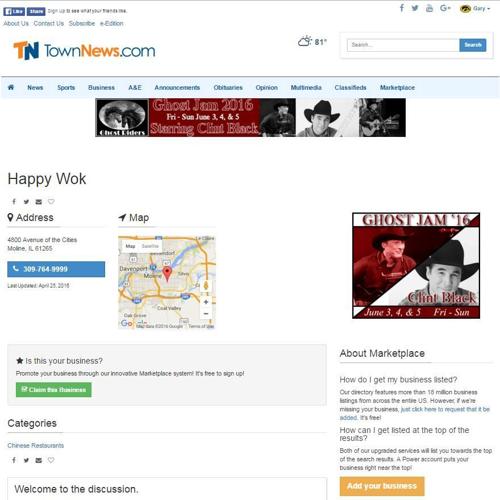
Without a Storefront, all the customer gets is a standard, free, Business Listing. Here is an example:
Business Asset Requirements For Storefronts
- The Titles in URLs checkbox must be checked in Settings / Site.
- The Business Must Be Claimed by the Business Owner.
- At least one Category must be set.
- The Flag "Featured" must be checked.
- The Business must have a Featured (for Flex) of 25 or higher. There are no restrictions on how high the number can be.
- Custom Properties Required
- Name = business_upsell / Value = true
- If using a Masthead Image, a Logo is required
Logo Information: A logo is not required. However, if you plan to use a Masthead Image, then a logo is required (to set up a Masthead Image, click here). To add a Logo, under Information, click on Upload. A dialogue box opens up for you to browse your network server or computer to select the logo image. It is positioned in the upper left corner of the front end of the Storefront. It will appear with a white border around it.
- The Masthead Image must be 1170 pixels wide by 250 pixels in height (250 is suggested but can be any size). The Masthead Image Asset itself, must use the Masthead Presentation.
NOTE: By default, the business logo will appear in the upper right corner covering up a portion of the Masthead image (if being used). To hide that, under Other / Custom Properties, click Add, enter Name = hide_logo | Value = true.
NOTE: There is a Default Masthead Image that will appear (via the Google Map API ID) which will generate a Street View of the business. You can also use the 'pano-url' custom property' to use an alternative street view masthead image.
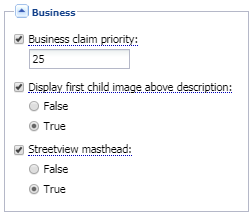
To use the Street View default image, on the Marketplace / URL Settings (Page Customizations), set the Street View Masthead property to True and Save your changes.
NOTE: If the customer has their own website, and want the Featured Listing to link to their website, under Other / Custom Properties, add in the property Name = promote_website | Value = true. It will link to the address listed in the business listing under Info.