What is Livefyre?
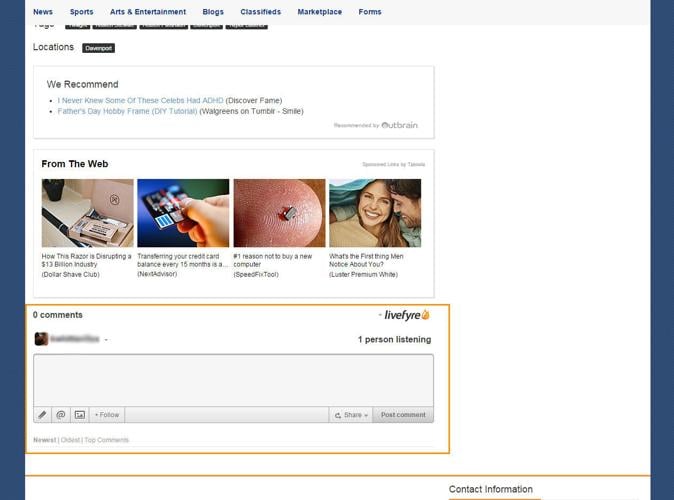
Livefyre is a third party product that enables user comments on your site. A comment box will appear at the end of the asset. In order to use Livefyre, you must have an Adobe Enterprise Manager (AEM) account with Livefyre and obtain a Site ID and Site Key.
Livefyre has been acquired by Adobe. Significant changes are being applied to Livefyre. TownNews will stop supporting the Free Version of Livefyre because Adobe is cancelling that service. Instead, they are integrating the Enterprise Version with their Adobe Experience Manager software. TownNews software integration for the Enterprise Version does not change. For more information on Livefyre for Adobe Experience Manager (AEM), Click Here.
Setting up Livefyre ID
All of the information for account and setup information is on LiveFyre's site (for that information, Click Here). Obtain your Livefyre ID, then proceed.
BLOX CMS Setup
- Double click to open and layout the Root URL for your site. If you want to allow LiveFyre Commenting to only specific URL's, then perform these steps on those specific URL's.
- On the far right, expand Page Customizations.
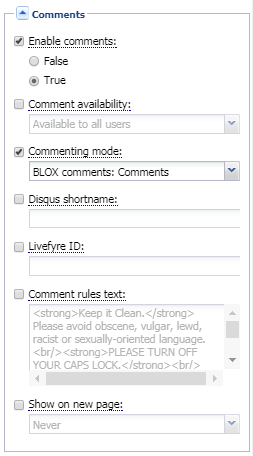
- Navigate to Comments and expand it.
- Enable Comments: customization should be set to True.
- Commenting Mode: Select LiveFyre. You may need to check the box to make this active before you can change it. Check the box next to the LiveFyre ID field and enter the LiveFyre ID that was created on the Livefyre site.
- LiveFyre ID: Enter the ID generated for your LiveFyre account.
- Save Changes and Reload Layout: When you're done, Save your changes.
NOTE: You may need to wait a few minutes for the new commenting style to appear. You will know when it has switched over because the commenting rules will be gone, and there will be LiveFyre information across the bottom.
Enterprise Edition
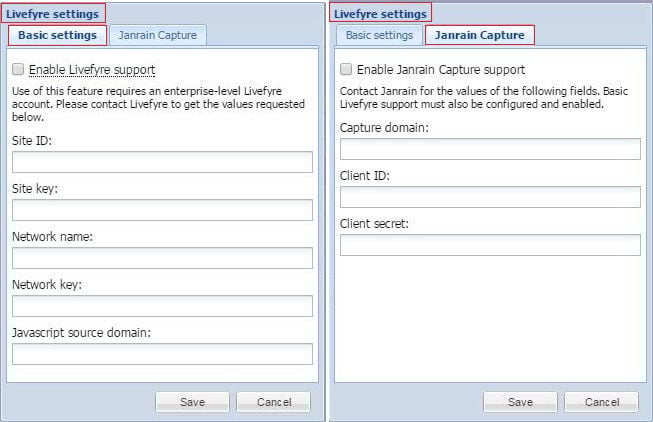
LiveFyre offers Enterprise Integration Services and BLOXCMS has a LiveFyre setting to make it live on your site. The Enterprise Edition or Custom Development is done strictly with Livefyre. Once that is done, you can use BLOXCMS to complete the integration.
You will need the following Basic Settings information from LiveFyre:
- Site ID
- Site Key
- Network Name
- Network Key
- Javascript Source Domain
- Check 'Enable LiveFyre Support' under Basic Settings
If you are going to use Janrain Capture, you'll need the following information:
- Capture Domain
- Client ID
- Client Secret
- Check 'Enable Janrain Capture Support' under Janrain Capture