BLOX CMS collects performance data on all business listings you have on your site. Using a Webservice API Key and an Auxiliary ID is a secure way for a third party provider to access the Analytics BLOX collects and reformats the data into a user-friendly format.
NOTE: Analytics are currently pulled for all featured Business Listings and Classifieds. Others will be added in the future.
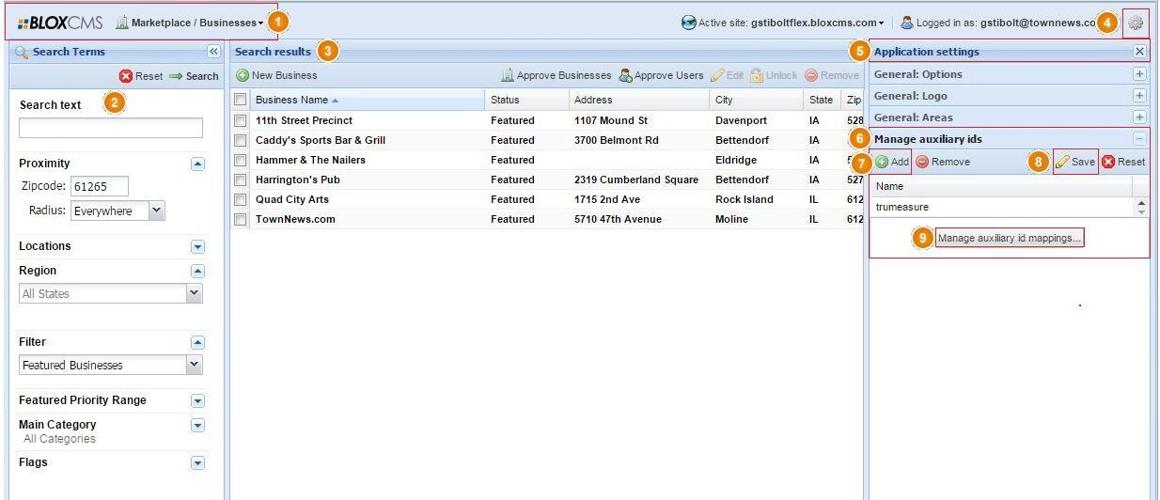
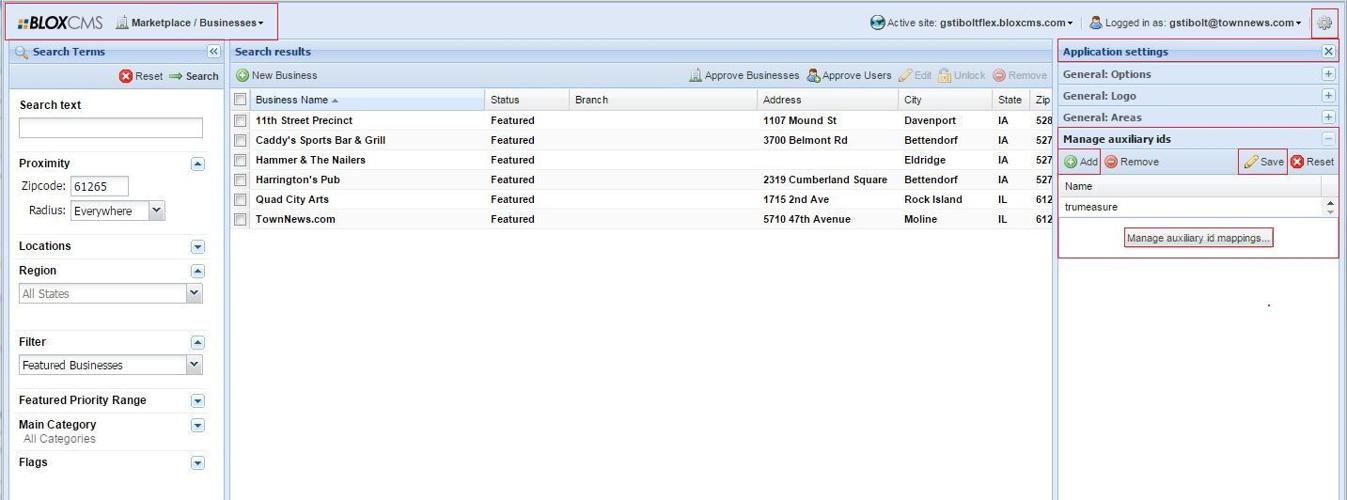
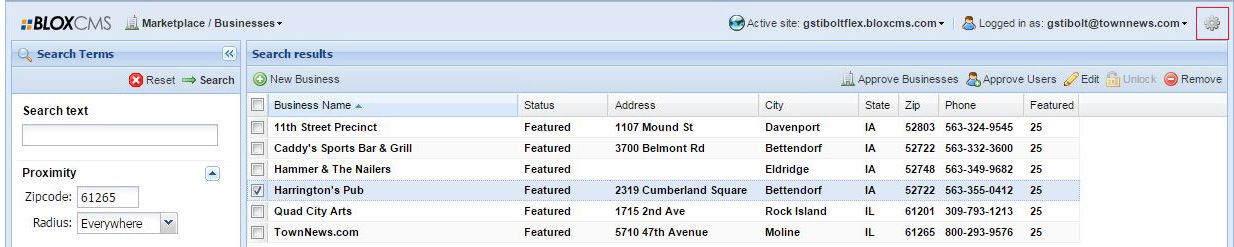
1 BLOX Desktop: Confirm you're in Marketplace / Businesses.
2 Search: Set search criteria to find applicable businesses.
3 Search Results: All businesses will be listed based on your search criteria.
4 Gear Icon: By clicking on it, Businesses Application Settings opens up.
5 Application Settings: There is an accordion style menu. Any property or value set in here applies to all businesses.
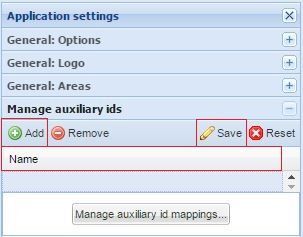
6 Manage Auxiliary ID's: All third party Auxiliary ID's (Aux ID's) that are being used by any business, need to be added here.
7 Add: Click to add a new Auxiliary ID Provider name here.
8 Save: After you add a Auxiliary ID Provider and/or Edit or Delete, click Save.
9 Manage Auxiliary ID Mappings: This is where you will Map (integrate) an Auxiliary ID Provider to a Business ID.
Analytics Integration
How we integrate analytics with a third party vendor is done using the BLOX Webservice Keys. Integrating a Webservice API Key and an Auxiliary ID with a third party vendor (Auxiliary ID Provider) is an effective way of collecting performance data of a business listing on your site. BLOX has a default Auxiliary ID but it also supports third party Auxiliary ID's like TruMeasure and Clickfuel. In order to obtain an Auxiliary ID, you'll need to create a Webservice Key and Secret, provide that to your Auxiliary ID Provider. They'll generate an Auxiliary ID for you. Then you add it to your BLOX system. Then you can Map that key to a business. Your Auxiliary ID Provider will have a User Dashboard for you to log into and pull the Analytics for any business listing you have using that provider.
WebService API Keys
A Webservice API Key and Secret is required by your Auxiliary ID Provider. When done, provide the Webservice API Key and Secret to your vendor and they will generate an Auxiliary ID for you. Once you have it, you can add it to your BLOX system (see Adding An Auxiliary ID below). Then you Map the Auxiliary ID to a Business ID. That's all you have to do. Auxiliary ID Providers access your Webservice API Keys and establish a connection (secured) to pull BLOX Analytics on a daily basis.
Adding An Auxiliary ID
In order for you to add a Webservice API Key, you have to have the Auxilary ID Provider (e.g. TruMeasure and Clickfuel) added into your Businesses Admin Application Settings.
From the dropdown in the the upper left choose Marketplace / Businesses.
In the upper right corner, click on the 'gear' icon. This opens the Application Settings.
 Navigate to Manage Auxiliary ID's in the accordion menu.
Click on Add and type in the Auxiliary ID Provider's Name.
Mapping An Auxiliary ID API Key To a Business ID
 The third party analytic service provider you are working with will provide you with an Auxiliary ID. If you need assistance, contact your TownNews Regional Sales Representative or contact our Customer Support Center (800-293-9576) for assistance.
From the dropdown in the the upper left choose Marketplace / Businesses.
In the upper right corner, click on the 'gear' icon. This opens the Application Settings.
Navigate to Manage Auxiliary ID's in the accordion menu.
 Click on Manage Auxiliary ID Mappings.
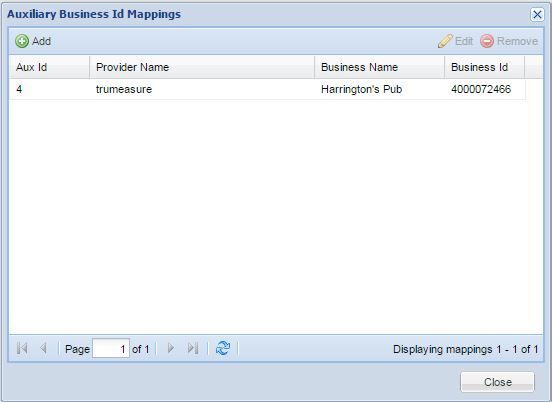
This opens the Auxiliary Business ID Mappings window. Click on Add.
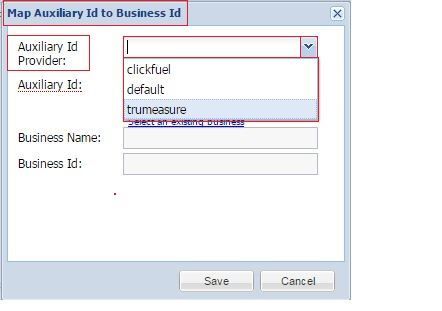
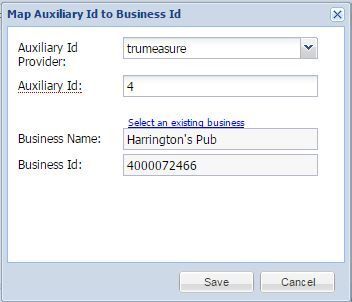
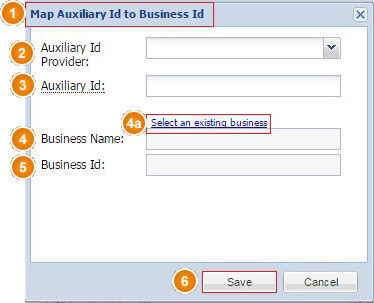
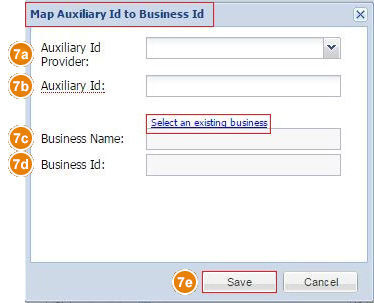
 This opens the Map Auxiliary ID To Business ID window.
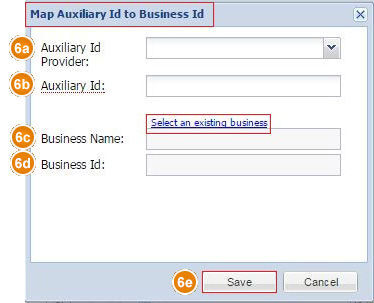
7a Auxiliary ID Provider: Click on the dropdown arrow and select the Auxiliary ID Provider that is in your system (e.g. TruMeasure, Clickfuel). If the Provider is not listed, click here and enter it.
7b Auxiliary ID: Copy/Paste or type in the Auxiliary ID that was provided to you.
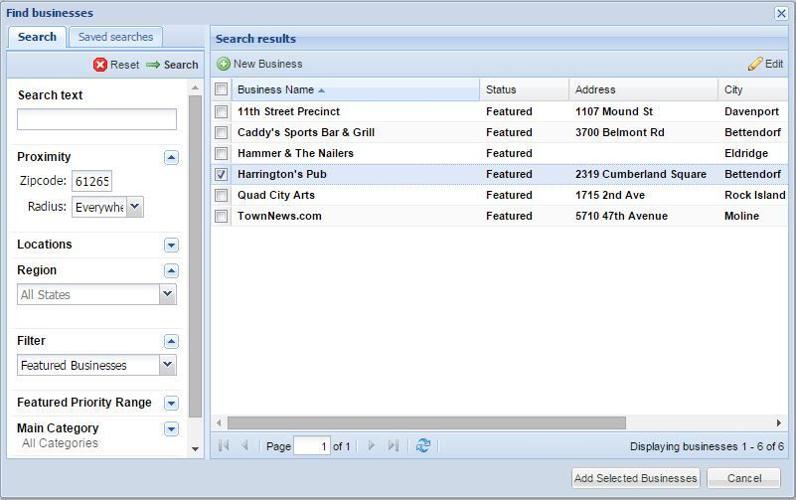
7c Business Name: To enter the name of the business, click on the link just above it (Select an existing business).
7d Business ID: By selecting the business in the previous step, the Business ID will automatically populate into this field.
7e Save: Click Save when done.
 The Map Auxiliary ID To Business ID window will close and return you to the Auxiliary Business ID Mappings window. Confirm your business is listed with the correct Auxiliary ID Provider.