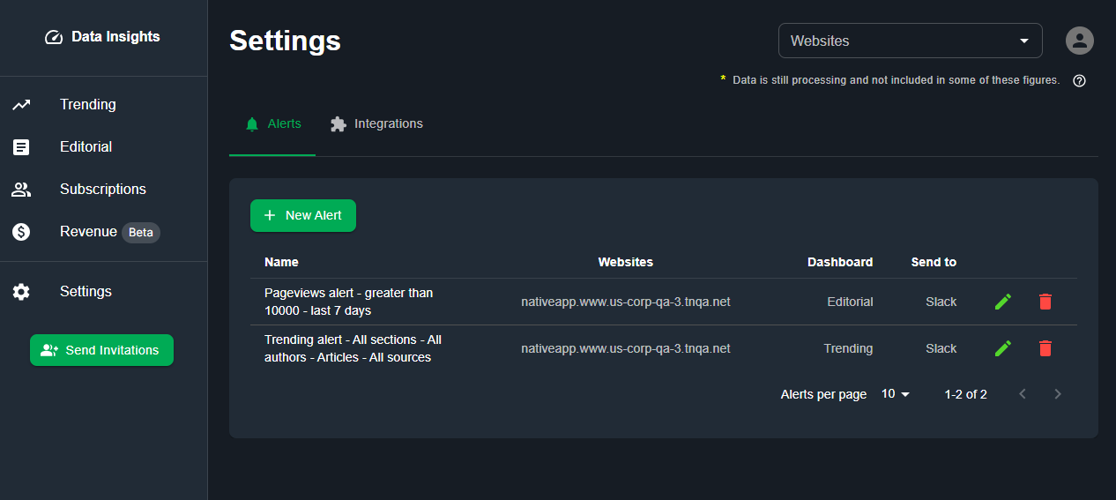
The Settings page in Data Insights showing a couple of Alerts that have been created.
Example Use Cases
Set an alert for when any new article is ‘On Fire’ in the Trending Dashboard.
Set an alert for when your team hits a certain number of pageviews within a given time frame.
Set an alert to monitor your GAM eCPM (effective Cost Per Mille, representing the estimated earnings of an ad per 1,000 impressions.) staying above a threshold.
Alerts
The Alerts tab within the Settings page allows users to configure and manage alerts for the Trending Dashboard or any KPI available within Data Insights. Alerts may also be created directly from the Trending Dashboard or from any KPI by clicking on the ‘bell’ icon.
📝Integrationsmust be configured prior to the creation of your first alert. If no integrations are setup, the message, “Looks like you don’t have any integrations. You can setup a Slack integration in the Integrations page” will be displayed and you will not be able to click ‘Create’.
Create Trending Alert
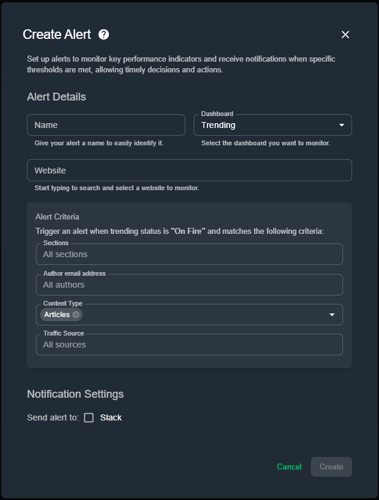
The Trending Alert setup when initiated from the ‘+ New Alert’ option on Alerts tab within the Settings page.
To setup an Alert for when content on the Trending dashboard is ‘On Fire’, follow the directions below.
Navigate to the Settings page
💡 You may optionally navigate to the Trending page and click the corresponding ‘bell’ icon. If you do this you, you may skip to step 4.
Click ‘+ New Alert’
Select ‘Trending’ as the Dashboard you want to monitor
Enter a Name for your alert
Enter Website(s) to monitor
Optionally enter specific Alert Criteria including Sections, Author email address, Content type, and Traffic Source for your ‘On Fire’ Trending Alert
Check the ‘Send alert to Slack’ option
📝 Slack is the sole alerts integration option at this time.
Select the Slack Channel you want your alert to post to
Click Create
Create KPI Alert
To setup an Alert for a KPI, follow the directions below.
Navigate to the Settings page
💡 You may optionally navigate to the page where the KPI is displayed that you wish to create an alert for and click the corresponding ‘bell’ icon. If you do this you, you may skip to step 5.
Click ‘+ New Alert’
Select the Dashboard you want to monitor
Select the KPI you want to monitor
Enter a Name for your alert
Enter Website(s) to monitor
Enter the Alert Criteria for your KPI alert
Enter the Time Range for your alert
📝 This is the rolling date ranged used for the Alert Criteria to determine if an alert should be sent.
Check the ‘Send alert to Slack’ option
📝 Slack is the sole alerts integration option at this time.
Select the Slack Channel you want your alert to post to
Click Create
Integrations
The Integrations tab within the Settings page allows users to configure a Slack integration that will receive the Alerts.
To setup an Alert for a KPI, follow the directions below.
📝 Before this setup can be completed, you must first be invited to your Slack team’s workspace by your Slack Administrator.
Navigate to the Settings page
Click the ‘Integrations’ tab
Click ‘Add to Slack’
Click ‘Allow’ to accept the Data Insights permission to your Slack workspace request
With Editorial Assets being at the heart of BLOX CMS, we strongly encourage everyone to take advantage of all help topics, but if you're looking for topic-based help topics and FAQs, we have you covered there, too.