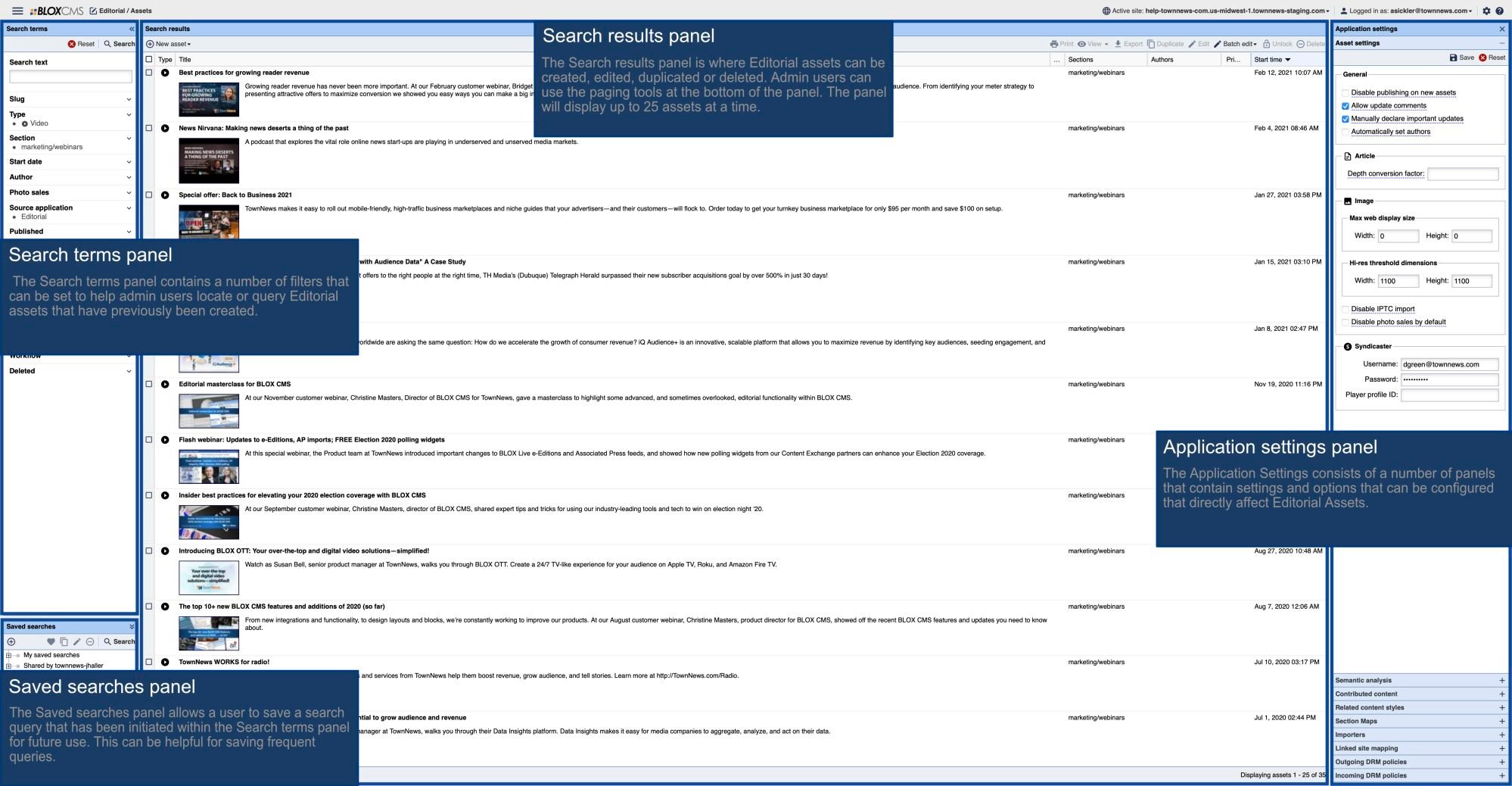
Snippets can be created by anyone, but template managers have more control over where they are stored and how they are named.
1. In InDesign, build the page or design for which you want to create a snippet.
2. Select all the pieces that you would like in the snippet. This would include images, text, logos or anything else on the page. You can select all the pieces by lassoing them, or by selecting each piece while holding down the Shift key.
3. Select the BLOX Total CMS menu and click Export Snippet.
4. Choose whether the snippet is a Page Design snippet or a Design Element snippet.
5. Give the snippet a name. Some characters are forbidden in the names of snippets. Certain symbols, hyphens and periods are not allowed in names.
6. Click OK.
Creating Story Block Snippets
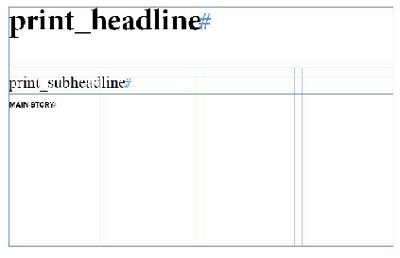
A story block snippet is essentially a story design. It contains empty text and image frames for a headline, subheadline, story text, and maybe an image frame or two.
1. Tag the frames of all the elements that will be included in the snippet. The easiest way to do this is to place a story containing all the elements and let BLOX Total CMS tag the frames. If you tag the frames manually, you will have to select the frame, click the BLOX Total CMS menu, select Element Types and choose the type of element it is.
2. Delete any images from within image frames that you will not use.
3. Select all the elements that will be part of the snippet, select the BLOX Total CMS menu, select File References and choose Placeholder.
4. Select the BLOX Total CMS menu and select Export Snippet.
5. Choose whether you are saving a Page Design or Design Element snippet.
6. Give the snippet a name.
7. Click OK. The text in the frames will be replaced with a label of the frame's element type. You do not need to remove the label from the snippet before using it.