


Table of Contents
Please log in, or sign up for a new account and purchase a subscription to continue reading.
Please log in, or sign up for a new account to continue reading.
Thank you for reading! We hope that you continue to enjoy our free content.

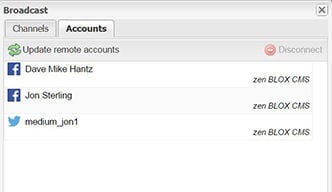
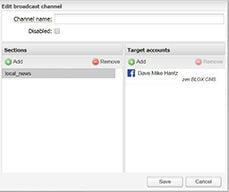
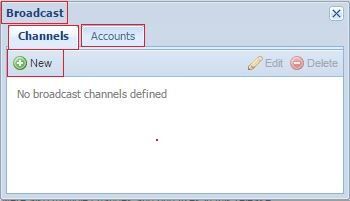
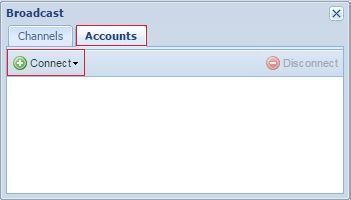
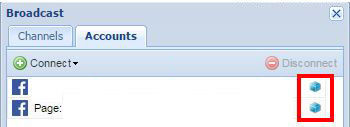
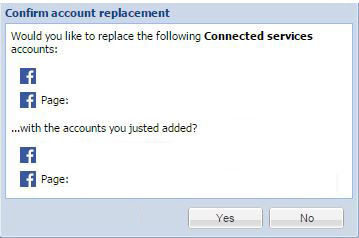
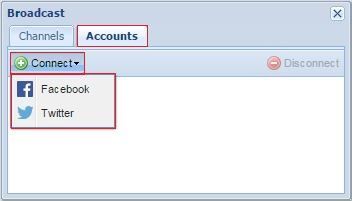
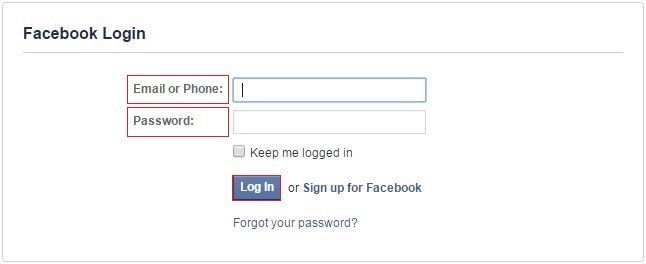
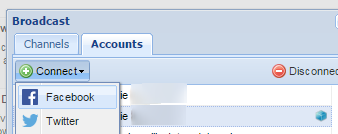
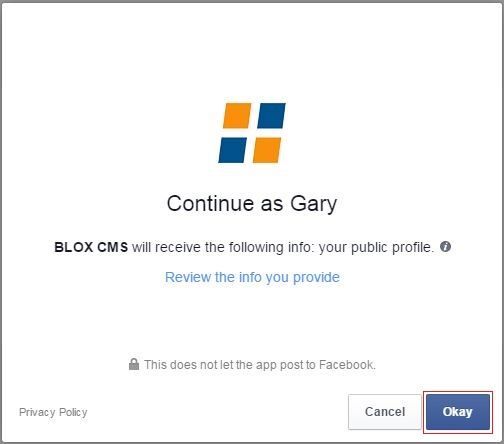
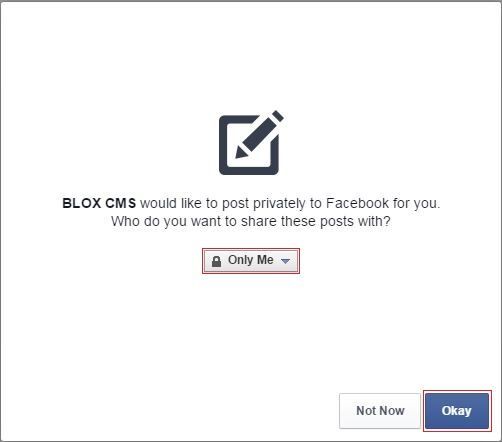
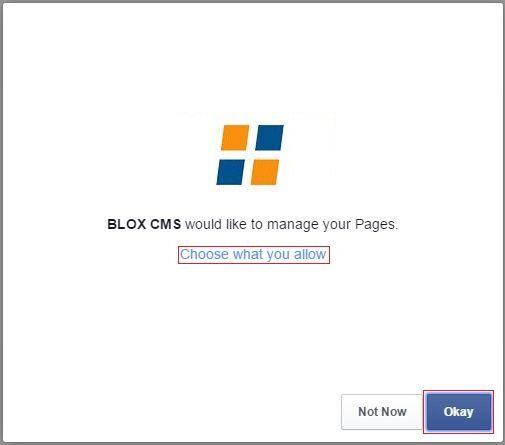
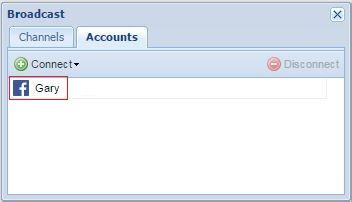
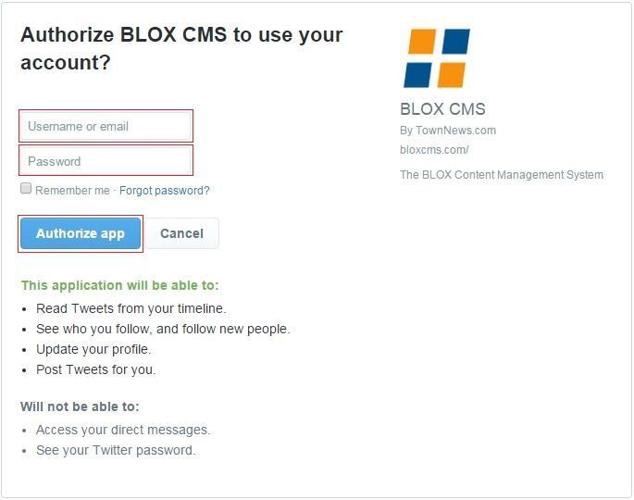
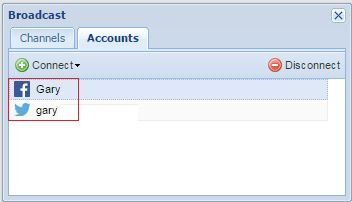
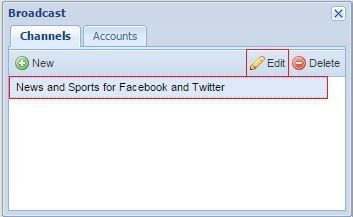
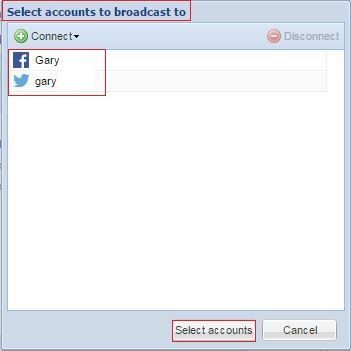
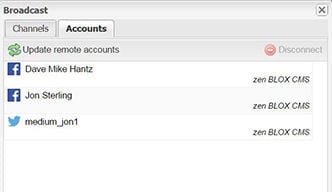
Settings / Linked Sites and Settings / Notifier allow you to connect to multiple Facebook and Twitter accounts so that you can automatically Notifier your assets to these social networks. You will now be able to set up separate Facebook and Twitter accounts for news content, sports, columnists, etc.
Before you can Notifier to Facebook or Twitter through BLOX Total CMS, you must first setup the accounts through your BLOX hosted site. If you have not done that, click here and then return to this page to continue the setup.
The logged-in user in BLOX Total CMS trying to link a site must have proper permissions set on your BLOX CMS hosted site. On the CMS hosted site, the user must be part of a group that includes Settings / Linked Sites.
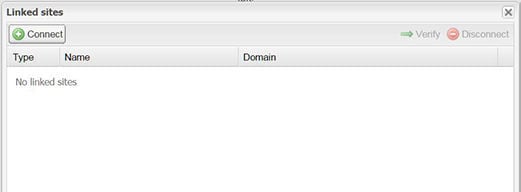
 Select Settings / Linked Sites.
 Choose Connect from the Linked Sites dialog box.
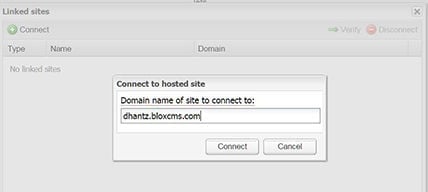
 Enter the name of your domain and click Connect . This domain name must match the domain entered for your Site Tag and should not contain a preceding www. in front of the domain name. You may have to click Connect several times before it actually goes through.
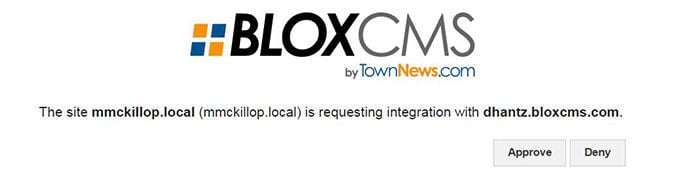
 You will be asked to approve the integration for the site you have choose. Click Approve. The approval process is done through a pop-up window. If your Web browsers prevents pop-ups, the approval window will not appear and you will continue to get a message that says the site could not be linked. Turn off your pop-up blocker until this process is complete, or take notice of the pop-up blocker notifications and enable pop-ups for the site from the notification that usually shows near the browser's address bar or at the bottom of the browser, depending on which browser you are using.
In the BloxCMS Admin, from the drop-down menu in the the upper-left corner choose Settings / Notifier. (Not sure how to access BLOX Applications? Click here).
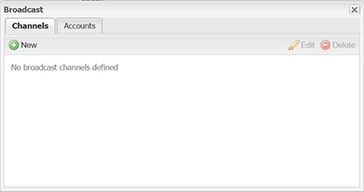
This will bring up the Notifier popup.
Click on Accounts. Choose Update Remote Accounts.
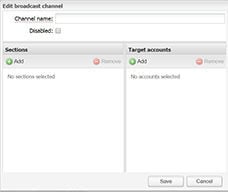
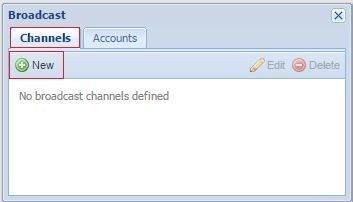
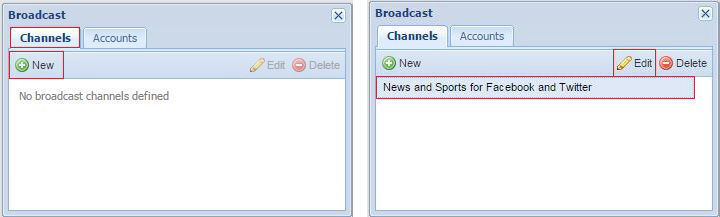
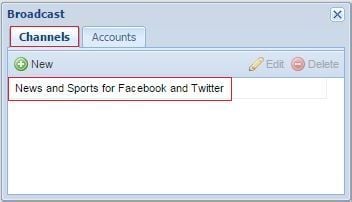
Click on Channels and select New.
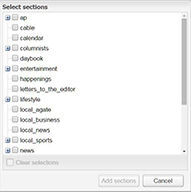
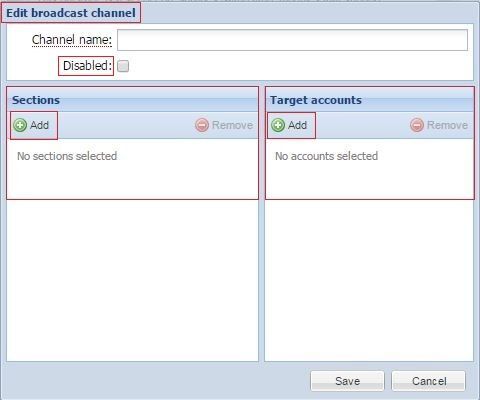
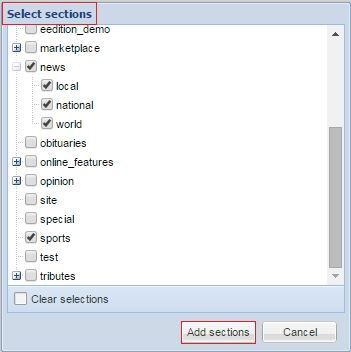
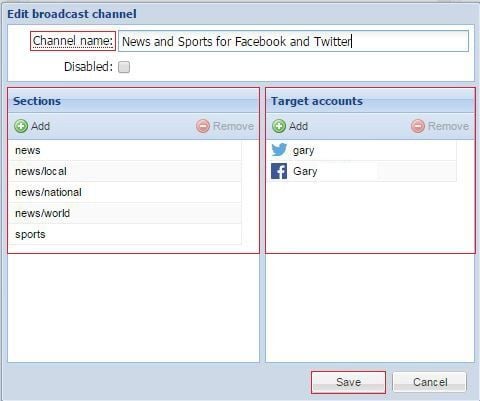
 Choose a section tag or multiple section tags to Notifier content with those tags to a specific Facebook or Twitter account.
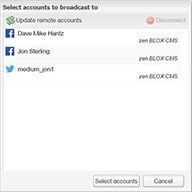
 Select the Facebook or Twitter account to which you would like to Notifier the content. Click Save when done.
See something that needs updating or additional clarification? Want assistance with a topic that isn’t listed here? Please let us know!
At BLOX Digital we are dedicated to providing you the information you need to be successful when you need it.
Visit our feedback page to log in, submit a support ticket, and track the progress of your open requests.