This article details how to use Open Broadcast Software (OBS) to send your video stream to the BLOX VMS live stream platform.
Before you download OBS, first check that the computer you are installing it on has the required specs. Any modern — or even not so modern — computer can live stream. At a minimum, you need an inexpensive video card, and we recommend at least 1 GB of RAM. You also need to be able to connect to the computer the camera you are using, and to an Internet connection. We recommend a wired Internet connection, although you can also stream over wifi or data. Once you have that set up and OBS installed, here are our recommended settings.
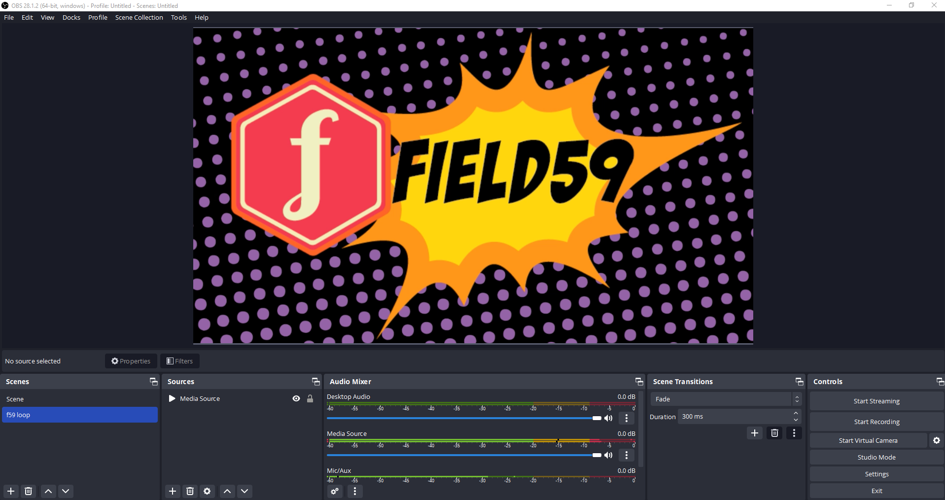
After installing, open the application to get to a view like this:
Before you can begin streaming, you must first input your live stream publish information (and perhaps adjust other default settings). Click the Settings button at lower right.
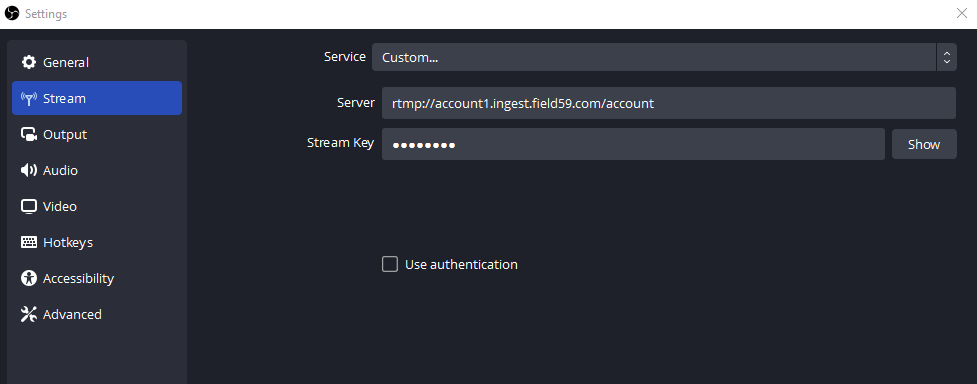
Set the Service drop-down to Custom. Under Server and Stream Key, enter your BLOX VMS publishing information. Depending on your setup, your organization may also have authentication required on the publishing credentials. If so, check "Use authentication" and input your username and password. If you find you cannot connect using the BLOX VMS publishing credentials and don't have "Use authentication" checked, this may be the issue. If you are unsure of your authentication username/password, please contact BLOX Digital support for assistance.
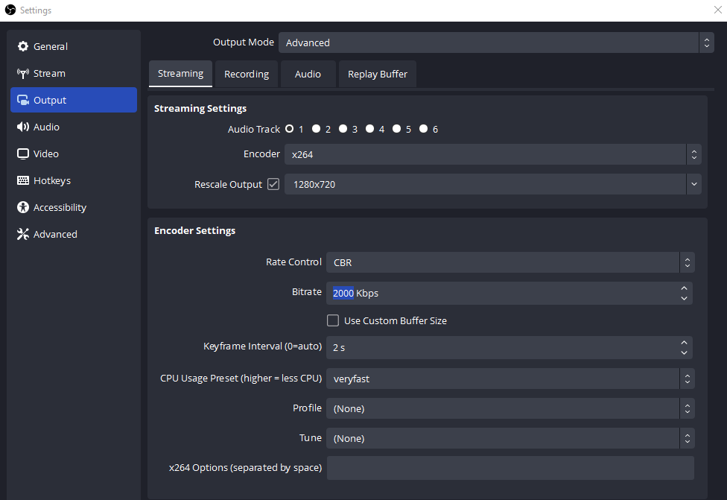
The screenshot above shows a view when you set Output Mode to Advanced (instead of Simple). Set Encoder to x264. For Rescale Output, use 1280×720 (this is typically the high output for a BLOX VMS stream). We recommend a Keyframe Interval of 2. A recommended Bitrate is 2000 kbps (2 Mbps) for mostly static scenes. You may want to increase to 3000 kbps (3 Mbps) for events with lots of movement, such as sports. Keep in mind BLOX VMS will pass through your source bitrate setting on the high output from the BLOX VMS live cloud, so many users will consume stream bandwidth at the bitrate level set here.
Please check the bandwidth available on the Internet connection you are using at your streaming location before starting your stream — you should be careful not to exceed the bandwidth available to you at your location, or the stream will have difficulty getting to our cloud platform for transcoding and distribution.
(Note: BLOX VMS’s transcoding platform takes your source input feed and converts to adaptive bitrate streams that provide high- and low-bandwidth options for viewers. The high option will typically be your source stream. Users on limited connections will most likely always receive the low-bandwidth stream, which is commonly in the 1000 Kbps (1 Mbps) range.)
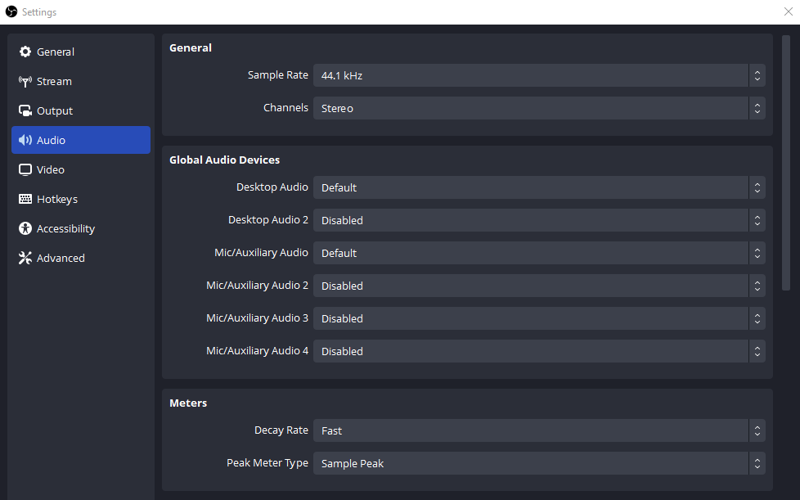
Use default audio settings (Sample Rate: 44.1 kHz, Channels: Stereo)
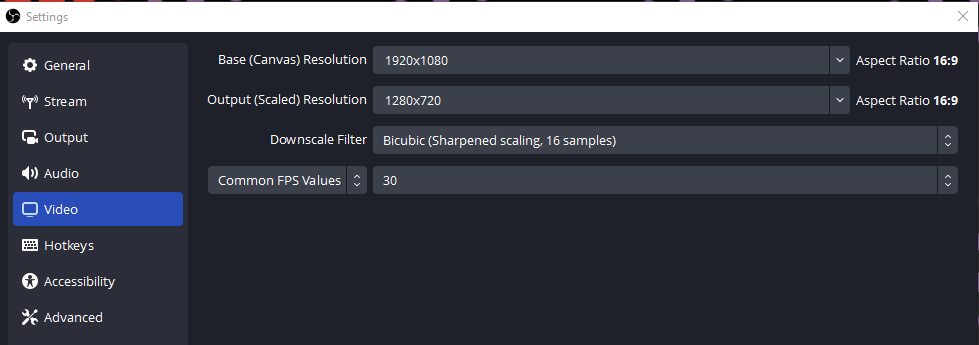
For the Base Resolution and Output (Scaled) Resolution settings, we recommend 1280×720.
After you’ve configured the OBS settings to the required specs, you can begin streaming by clicking the Start Streaming button. This will send the stream to BLOX VMS’s live cloud. The stream will appear in the player for any active Live Events (or Live Channels if the channel player contains an active Live Event) that you have configured in BLOX VMS to use your stream.