This article details how users can upload a video using the BLOX VMS for iOS and Android mobile apps.
BLOX VMS for iOS:
First, ensure your iOS device is running iOS 14.0 or later, as the app is not supported on earlier versions. To check if your software is up-to-date, go to Settings > General > About > Version. To update your device to the current version, go to Settings > General > Software Update.
After the app is installed, open it, and log in using the same username/email that you use for the browser BLOX VMS application. If you’ve logged in before and didn’t log out of the app, this step will be skipped.
Touch the Upload button and select an existing video from your device’s Camera Roll.
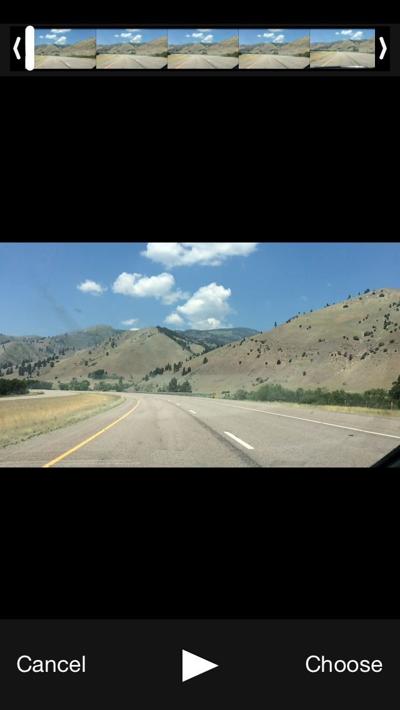
Trim as necessary, then select Choose when satisfied. Your video will begin to upload.
During this time, add a title and choose a category. You can also add tags under the keywords section and a description. Select the Save button when you are done, and the video item will be created under your account.
You can also edit the title, category, keywords and description for any existing video in your organization’s account.
BLOX VMS for Android:
First, ensure your device is running Android version 4.0 or later. as the app is not supported on earlier versions. To check your software version, go to Settings > About device. To check if there is a software update, go to Settings > About device > Software update.
After the app is installed, open it, and log in. (If you don’t have a login, here’s how to get one). If you’ve logged in before and didn’t log out of the app, this step will be skipped.
Click on upload and select an existing video from device. Your video will begin to upload. During this time, add a title and choose a category. You can also add tags under the keywords section and a description.
Hit save when you are done, and the video item will be created under your account. You can also edit the title, category, keywords and description for any existing video in your organization’s account.