



Overview
When creating an in-app message in Customer.io you almost always want to make your message actionable such as to drive the user to a location. In the past using a deep link URL was the only way to push users to a location.
Actions are similar to deep links as they provide a destination for the end user but differ in the way the app processes them. On Android, a deep link will cause the app to ‘reset’ (if the app is currently running) in order to process the request and push the user to the location. When using an action the app immediately recognizes the action and pushes the user to the destination with little interruption. Please note, this is the recommended way by Customer.io to create button actions.
Prerequisites
Starting in BLOX Mobile NX version 1.10.0 actions are now supported (Minimum app version 214.0 unless otherwise noted below).
How to
When creating a button in the prompt editor, select ‘Perform Action’ from the ‘Behavior’ dropdown.
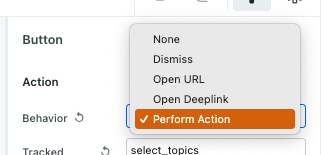
The ‘Behavior’ dropdown in Customer.io highlighting the ‘Perform Action’ option.
This will prompt for two pieces of information: ‘Tracked Name’ and ‘Custom Action’. The value ‘Tracked Name’ is the event name that will be logged in the analytics data. This can differ from the action name. For ‘Custom Action’ use one of the actions below to drive the user to a view within the app. All (current and future) deep link locations will be added as actions for use in customer.io.
📝 Custom actions are case sensitive.
Custom Actions
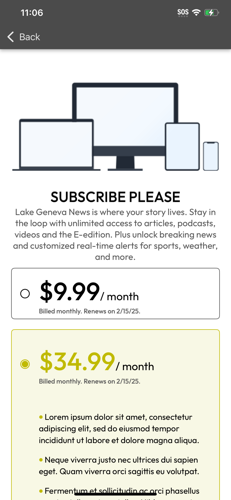
An example subscribe flow, the destination of the 'subscribe' custom action.
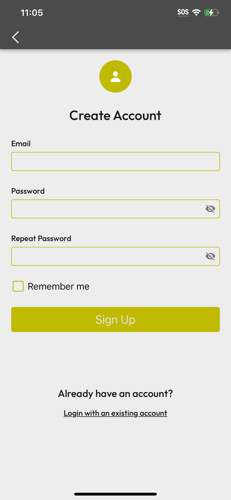
An example register view, the destination of the 'register' custom action.
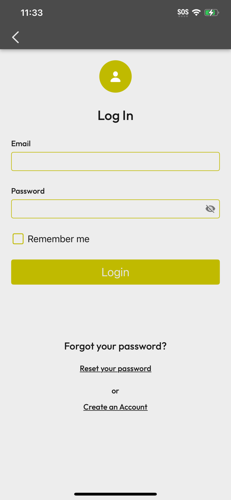
An example login view, the destination of the 'login' custom action.
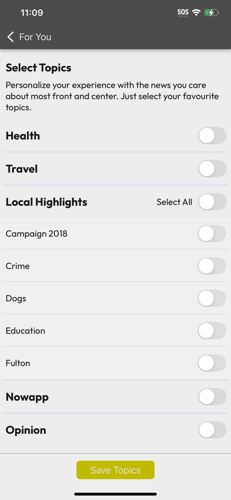
An example select topics view, the destination of the 'select_topics' custom action.
![follow_author-[UUID]](https://bloximages.chicago2.vip.townnews.com/help.bloxdigital.com/content/tncms/assets/v3/editorial/0/c5/0c55c924-d4ea-11ef-b143-378017702b9b/678a7b2503e12.image.png?resize=231%2C500)
An example author's details view, the destination of the 'follow_author-[UUID]' custom action.
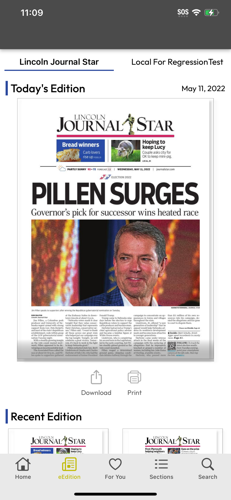
An example e-editions publication tab, the destination of the 'edition_publications' custom action.
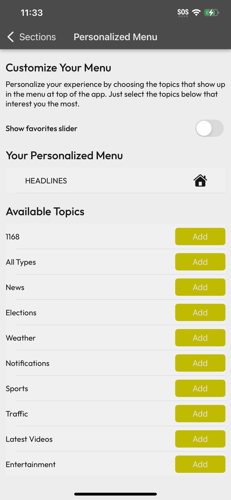
An example select sections, the destination of the 'select_sections' custom action.
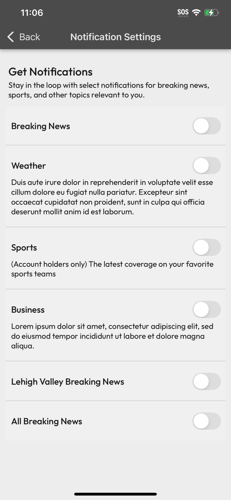
An example push notification settings view, the destination of the 'select_push' custom action.
Customer.io - Custom Actions Example Destinations
An example subscribe flow, the destination of the 'subscribe' custom action.
An example register view, the destination of the 'register' custom action.
An example login view, the destination of the 'login' custom action.
An example select topics view, the destination of the 'select_topics' custom action.
An example author's details view, the destination of the 'follow_author-[UUID]' custom action.
An example e-editions publication tab, the destination of the 'edition_publications' custom action.
An example select sections, the destination of the 'select_sections' custom action.
An example push notification settings view, the destination of the 'select_push' custom action.
subscribe
Takes the user to the subscribe flow (offers view if logged in, register if not)
register
Takes the user to the register view (does nothing if user is logged in)
login
Takes the user to the login view (does nothing if user is logged in)
select_topics
Takes the user to the select topics view within the For You tab
follow_author-[UUID]
Takes the user to an author’s detail view, UUID should be replaced with the author’s BLOX UUID (No square brackets - Example: follow_author-98a7sd98f7sa98)
edition_publications
Takes the user to the e-edition publication tab (main view)
select_sections
Takes the user to the select sections
select_push
Takes the user to the push notification settings view
asset=[UUID]
Takes the user to the specific asset, UUID should be replaced with the asset’s BLOX UUID (No square brackets - Example: asset=ab8437cc-d4e7-11ef-b143-9bed4b283dc2)
Available starting in BLOX Mobile NX version 1.12.0 / 216.0.
section=[section name]
Takes the user to the specific section, section name should be replaced with the section name (No square brackets)
Available starting in BLOX Mobile NX version 1.12.0 / 216.0.