Save time managing subscription accounts with Audience+!
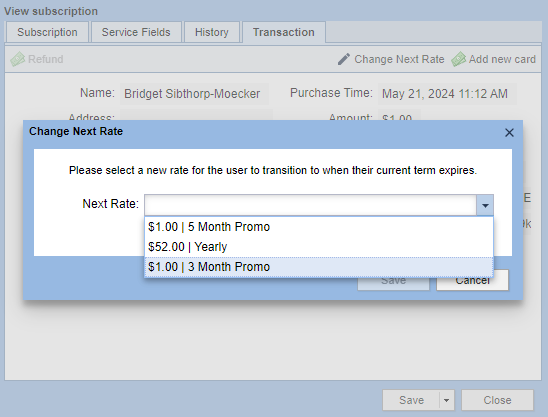
It is now possible to change the next recurring rate/offer for a subscriber. With a click of the Change Next Rate button, you can easily move the subscriber to a different package on their next renewal date.
This powerful new feature is exclusively available to Audience+ partners with Premium Credit Card Management (Wallet). Subscription Pro and BLOX Audience partners will need to upgrade to get this feature. For more information about Audience+ reach out to your sales rep or submit a support ticket.
Note: Change Next Rate requires a live installation of Audience+ and Premium Credit Card Management (Wallet). If you have Subscriptions Pro or BLOX Audience, put in a ticket or contact sales to upgrade.
The Change Next Rate Button is available immediately if you have the appropriate software. To prepare for use, you may consider creating alternative rates/prices/terms to move customers to as a method to save customers who wish to cancel.
Here’s how to update a user’s rate on a BLOX Subscription-type Service:
1. Start by opening BLOX Subscription admin for your site.
2. Using the search panel on the left, search for the email or screen name of the user that is subscribed to a Subscription-type service.
3. Double-click on their most recent transaction, click on the Transaction tab, and look for the Change Next Rate button.
4. Click Change Next Rate, then choose a rate from the dropdown. The price will be displayed with the Renewal Price and the Renewal Rate separated by a |.
5. Then click Save. The new rate becomes effective on their next renewal.
* You should see a success message, and the update should be noted on the History tab and will include both the New renewal rate and the New renewal price.
* The user should receive an email confirmation of the change.