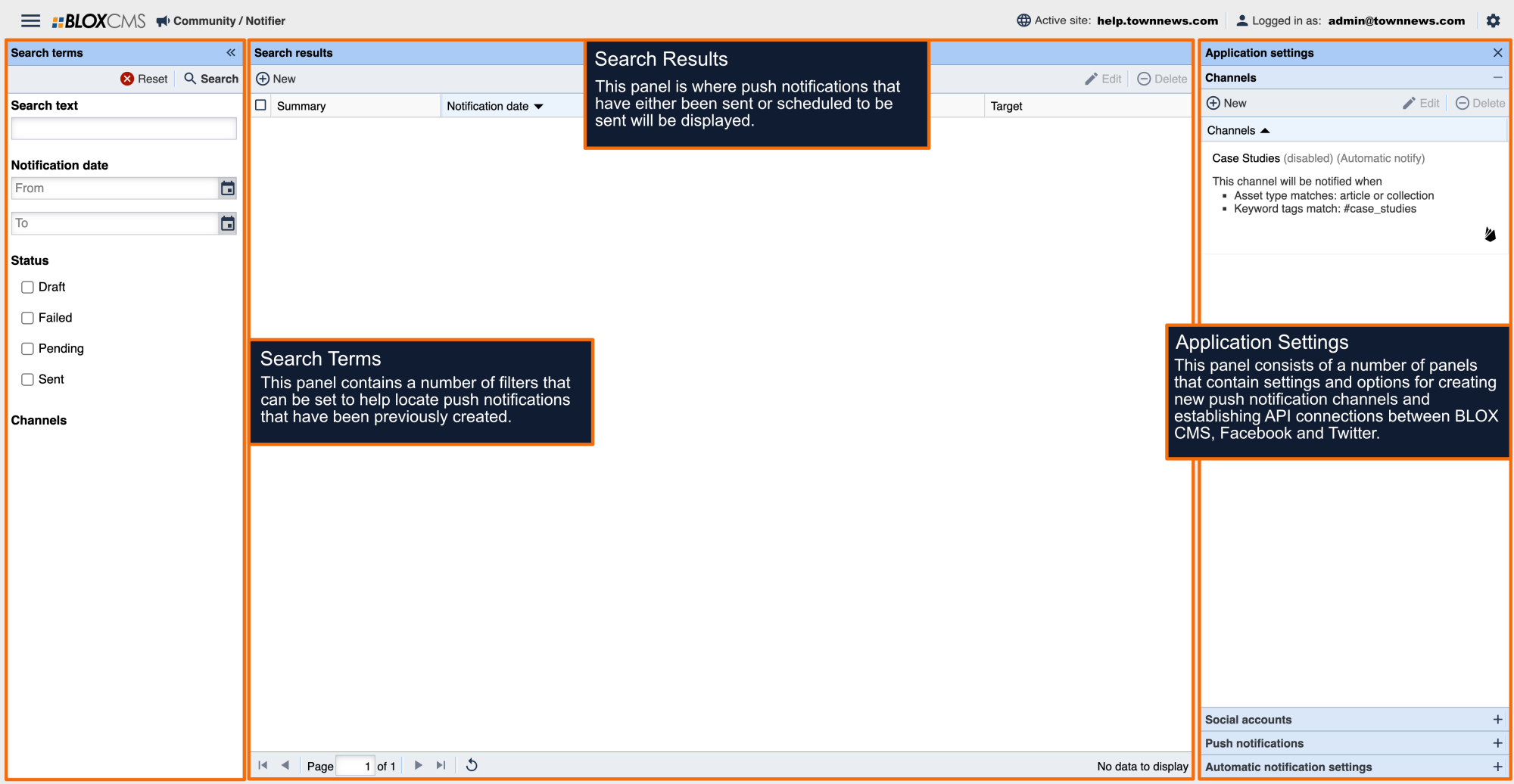
Easily extend your reach by publishing content from BLOX Notifier to Nextdoor. This guide walks you through connecting your account, creating a channel, and verifying your posts.
Overview
With the Nextdoor integration, you can:
💡 Good to know: You do not need an existing Nextdoor account. One will be created for you during setup.
🔗 Step 1: Connect Your Nextdoor Account
Open Notifier in BLOX Legacy
Click the Settings (⚙️) icon in the top-right corner
Select Social Accounts
Click Connect
Choose Nextdoor
Enter Required Information
You’ll be prompted to provide:
Email Address
The email tied to your Nextdoor account
(A new account will be created if one doesn’t exist)
Publication URL
Your website’s homepage - This should match the domain that the publishing content is located.
Publication Name
The name of your Business Page (public-facing)
🧠 What is a Business Page?
This is the profile your posts will be published from on Nextdoor.
Step 2: Authorize the Connection
Complete the login and OAuth flow
Grant permissions to BLOX
Click Continue Connection to finish setup
Step 3: Create a Channel
Navigate to the Channels tab (right side of Settings)
Click New
Enter a Channel Name
Select your connected Nextdoor account
Click Save
✅ You’re now ready to start publishing content.
How Publishing Works
Unlike other platforms, Nextdoor reviews your content before publishing.
What to expect:
Posts are not published instantly
Content is validated against your Publication URL. If the domain of the published article matches your Publication URL, it will be approved.
Once approved, posts go live.
⏳ Tip: Initial publishing may take some time. This is expected behavior.
Step 4: View Your Post
Go to Nextdoor
Log in
Click your profile (top-right corner)
Switch to your Business Page if needed
Select Page from the left menu
Your published posts will appear there.
❓ Need Help?
If your post is delayed or not appearing: