Subscription Services admin
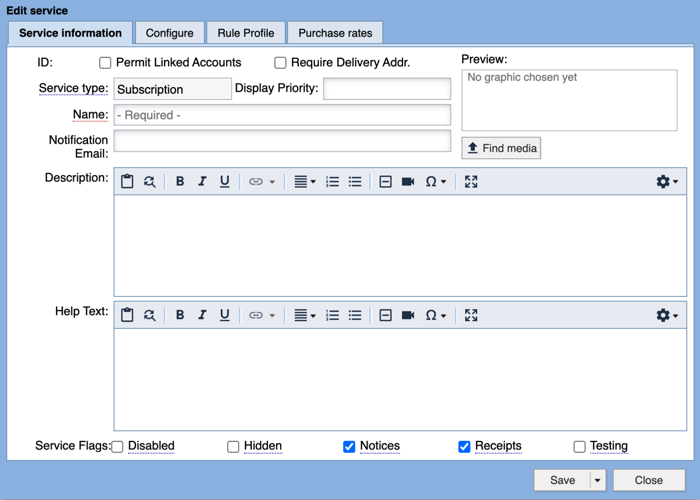
Service Information displays the ID, Service type, Display Priority, Name, Notification Email, Description, Help Text, and Service Flags.
ID: Once Save or Save and close is selected, the system will automatically assign a unique ID number to the service. This service ID will be referenced in notification emails and in the data/feeds FTP directory.
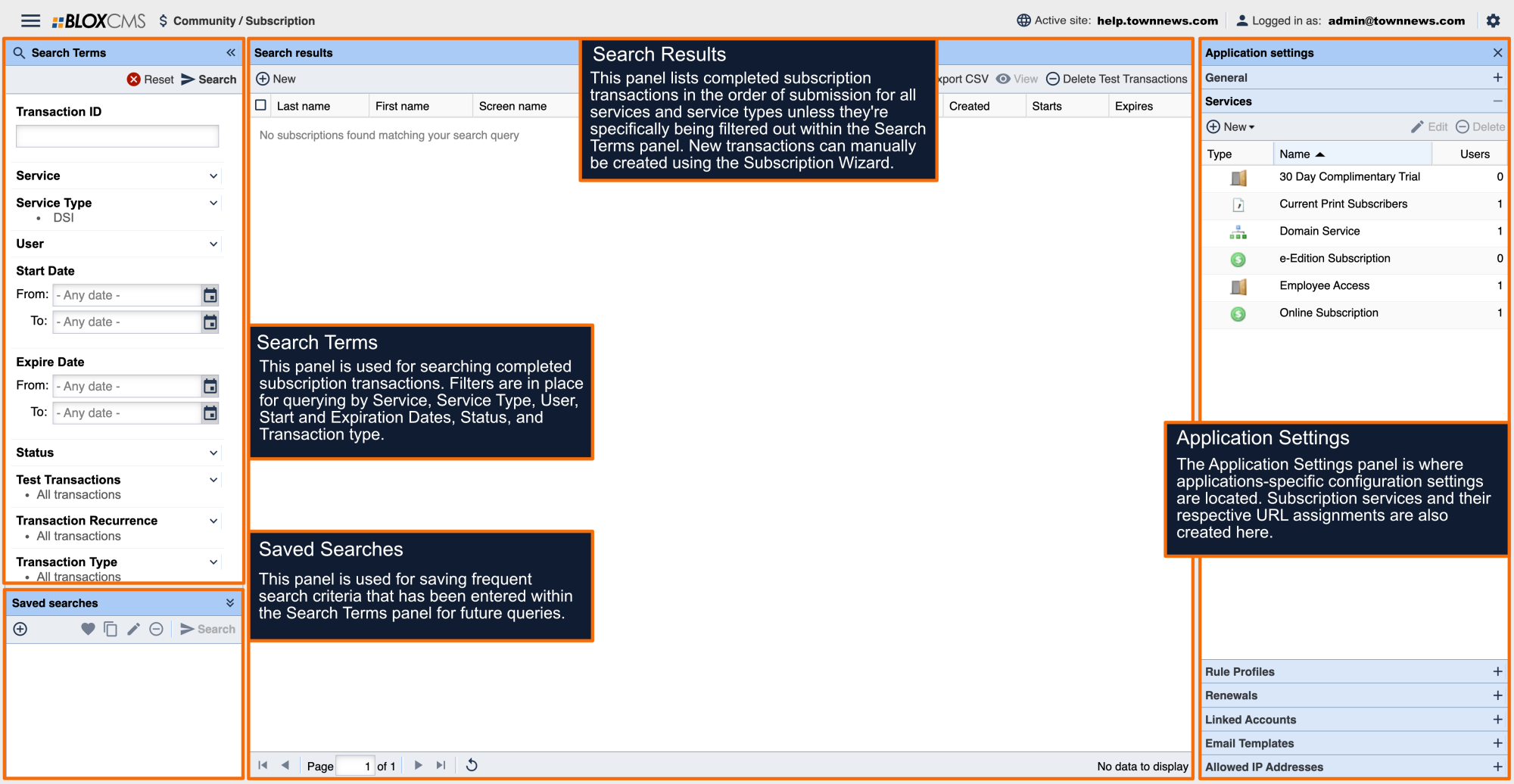
Permit Linked Accounts: This setting allows the subscriber to share their subscription with family and friends. This box will only be visible if your publication has activated this feature in Community / Subscription / Application settings / Linked Accounts.
Require Delivery Addr.: This box should be checked if all subscribers must provide a delivery address. If this box is checked and there is no delivery address associated with the account in the CSV file, the account will not be activated.
Service type: This is set automatically when you create the account. There are several available service types in BLOX CMS: APT Falcon, CSV verification, Domain, DSI, Free, iServices, Mediaspan, Subscription.
Display Priority: This setting is used to sort the order the services appear on the front end of the site. The higher the display priority number the higher in the list the service will appear. If no display number is entered the services will be listed in alphabetical order.
Name: The name for your service is a required field. You want to name your service something that makes sense to the users of your site (examples: Online Subscriber Access, Print Subscriber Access, Free 14 Day Trial). The name of the service will show on the front end to users.
Notification Email: You may enter up to three email addresses (separated by commas) that will receive an email notification when A) a change is made to the CSV file in a CSV Validation service and B) a user subscribes to the service.
Preview:
Description: The description field is not a required field but should generally be used, as it will display for the users of the site. In most cases, you'll want to provide the users with a description of the service they are purchasing.
Help Text: The help text field will be displayed on the subscription page after the user logs in and selects the service. This field can give your subscribers more detailed information and instructions on how to sign up for a service. It can be especially useful for CSV verification services if you need to instruct your customers how to reference validation fields. This field does support HTML code.
Service Flags
Disabled: If checked, the service will be completely disabled. The associated transactions will still remain, but the service will not be visible on the front end, and it will display in the admin with gray text.
Hidden: If checked, the service will remain active but not display on the front end. This means that the URLs that are blocked by this service will still continue to be blocked, but users will not be able to sign up for this service to gain access.
Notices: When checked, users subscribed to this service will be sent notices that their subscription is about to expire, and when it has expired.
Receipts: When checked, users will receive an email receipt on subscription purchase and renewal.
Testing: If checked, every transaction gets marked as a test transaction in the transactions list. (For more information on the Transaction log, see the Transactions Overview below.) If a payment handler is set up and configured, such as PayPal or Authorize.net, it will run the transaction through the payment handler's test processor but not actually take any money.
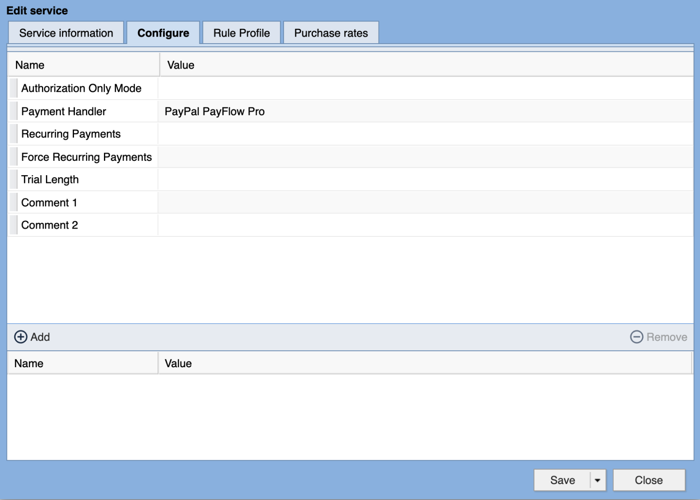
Configuration is where you set up the payment handler for this service.
Authorization Only Mode: Only authorize payments instead of also capturing if 'Yes'. This mode is only available for certain payment handlers.
Payment Handler: Payment handler to use when processing subscription payments. You may create or modify handlers in the site settings menu. The Value field will be populated with a drop-down of the payment processors that are set up under Payment handlers.
The Subscription service will require a payment handler such as PayPal or Authorize.net be set up for the site. The payment handler is used for the credit card processing. For more information and help setting up Payment Handler see Payment Handlers.
Recurring Payments: This option allows users to enable a recurring payment schedule. This option is only available for Verisign (Payflow Pro) merchant accounts. The Value field will be populated with either "Yes" or "No", based on the selection from the drop-down menu.
Force Recurring Payments: This will remove the user's option to decline a recurring payment schedule. The user will be required to use recurring payments in order to subscribe to the service.
Trial Length: this is the number of free days before the user is charged. This option requires that 'Force Recurring Payments' be set to 'Yes'. The Value field can be populated with a whole number, such as 1, 7, 14, etc.
Comments 1: Text entered in this field will pass through to the Comments 1 field in your gateway credit card processor. It is recommended that you enter your domain in this field.
Comments 2: Text entered in this field will pass through to the Comments 2 field in your gateway credit card processor. It is recommended that you enter the service name or a brief description in this field.
CONFIGURE CUSTOM PROPERTY
Each service has the option to accept custom properties on the bottom of Configure. To add a Custom Property, click the Add button. To delete a custom property, click Remove. There are three additional Custom Properties available:
purchase_success_heading: - defines the header text that will display at the top of the service.
purchase_success_text: - defines the sub heading text that will display below trial information / above the details.
purchase_success_details: - 'true/false' determines whether the print button and tables of details will display (defaults to true on all services except for free which sets to false.
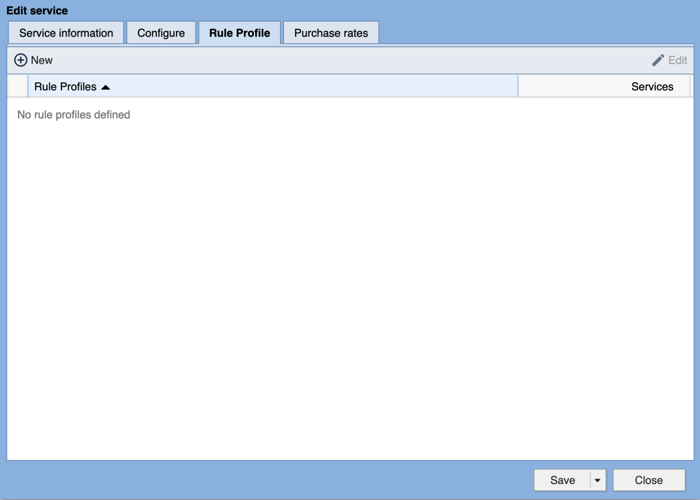
Rule Profile sets which pages are behind a paywall. Readers will not be able to access the URLs covered by that particular rule profile unless they are signed up for a particular service that protects that URL. You can have multiple services covering URLs and the reader will only need purchase access to one service. Simply select the radio button that corresponds to the rule profile you wish to employ. If you hover over a rule profile a bubble will appear that shows you what URLs that profile restricts.
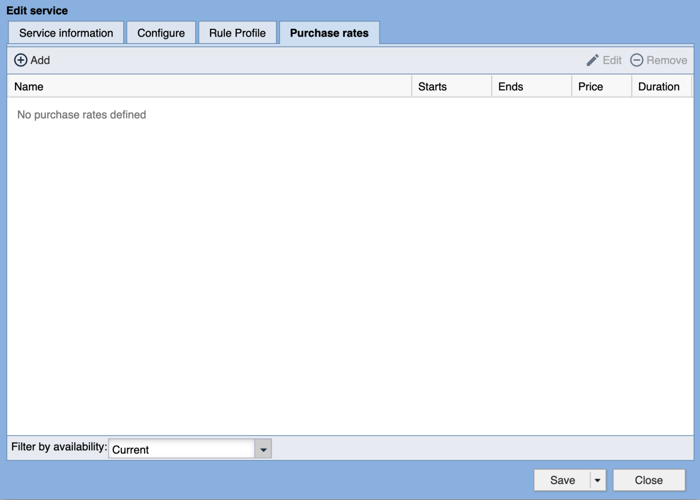
To edit an existing purchase rate select the rate and click Edit or double click on the rate.
To delete a purchase rate select the rate and click Remove.
To add a purchase rate click Add.
This will bring up the Edit Rate popup.
GENERAL
The available fields are:
Name - should be something that describes the rate to the user, as this will be visible on the front end.
Terms -
Price in USD (US dollars) - how much the rate costs. Enter in the value without the dollar sign (i.e. 1.00).
Duration in Days - the number of days the person will get the service at the given price. Once the days have expired, the user won't have access anymore but will be provided the option to renew. Enter in a whole number (i.e. 1, 7, 14, etc).
Prevent rate from being listed on the web site - This will keep the rate from being shown to readers on the front end.
If you click OK at any point the Edit Rate popup will close. You can open the rate to continue editing by selecting the rate and clicking Edit or double click on the rate.
SCHEDULE
Start Date and time -
Rate Lifecycle
Rate does not end- You would choose this option in the rate lifecycle in order to provide a rate to a customer that you want to continue for an extended period of time. You can always end the rate or schedule it to end at a later date.
Rate will end on - Choose this option if you want the rate to end on a specific day. If you set up the rate to end in conjunction with the “Rate will end after a number of billing cycles” be sure to not end until the number of billing cycles have passed since the rate has stopped being available for purchase.
Available to purchase until - This will set the date the offer ends and becomes unavailable for purchase.
Transition
Total Transaction at this Rate - This includes the initial purchase transaction and is the total number of times the user will be billed at this rate.
Recurring transactions will expire without renewal - Choose this setting if you would like users that have purchased this rate to see new rates that you have available instead of automatically transitioning to a different rate.
Recurring transactions will transition to - This you would use when utilizing a promo rate and ramping to a standard rate or possibly doing a rate increase.
PROMO CODES
Promo codes can be defined and be assigned to work with one or more rates.
You can also assign multiple promo codes to allow purchase of a rate.
A specific rate can be configured to require a promo code for purchase, but you can also make a promotional rate available to all users without a promo code
These are great for introductory pricing. For example you can start at a low rate and ramp to your standard rates after a defined number of billing cycles.
More like this...
Service Information displays the ID, Service type, Display Priority, Name, Notification Email, Description, Help Text, and Service Flags.
ID: Once Save or Save and close is selected, the system will automatically assign a unique ID number to the service. This service ID will be referenced in notification emails and in the data/feeds FTP directory.
Permit Linked Accounts: This setting allows the subscriber to share their subscription with family and friends. This box will only be visible if your publication has activated this feature in Community / Subscription / Application settings / Linked Accounts.
Require Delivery Addr.: This box should be checked if all subscribers must provide a delivery address. If this box is checked and there is no delivery address associated with the account in the CSV file, the account will not be activated.
Service type: This is set automatically when you create the account. There are several available service types in BLOX CMS: APT Falcon, CSV verification, Domain, DSI, Free, iServices, Mediaspan, Subscription.
Display Priority: This setting is used to sort the order the services appear on the front end of the site. The higher the display priority number the higher in the list the service will appear. If no display number is entered the services will be listed in alphabetical order.
Name: The name for your service is a required field. You want to name your service something that makes sense to the users of your site (examples: Online Subscriber Access, Print Subscriber Access, Free 14 Day Trial). The name of the service will show on the front end to users.
Notification Email: You may enter up to three email addresses (separated by commas) that will receive an email notification when A) a change is made to the CSV file in a CSV Validation service and B) a user subscribes to the service.
Preview:
Description: The description field is not a required field but should generally be used, as it will display for the users of the site. In most cases, you'll want to provide the users with a description of the service they are purchasing.
Help Text: The help text field will be displayed on the subscription page after the user logs in and selects the service. This field can give your subscribers more detailed information and instructions on how to sign up for a service. It can be especially useful for CSV verification services if you need to instruct your customers how to reference validation fields. This field does support HTML code.
Service Flags
Disabled: If checked, the service will be completely disabled. The associated transactions will still remain, but the service will not be visible on the front end, and it will display in the admin with gray text.
Hidden: If checked, the service will remain active but not display on the front end. This means that the URLs that are blocked by this service will still continue to be blocked, but users will not be able to sign up for this service to gain access.
Notices: When checked, users subscribed to this service will be sent notices that their subscription is about to expire, and when it has expired.
Receipts: When checked, users will receive an email receipt on subscription purchase and renewal.
Testing: If checked, every transaction gets marked as a test transaction in the transactions list. (For more information on the Transaction log, see the Transactions Overview below.) If a payment handler is set up and configured, such as PayPal or Authorize.net, it will run the transaction through the payment handler's test processor but not actually take any money.
Configuration is where you set up the payment handler for this service.
Authorization Only Mode: Only authorize payments instead of also capturing if 'Yes'. This mode is only available for certain payment handlers.
Payment Handler: Payment handler to use when processing subscription payments. You may create or modify handlers in the site settings menu. The Value field will be populated with a drop-down of the payment processors that are set up under Payment handlers.
The Subscription service will require a payment handler such as PayPal or Authorize.net be set up for the site. The payment handler is used for the credit card processing. For more information and help setting up Payment Handler see Payment Handlers.
Recurring Payments: This option allows users to enable a recurring payment schedule. This option is only available for Verisign (Payflow Pro) merchant accounts. The Value field will be populated with either "Yes" or "No", based on the selection from the drop-down menu.
Force Recurring Payments: This will remove the user's option to decline a recurring payment schedule. The user will be required to use recurring payments in order to subscribe to the service.
Trial Length: this is the number of free days before the user is charged. This option requires that 'Force Recurring Payments' be set to 'Yes'. The Value field can be populated with a whole number, such as 1, 7, 14, etc.
Comments 1: Text entered in this field will pass through to the Comments 1 field in your gateway credit card processor. It is recommended that you enter your domain in this field.
Comments 2: Text entered in this field will pass through to the Comments 2 field in your gateway credit card processor. It is recommended that you enter the service name or a brief description in this field.
CONFIGURE CUSTOM PROPERTY
Each service has the option to accept custom properties on the bottom of Configure. To add a Custom Property, click the Add button. To delete a custom property, click Remove. There are three additional Custom Properties available:
purchase_success_heading: - defines the header text that will display at the top of the service.
purchase_success_text: - defines the sub heading text that will display below trial information / above the details.
purchase_success_details: - 'true/false' determines whether the print button and tables of details will display (defaults to true on all services except for free which sets to false.
Rule Profile sets which pages are behind a paywall. Readers will not be able to access the URLs covered by that particular rule profile unless they are signed up for a particular service that protects that URL. You can have multiple services covering URLs and the reader will only need purchase access to one service. Simply select the radio button that corresponds to the rule profile you wish to employ. If you hover over a rule profile a bubble will appear that shows you what URLs that profile restricts.
To edit an existing purchase rate select the rate and click Edit or double click on the rate.
To delete a purchase rate select the rate and click Remove.
To add a purchase rate click Add.
This will bring up the Edit Rate popup.
GENERAL
The available fields are:
Name - should be something that describes the rate to the user, as this will be visible on the front end.
Terms -
Price in USD (US dollars) - how much the rate costs. Enter in the value without the dollar sign (i.e. 1.00).
Duration in Days - the number of days the person will get the service at the given price. Once the days have expired, the user won't have access anymore but will be provided the option to renew. Enter in a whole number (i.e. 1, 7, 14, etc).
Prevent rate from being listed on the web site - This will keep the rate from being shown to readers on the front end.
If you click OK at any point the Edit Rate popup will close. You can open the rate to continue editing by selecting the rate and clicking Edit or double click on the rate.
SCHEDULE
Start Date and time -
Rate Lifecycle
Rate does not end- You would choose this option in the rate lifecycle in order to provide a rate to a customer that you want to continue for an extended period of time. You can always end the rate or schedule it to end at a later date.
Rate will end on - Choose this option if you want the rate to end on a specific day. If you set up the rate to end in conjunction with the “Rate will end after a number of billing cycles” be sure to not end until the number of billing cycles have passed since the rate has stopped being available for purchase.
Available to purchase until - This will set the date the offer ends and becomes unavailable for purchase.
Transition
Total Transaction at this Rate - This includes the initial purchase transaction and is the total number of times the user will be billed at this rate.
Recurring transactions will expire without renewal - Choose this setting if you would like users that have purchased this rate to see new rates that you have available instead of automatically transitioning to a different rate.
Recurring transactions will transition to - This you would use when utilizing a promo rate and ramping to a standard rate or possibly doing a rate increase.
PROMO CODES
Promo codes can be defined and be assigned to work with one or more rates.
You can also assign multiple promo codes to allow purchase of a rate.
A specific rate can be configured to require a promo code for purchase, but you can also make a promotional rate available to all users without a promo code
These are great for introductory pricing. For example you can start at a low rate and ramp to your standard rates after a defined number of billing cycles.