


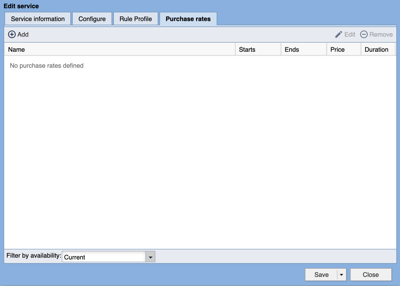
To edit an existing purchase rate select the rate and click Edit or double click on the rate.
To delete a purchase rate select the rate and click Remove.
To add a purchase rate click Add.
This will bring up the Edit Rate popup.
GENERAL
The available fields are:
Name - should be something that describes the rate to the user, as this will be visible on the front end.
Terms -
Price in USD (US dollars) - how much the rate costs. Enter in the value without the dollar sign (i.e. 1.00).
Duration in Days - the number of days the person will get the service at the given price. Once the days have expired, the user won't have access anymore but will be provided the option to renew. Enter in a whole number (i.e. 1, 7, 14, etc).
Prevent rate from being listed on the web site - This will keep the rate from being shown to readers on the front end.
If you click OK at any point the Edit Rate popup will close. You can open the rate to continue editing by selecting the rate and clicking Edit or double click on the rate.
SCHEDULE
Start Date and time -
Rate Lifecycle
Rate does not end- You would choose this option in the rate lifecycle in order to provide a rate to a customer that you want to continue for an extended period of time. You can always end the rate or schedule it to end at a later date.
Rate will end on - Choose this option if you want the rate to end on a specific day. If you set up the rate to end in conjunction with the “Rate will end after a number of billing cycles” be sure to not end until the number of billing cycles have passed since the rate has stopped being available for purchase.
Available to purchase until - This will set the date the offer ends and becomes unavailable for purchase.
Transition
Total Transaction at this Rate - This includes the initial purchase transaction and is the total number of times the user will be billed at this rate.
Recurring transactions will expire without renewal - Choose this setting if you would like users that have purchased this rate to see new rates that you have available instead of automatically transitioning to a different rate.
Recurring transactions will transition to - This you would use when utilizing a promo rate and ramping to a standard rate or possibly doing a rate increase.
PROMO CODES
Promo codes can be defined and be assigned to work with one or more rates.
You can also assign multiple promo codes to allow purchase of a rate.
A specific rate can be configured to require a promo code for purchase, but you can also make a promotional rate available to all users without a promo code
These are great for introductory pricing. For example you can start at a low rate and ramp to your standard rates after a defined number of billing cycles.