Note: the Minimum version required for this is version 1.10.0.
Customer.io is a powerful engagement platform to craft and manage marketing messages using collected first party data. These messages can be sent across multiple platforms such as mobile applications. The BLOX Mobile NX app integrates the Customer.io SDK to allow app managers to use their app as a destination.
Pre-requisites
Setup Instructions
Note: To enable Customer.io three API keys will need to be retrieved from the Customer.io dashboard.
1. Open Customer.io dashboard
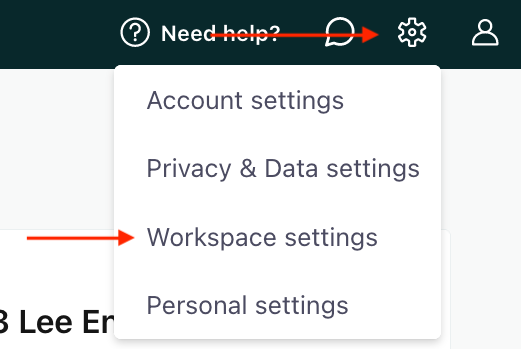
2. Click the gear in the top right corner
3. Select Workspace settings
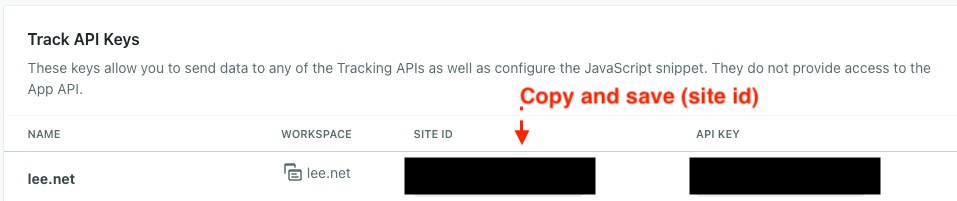
4. Scroll down to find and click “API and webhook credentials”
📝 If you have an existing Track API key listed here you wish to use then copy and store the Site ID and skip to Step 9.
5. Click “Create Track API Key”
6. Provide a name for the key
7. Click the “Create Track API Key” button on the newly created row
8. Copy and store the Site ID. This will be uploaded to the BLOX Mobile App Manager later.
📝 Leave Customer.io open, you’ll need to come back to it.
9. Navigate to the BLOX Admin
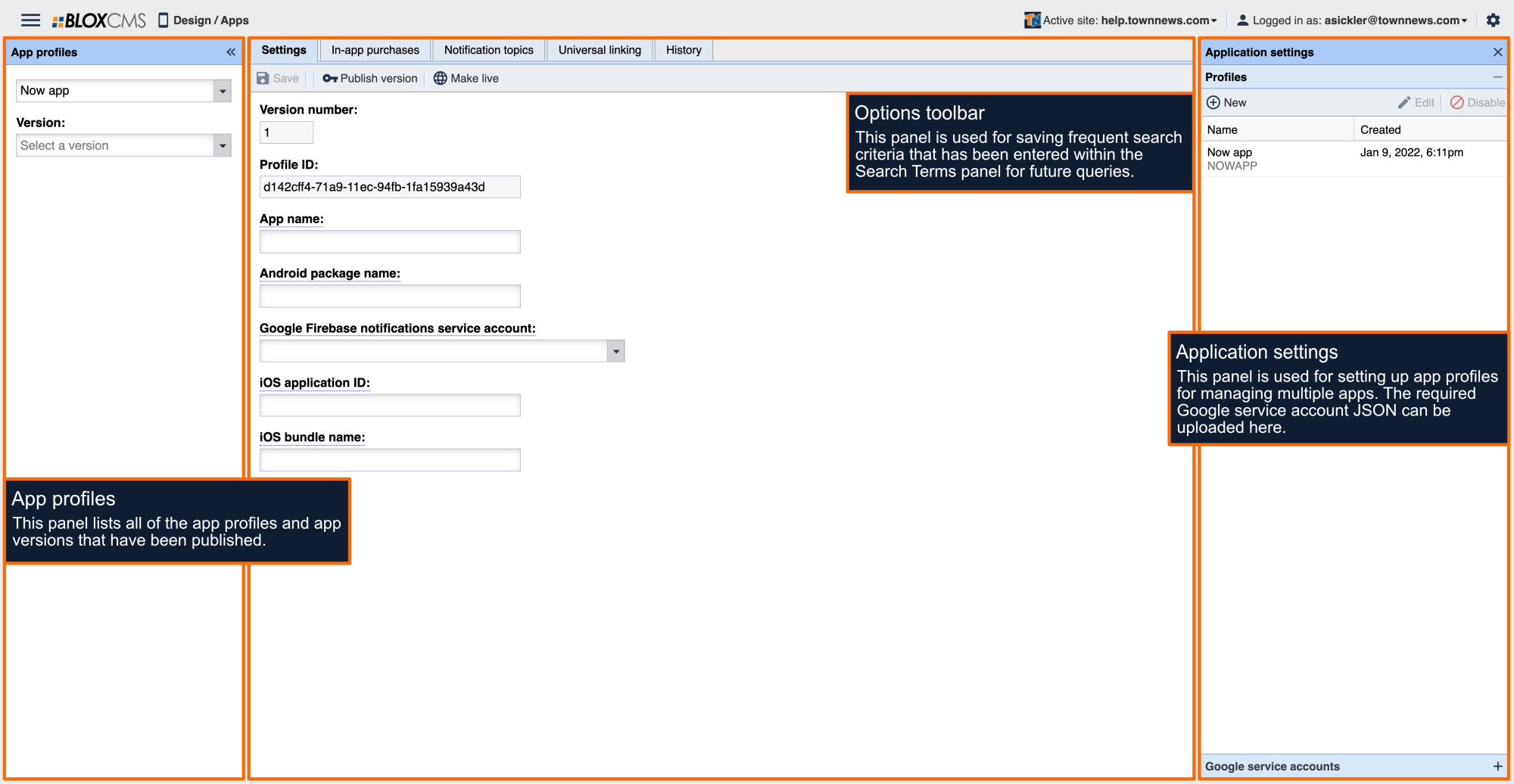
10. Open the BLOX Mobile App Manager (the "Apps" application in the upper left menu under "Design")
11. Select the App profile you wish to configure
12. Select the “Customization” tab
13. Scroll down to find the section labeled “Analytics Settings”
14. Click the checkbox for “Enable Customer.io”
15. Paste the Site ID obtained from Customer.io into the Site ID field
📝 Now that we have the Site ID configured, we need to retrieve the Data Pipeline API Key for iOS and Android.
17. Navigate back to the Customer.io dashboard
18. Click “Exit Settings” from the top left corner
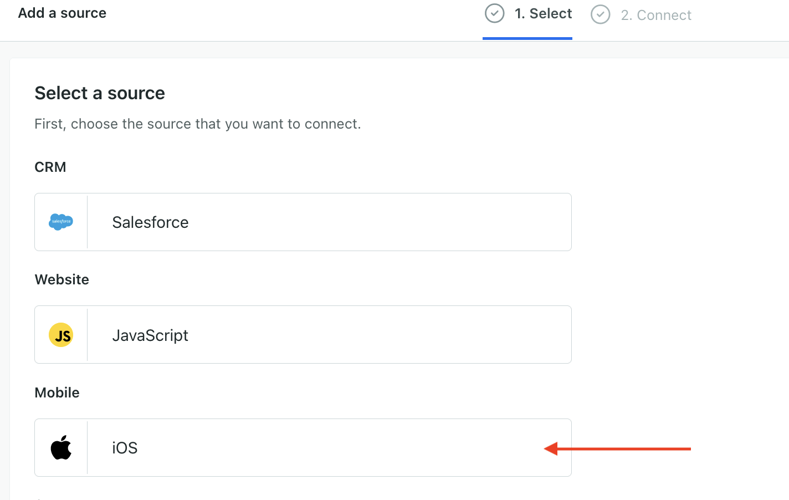
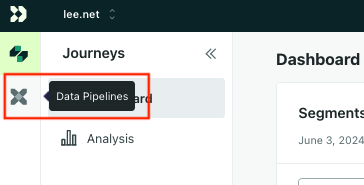
19. Click the “Data Pipelines” icon on the left side panel
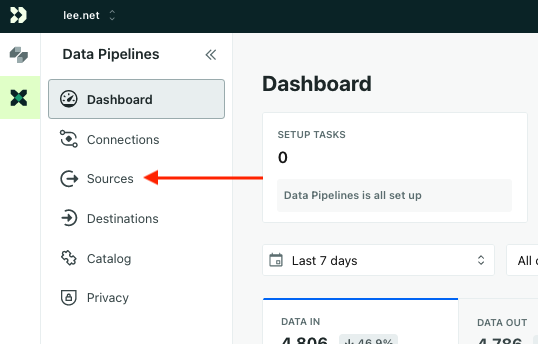
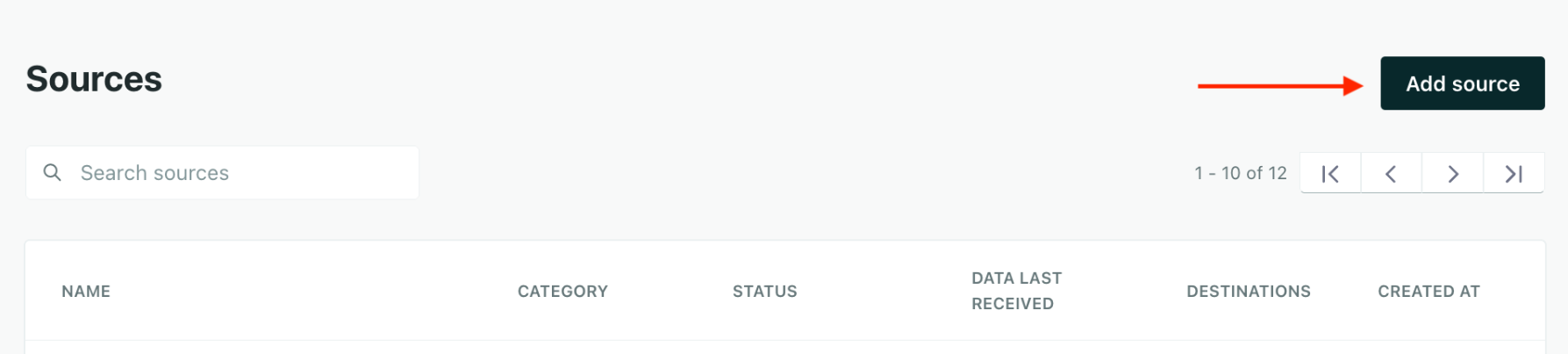
20. Select “Sources” from the “Data Pipelines menu
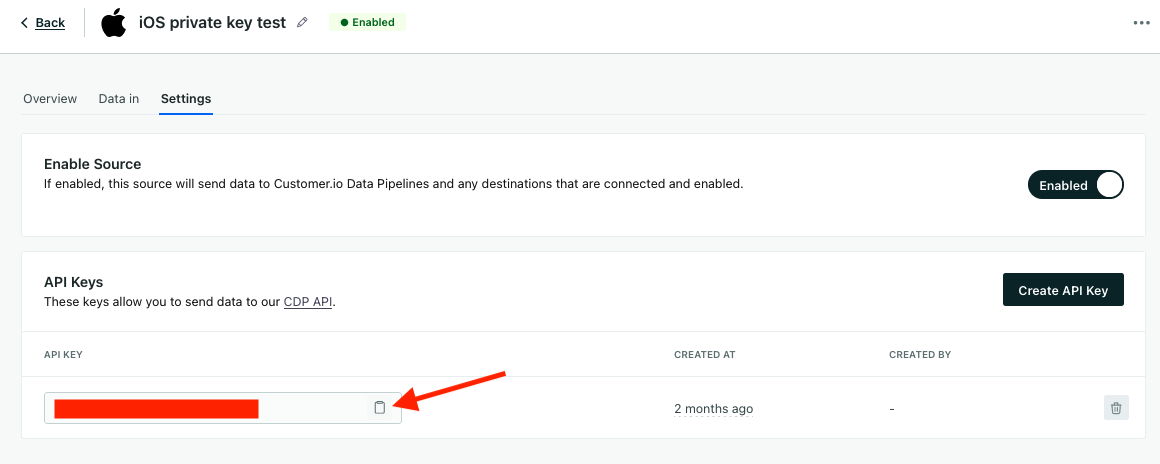
📝 If you have an existing API key listed here you wish to use then click “Settings” and copy and store the API key and skip to Step 25.
22. Select “iOS” under Mobile
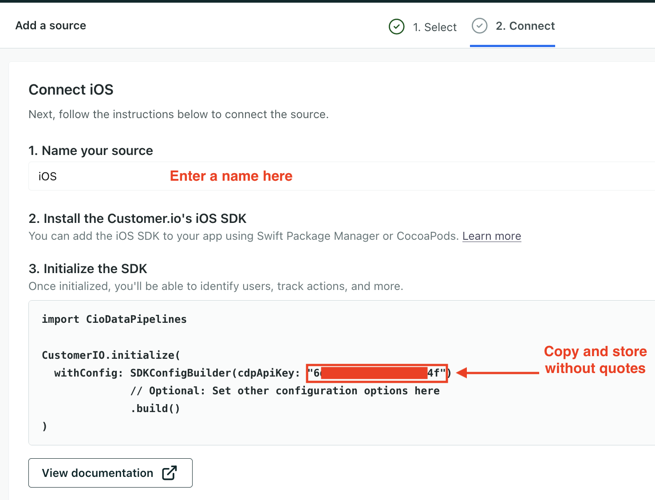
23. Provide a name for the key to make it recognizable
24. Copy the “cdpApiKey” from the code snippet
📝 Leave Customer.io open, you’ll need to come back to it.
25. Navigate back to the BLOX Mobile App Manager (the "Apps" application in the upper left menu under "Design")
26. Paste the “cdpApiKey” into the “Data Pipeline API Key (iOS)” field
28. Select the “Configuration“ tab
29. Click the “Make Live” option
31. Open the BLOX Mobile NX app
32. Navigate around the app for a few minutes to ensure cache has updated
33. Navigate back to the Customer.io dashboard,
📝 This is the same place where you copied the “cdpApiKey” from the code snippet in Step 24.
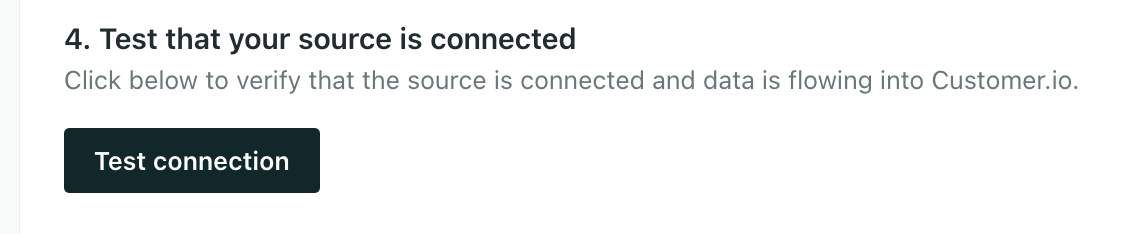
34. Click “Test connection”
35. Click “Complete Setup” once the connection has been validated by Customer.io
36. Repeat steps 19-34 for Android making sure to;
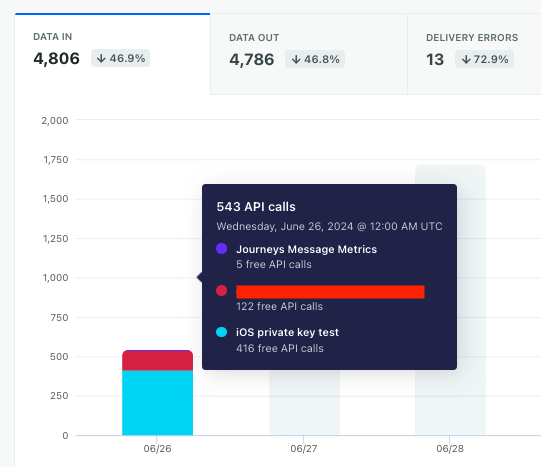
After a few hours of app use data should be flowing through and shown in the graph on the Customer.io Data Pipelines Dashboard.