Note: the Minimum version required for this is version 1.8.0.
Starting in the 1.8.0 version of BLOX Mobile NX, app managers will now be able to set the default playback language. If you wish to use English as the default language no change is needed.
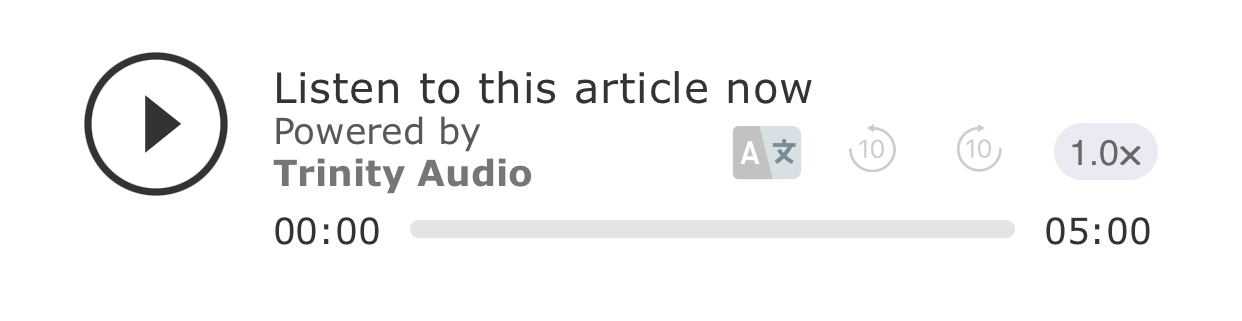
For mobile apps using a non-English language we offer localization features within BLOX Mobile NX such as the ability to override certain labels and localized strings for hardcoded values. On each article page, there is a Trinity Audio player offering text-to-speech free to readers. By default, this plays back in English.
Pre-requisites
Setup Instructions
1. Navigate to the BLOX Admin
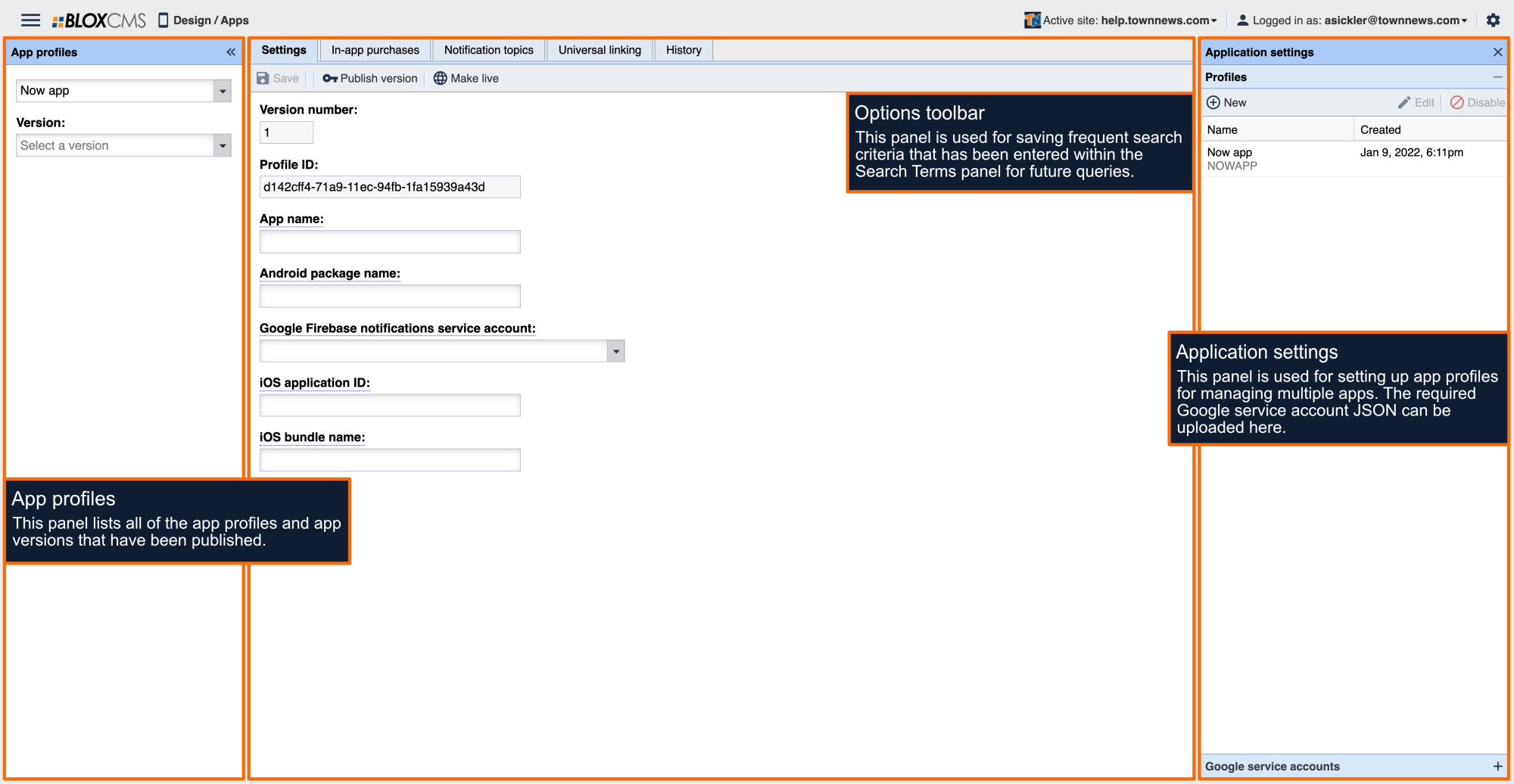
2. Open the BLOX Mobile App Manager (the “Apps” application in upper left menu under “Design”)
3. Select the “Customization” tab
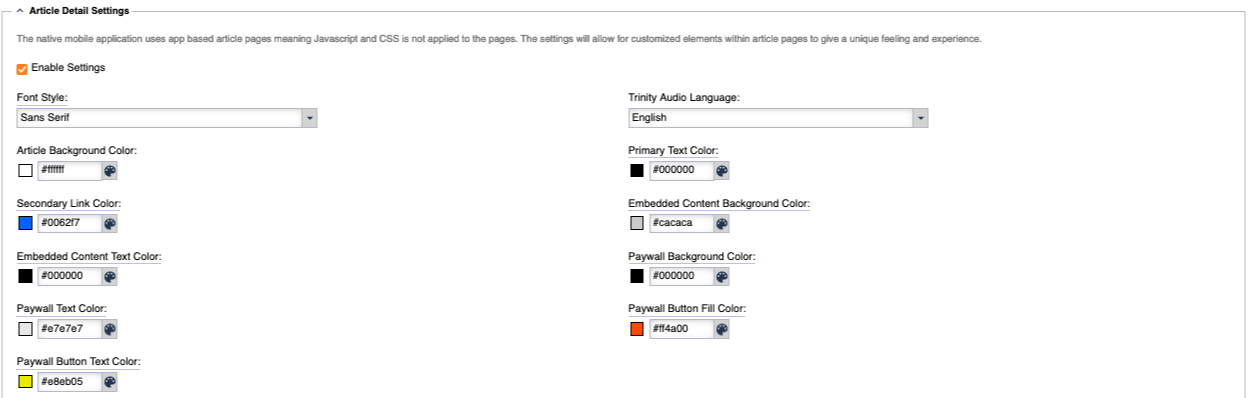
4. Scroll down to find the section labeled “Article Detail Settings”
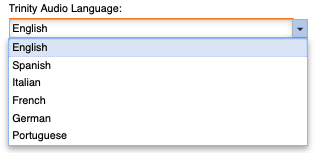
5. Click the dropdown labeled “Trinity Audio Language”
6. Select the desired language
Note: If the desired language is not in the list then it is not supported by Trinity Audio.
7. Select the “Configuration” tab
8. Click the “Make Live” option
Verification Instructions
1. Open your Mobile NX app
Note: Below the byline, you will see the Trinity Audio player.
3. Click the Play Button to listen in the selected language