In Draft mode, website editors can now add content to an asset, send it through various workflow options while the asset remains live online. Only after the content is "published" from Draft mode, will the changes you’ve applied to an asset reflect live.
Editorial Admin UI
With Drafts, you can now save edits to content as a "draft" without affecting the live version. This is accomplished by manually selecting the “Draft” checkbox on articles.
Once selected, any edits and Saves made to the article will NOT alter the already published article.
To publish changes, the Draft checkbox must first be unchecked, then the article Saved.
Indication that a particular asset has draft revisions, or unsaved changes, are displayed in the UI in two primary locations:
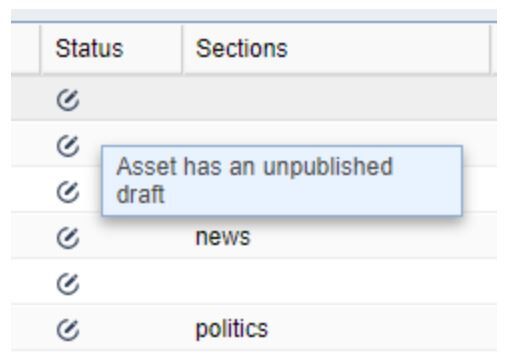
The Status column in the asset list will now include a Draft icon (pictured) with help hover text “Asset has an unpublished draft.”
The same icon will appear within the list of Revisions for an asset that is currently in Draft mode, along with help hover text “Draft revision.” Only the live content versions count towards the maximum revisions limit.
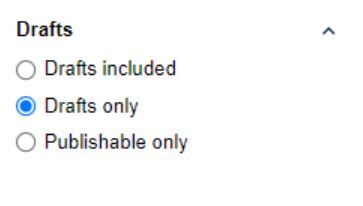
To search for assets that are in Draft mode, use the refinement options located in search and pictured below:
Drafts Included: Search results can include Draft assets as well as any previously set search refinements
Drafts only: Search results will only include assets that have been the Draft checkbox selected.
Publishable only: Or “non-draft revisions,” this refers to assets with versions or edits to content that have progressed beyond the draft. Publishable only are assets that are ready for publication or has already been published.
Relationships
When relating an asset (A) that is currently in Draft mode to an already published article (B), the latest published revision of A will be what is seen on the web, reverting the article’s draft changes, and will move A out of Draft mode. The last Draft revision of A can be recovered in the Revisions tab if necessary.
Workflow Enhancements
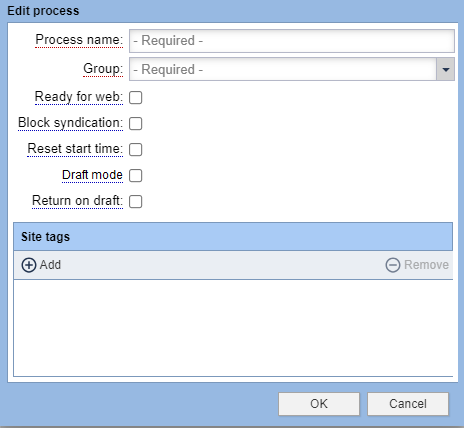
We’ve introduced a new Workflow process criteria, “Return on draft.” When an asset that occupies a later process in this workflow, is placed into Draft mode, it will automatically move back to this process unless otherwise overridden by a later process.
FAQ
Will applying the Draft checkbox to an article automatically make the article unpublished?
No, applying the draft checkbox to an article will simply ensure that changes or updates made to the article are not publicly saved. If the Draft checkbox is applied to an article that does not yet have a published revision, than the article will not be publicly available.
It's important to us that you're spending more time on the important stuff, like creating meaningful content and engaging with your audience, and spending less time focusing on the nuts and bolts of your website.
Review these help topics to insure that you're setup with the most-efficient workflow so that you're spending more time being creative.
Interested in Trainings by Topic?
We've got you!
With Editorial Assets being at the heart of BLOX CMS, we strongly encourage everyone to take advantage of all help topics, but if you're looking for topic-based help topics and FAQs, we have you covered there, too.