Create the URL that you want to use for your podcast, the URL must use the Search type of skin.
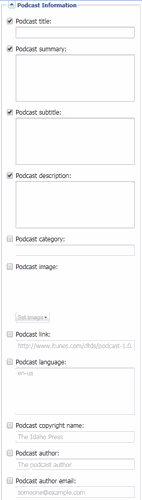
In Page customization for the URL you will see the Podcast options.
Create a URL for each of the channels you want.
Channel info is set on the url properties of the search url.
Episode info is part of the asset itself.
Search for the podcasts on the live site under /search.
Then add the following to the end of the string "&t=audio&f=rss&altf=itunes"
While you are waiting for your podcast to be approved by iTunes, you can set up the RSS feed by using our standard search queries, then use ?f=rss&altf=itunes in the URL parameters to trigger the new iTunes mode. For example:
Because this specialized output requires additional channel information, we've added a new URL property group on the search skin for this. To set up the channel information, create a new URL and apply the search skin. Then go to that URL in the BLOX Block Editor to access the podcast specific properties. Episode info is part of the asset itself.
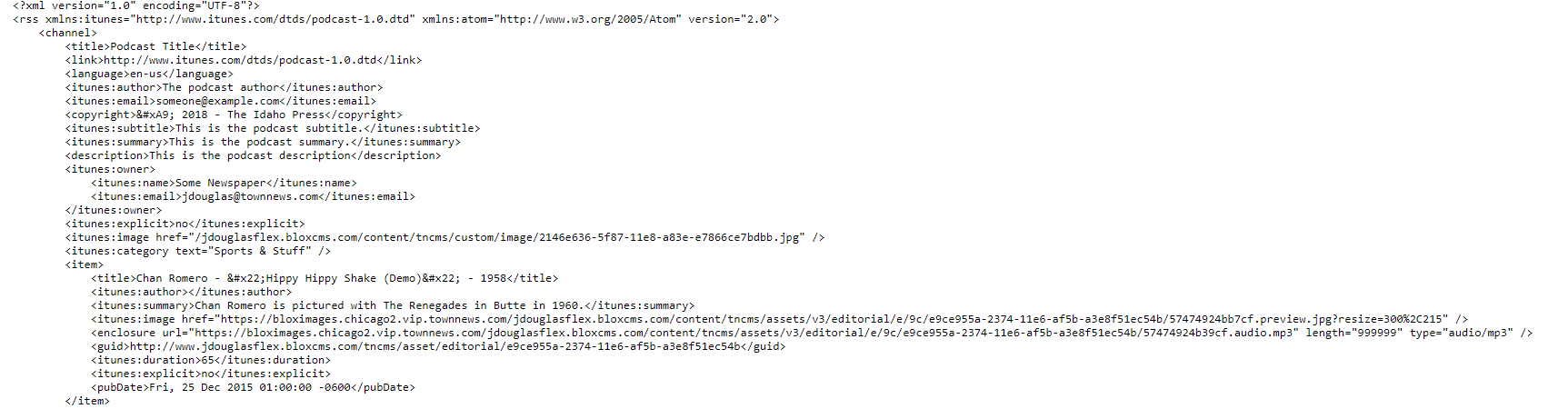
When you have all the fields filled out, your output will look like the example below:
If you are going to upload a podcast image, iTunes recommends using a 1400x1400 px size.
Once you have your podcast feed set up, you can then add the Utility: Audio/Podcast player block on your site.