


We recommend that content creators complete a number of configuration steps in order to achieve the best experience and smoothest workflow within BLOX CMS.
Clicking on Logged in as provides access to Preferences, Connections (to establish site-wide connections to 3rd party services like Twitter), Edit Account settings, Feedback (the TownNews.com Customer Forum), and Log Out.
Preferences provides options for the following:
- Default asset start time
- Default asset workflow
- Default asset author
- Rich text editor font size
- Generate test classes
Default asset start time: Use this preference to set the default start time to use for all new assets you create. This preference will last only for the duration of your session. After logging out and logging back in the system will revert to using the current date and time until you set this preference again.
Options include:
- Set start time to the current date and time.
- Set start time to a specific date and time.
Default asset workflow: Use this preference to set the Workflow to use that will automatically be assigned to new editorial assets you create. Workflows can be helpful for identifying the publish state of an asset, such as First Draft, Web Ready and Ready for Print. To learn more about Workflows, please view the following guide: XXXXXXXXXXXXXXXX (needs updated)
Setting up a Workflow is a system setting that you can create a step-by-step process in which to create assets that involve other staff members and/or departments. The Default Asset Workflow, when used, provides the option to Promote (step forward) the Asset to the next step in the workflow or to Demote (send it back). You'll find the Promote and Demote options on Save Dropdown on the Asset itself.
Default asset author: Automatically set yourself as the author for assets you create.
Options include:
- No (default) - an author will need to be manually added to each asset
- Yes - you will be added as the author to each NEW asset you create in Editorial / Assets
Rich text editor font size: Select the font size within the BLOX admin. Options include: Normal (default), Large and Extra large
Generate text classes: Enable or disable text classes (WHAT DOES THIS MEAN?). This can be helpful....
Connections: Connections is basically a shortcut to the Notifier settings. Currently Twitter is the only Notifier Connection that has a shortcut here but you can set up others (ie: Facebook) in Settings / Notifier (for more information, Click Here. When you hover your mouse on Connections, the Notifier Connections available appear. (update link)
Profile: BLOX Admin users can access their BLOX use account here. Within you can change items relating to Identity, Profile, Social, Content and Avatar.
- Identity
- Profile
- Social
- Content
- Avatar
Identity: General information that includes email address, screen name, job title and contact information.
Profile: About me and Birthday information can be supplied here.
Social: Social media information can be specified here.
Content: A custom user byline and tagline can be added to your profile. Once in place, byline and tagline are set automatically on articles for which this account has been set as the primary author. The tagline formatting can also be refined using the WYSIWYG tools.
Avatar: Within this panel, you can view, upload or delete an avatar for the user account.
Mobile interface: BLOX users can complete a number of helpful tasks on-the-go by utilizing the BLOX CMS mobile interface.
Options include:
- News & Updates
- Write an Article
- Upload Media
- Search Articles
News & Updates: The News & Updates welcome screen provides helpful information that includes software & service updates, support links for connecting with our support team, case studies and more.
Write an Article: Create a new article asset on your mobile device.
Upload Media: Upload media to accommodate your article content using this option.
Search Articles: Complete a search within the BLOX Asset Manager.
Feedback: Feedback links to the TownNews.com Customer Forum, where customers can share ideas, and ask questions.
Log out: BLOX users can log out of the BLOX CMS admin once completed.
Setup Saved Searches
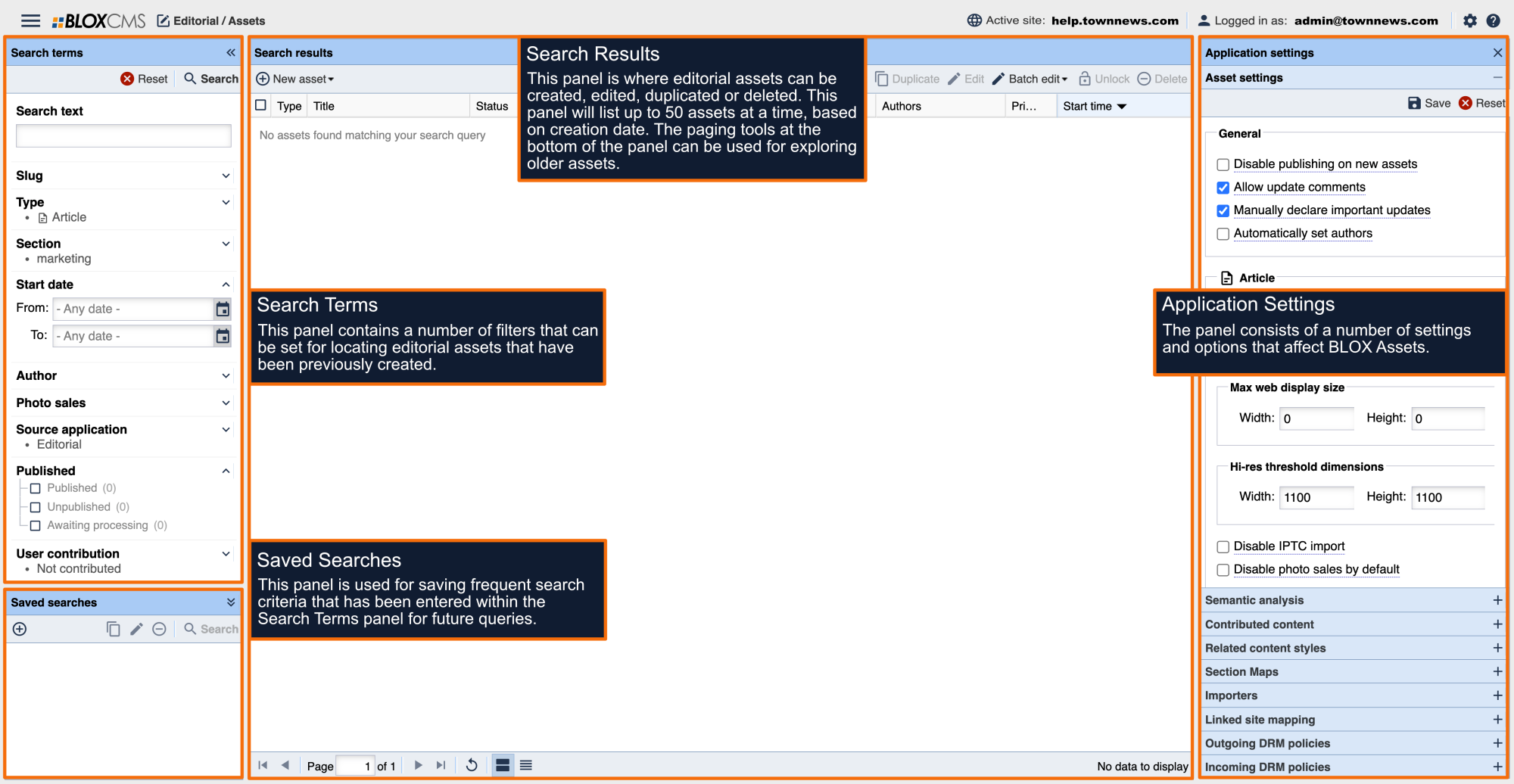
In the lower left-hand corner of BLOX Editorial Assets is a panel called Saved searches. Saved searches allow a user to save search queries that have been initiated within the Search terms panel for future query. This can be helpful for quickly locating frequently searched assets. For example, you could setup a Saved search that queries Article and Collection assets that include the Featured and Top Stories Flag. We recommend that all content creators establish a Saved search that queries content that you've authored. Multiple Saved searches can be setup and you can even share these with other team members.

