What is Cover Art?
The Covert Art feature is part of our new Article Designer - a set of terrific tools that give newsrooms the power to create stunning, engaging new presentations for their articles.
Cover Art is like the story teaser image because it isn’t a related asset, but rather, it is part of the story itself. This means that it can just be decorative (like a pattern or gradient), but doesn’t need to stand alone as an asset and won’t be found in search results.
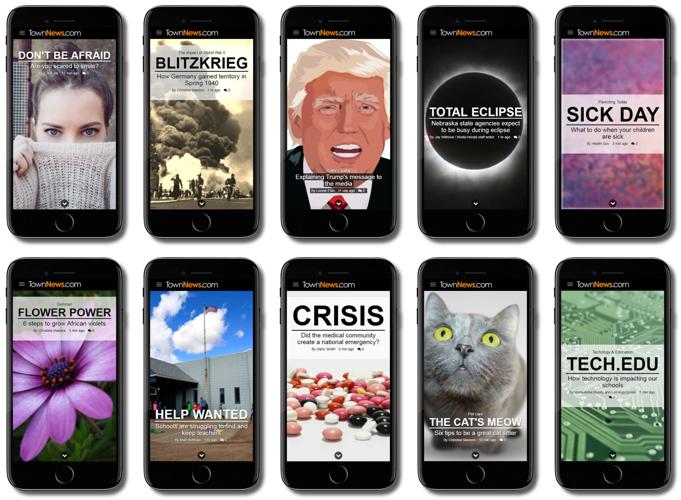
Part of the compelling presentation of Cover Art is that it integrates smoothly with the article’s title elements, creating a magazine-like front page experience for the article.
Newsroom editors also have a host of new Design Options to control how the title elements are controlled.
What are the Covert Art Design Options?
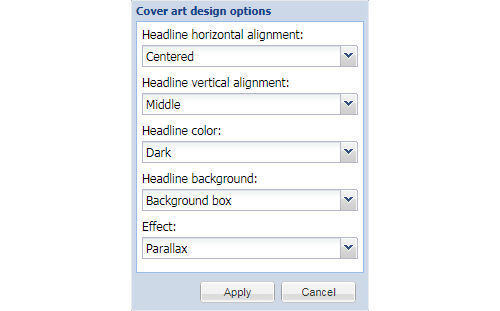
Design Options allow editors to style and add effects to their Cover Art designs.
- Headline horizontal alignment: Position the headline elements to the left, right or center. It will default to center on mobile devices.
- Headline vertical alignment: Align the headline elements to the top, middle or bottom.
- Headline color: This setting can be either light or dark.
- Headline background: This option can be either none, background box or text-in-a-box. The headline background coloration will be the opposite color of the headline itself, depending on what headline color is chosen.
- Effect: This option allows some easy styling effects for the Cover Art image. The image itself is not changed since these effects use modern CSS for implementation.
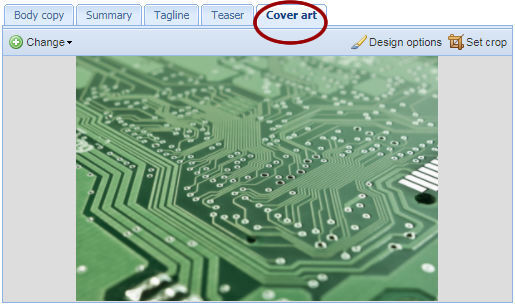
Note that the Design Options button (available in the Cover Art tab) does not show up until a Cover Art image has been uploaded.
Why isn’t Cover Art an actual asset? Why doesn’t the Covert Art act as my preview image?
The Cover Art image is deliberately not attached to the article as an asset because we wanted the ability for the image to be decorative in nature if desired.
Let’s say the Cover Art image that you wanted to use was a stylized grainy background image. If this was an asset, end users may be able to find it in the search results and that would be awkward for a decorative image.
This is also why the Cover Art image is not the preview image for the story by default.
If the Cover Art image you want to use is also a main photo in the story, you can choose “copy from another asset” when uploading the Cover Art. This will allow you to have to have the Cover Art as a main photo on the story (and as the preview) as well as use it somewhere in the article.
Lastly, if you want the Cover Art photo to be the preview image of the article but you do not want it to be used within the article, you can just make the photo both the Cover Art and the teaser photo. This way it will be used as the Cover Art, the preview on the front page (and elsewhere), but it won’t appear anywhere in the article.
What’s the best type of image to use for Cover Art?
Cover Art can be anything! It can be just a background image like a pattern, it can be stock art photography, an illustration, or it can be a news photo taken by a photographer.
It is recommended, however, that an image be used that works well as a background, and that the photo won’t compete with the headline elements and make them hard to read.
Newsrooms might consider asking the a photographer to take some wide-angle or “background” type images next time they are on a photo assignment.
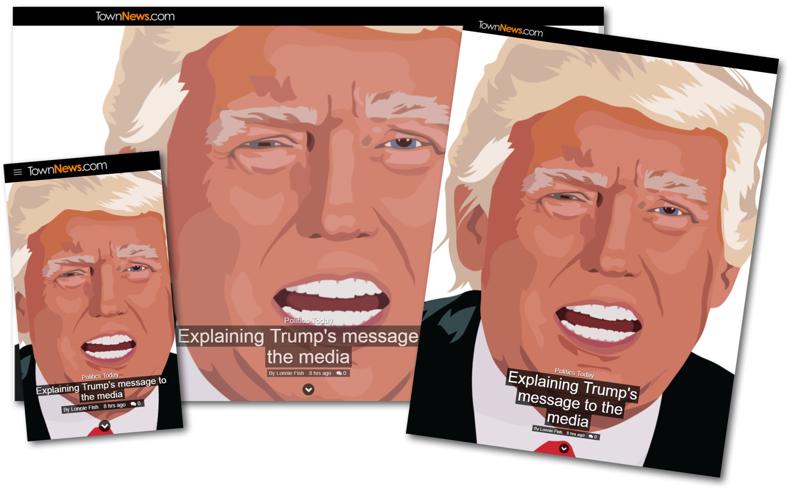
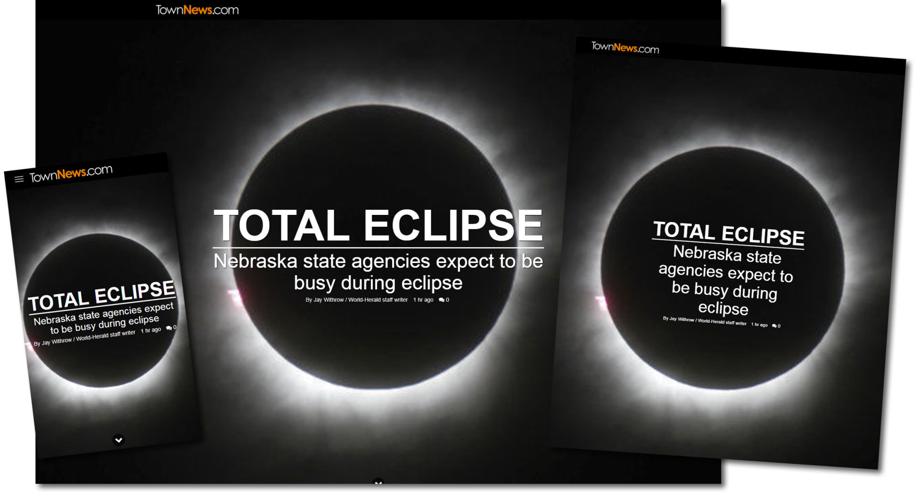
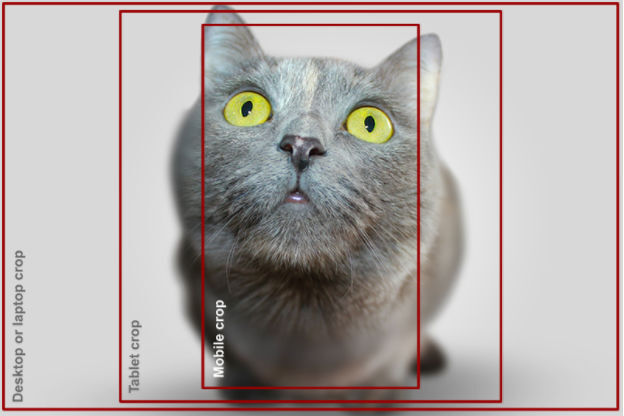
Also take note of the fact that Cover Art will be cropped in many different ways due to the size of device, but will always be sized so that it takes up 100% of the screen (either width or height, depending on the image’s shape). So the best image will large (about 1200 pixels wide at least is recommended), square or horizontal in nature, but capable of being cropped to a centered vertical image for a mobile phone. Using a 4:3 or 16:9 aspect ratio is also recommended.
However, even if an image is busy at the top, or there is a face in the middle, it is usually possible to find a headline placement that still looks good. Try playing with the headline alignment features and see what works. And remember the headline will always be centered on mobile devices.
The Cover Art image will be automatically resized as needed on the fly, using the BLOX CMS smart-sizing image proxy system, so don’t worry about uploading a relatively large image.
How do I create those big, bold headlines shown in some of the examples?
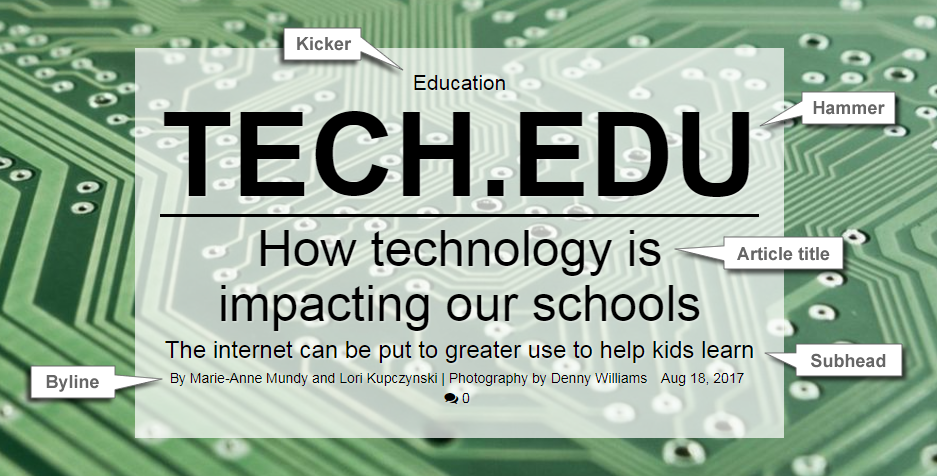
The Cover Art presentation displays several headline elements.
They don’t all need to be used at once - but all articles require a headline, so it must be there. Additional elements can include a kicker, a hammer headline, a subhead, byline (or author).
The hammer headline will automatically resize based on the size of the page, so having a very short few words as the hammer headline will create a big impact headline.
Will Cover Art appear on Mobile devices and if so, does anything change?
Yes, Cover Art will appear on mobile devices. To make it more mobile friendly, when BLOX CMS detects the smaller viewport, it will hide the Next/Previous arrows if they are enabled on the site.