File assets allow you to make files available to download to your readership.
How to create a File asset
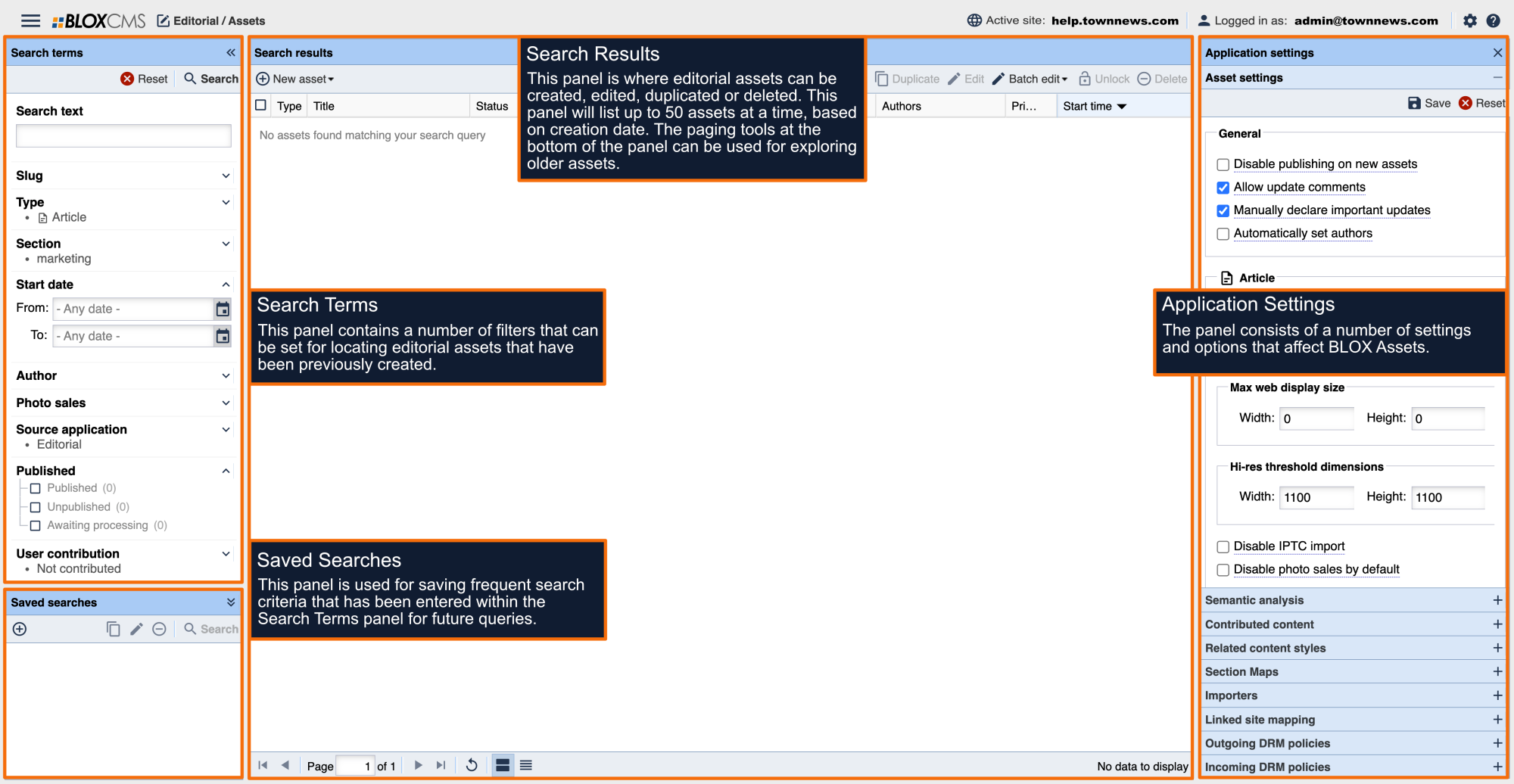
To create a new File asset, within BLOX Assets select +New at the top of the Search Results panel and then select More...File. This will populate the File (new) panel where the required information can be completed to build the asset.
File asset requirements
File assets support a wealth of options, but only require the following:
Asset title
File file
Section tag
Supported File Types
The maximum file size is 250 MB. The following file types are supported:
File: Use the Upload file menu to locate the file to make available to readers.
Authors: Use the dropdown menu to attribute a photographer to the collection. The menu will include registered Admin/Normal BLOX users.
Byline: A Byline may be included. This will appear either alongside the Author or by hovering over the Author, depending on the presentation style.
Preview: Add an image to represent the collection within content blocks and search results by selecting +Change and then adding an image from local drive or Dropbox account.
Description: A caption can be included that will appear beneath the PDF.
Start Date/time: Use the date/time tools to specify when the PDF should be available to readers.
Display Priority: The default value is null, or 0. Enter a value here to signify higher importance for the day it's published.
Tags: Within the Sections panel, select +Add and then select the URL the asset should belong to then then choose Save to build the PDF asset.