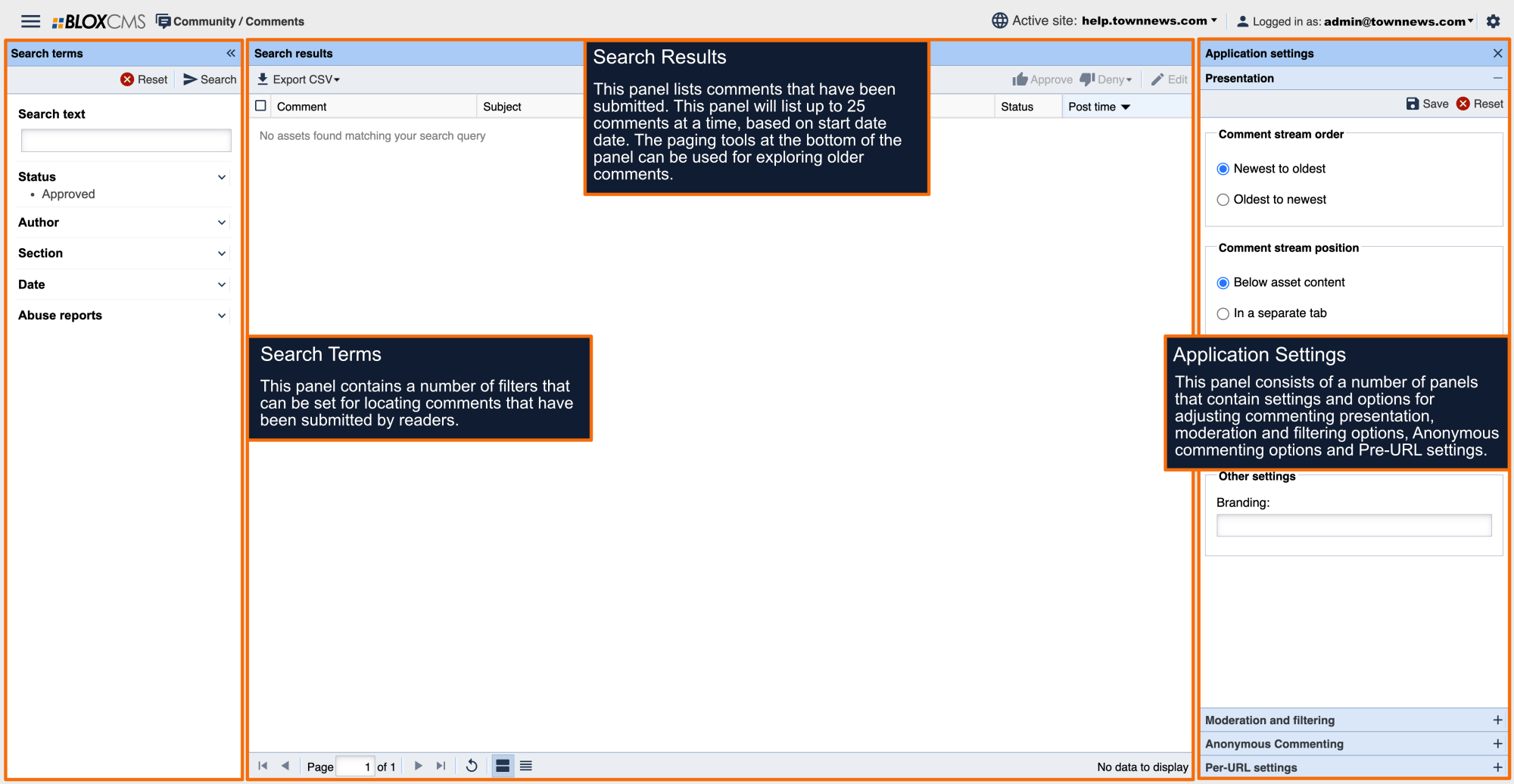
The Applications settings is where comment Presentation, Moderation and Filtering, Anonymous Commenting and Per-URL settings are located.
Presentation
Presentation is where the appearance of comments is set.
Comment stream order: Newest to oldest or Oldest to newest, sets the display order in which comments will appear.
Comment stream position: This setting will cause comments to appear underneath the asset being commented on or within a comment tab.
Display screen names: Displays the commenters screen name as set in their user account.
Display real names: Displays the commenters real name as set in their user account.
Branding: This setting changes the title of the comment area.
Moderation and Filtering
Moderation and Filtering is where you setup who is notified when comments are submitted and whether these comments are filtered through a profanity filter.
When a New Comment is Posted: Notify these email addresses: Up to 3 email addresses, separated by commas can be entered in this box, and each recipient will receive email notification when a new comment has been submitted.
In addition to comments being available for moderation within BLOX Comments, admin users who have been set to moderate approve comments within…
Allow the community to report posts: If this option is enabled, readers can report comments they feel are inappropriate.
Profanity: If this option is enabled and a profanity filter is configured, reader comments will be filtered for unwanted language prior to appearing on your site.
Spam: Simply click the checkbox next to Enable spam filter. BLOX uses Askimet for spam filtering.
Anonymous Commenting
Anonymous commenting allows readers to comment on your site without logging into their user account.
Allow anonymous commenting: Enable this option to turn on Anonymous Commenting for the entire site.
Allow user to set alias: Enable this option to provide users with the ability of setting their own alias. This is set to "Guest" by default.
Moderation: Toggle whether to use the site default settings for comment moderation or if each comment should require manual approval prior to being available on the site.
Per-URL Settings
Per-URL settings are where commenting approval settings can be set for either the entire site or on a per-URL basis. A Default Settings rule is in place by default for the entire site.
To edit the Default Settings, double-click on the rule to populate the Edit default settings panel. Moderation, Anonymous Commenting, Anonymous User and Moderation options can all be modified to affect the entire site.
To create a new commenting approval rule, select +New to populate the Edit default settings panel. At the top of the panel, select the URL that the rule should apply to. Settings for a URL are applied to all children unless contradicted by a more specific rule. Complete the per-URL settings and then select Save to finalize the rule.
If you choose to Approve automatically, when a comment is submitted you will receive an email. This email will allow you to deny the comment without logging into the admin by clicking on the red Deny button. When you do this the first time a browser window will open and you will get the message "This comment's status has been set to: denied:unspecified". You can also log into the admin from the email by clicking on the Visit the admin directly: link in the admin.
This email is sent to the three addresses listed in Moderation and filtering / Notify these email address.
BLOX admins can Approve/Deny a comment from the email up to 24 hours after the comment is submitted. After 24 hours clicking a link will result in a "Token has expired" message. There are no time constraints for moderating comments within BLOX Comments, however.
Anonymous Commenting has no effect in the Default settings popup, this must be set up for the site in Anonymous Commenting.
If you are editing an existing URL settings, or creating a new URL settings click on the checkbox for Allow anonymous commenting. This will make the Anonymous User and Moderation options available.