What is Mega Navigation?
Mega Navigation (or Mega Nav) is a unique navigation presentation style that supports content blocks, in addition to standard navigation links, for navigation that includes sub-items, such as Celebrations or News in the example below.
How to Enable Mega Nav
To enable Mega Nav, within Settings > URLs, navigate to the Customizations tab within the parent URL (flexsystem). Next, navigate to the the Navigation panel. Within the Main navigation style dropdown, select Mega Navigation: Large regions of content drop down below the main sections. Select Save changes to finalize the new navigation style.
Working with Mega Nav
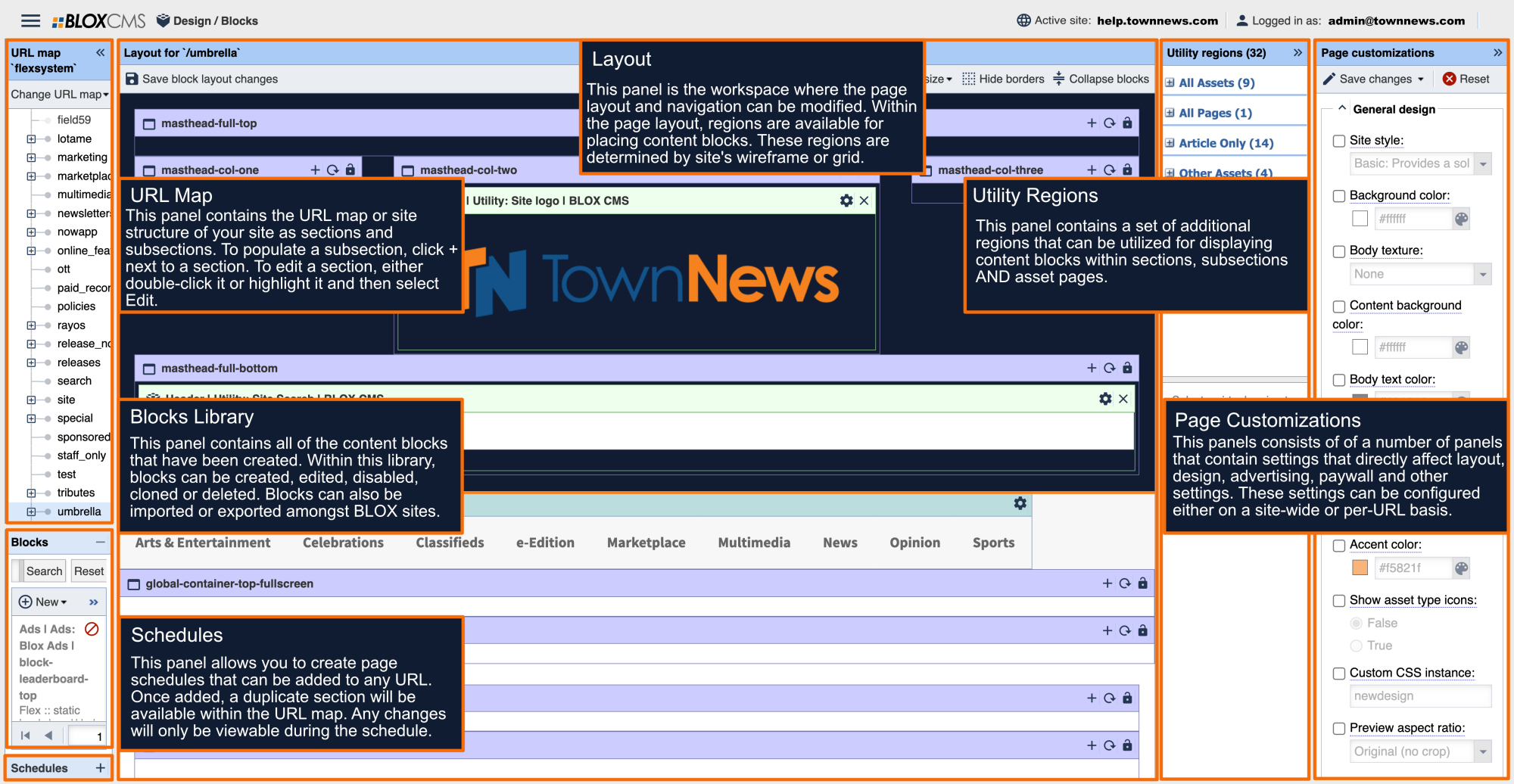
Once Mega Nav has been enabled, when you return to the page layout please take note of the down-arrows for any navigation items with sub-items. These down-arrows indicate the availability of content regions for placing content blocks.

When a sub-item is expanded, the available mega-nav content regions are brought into view. Content blocks can be added to these regions simply by disabling inheritance within the region and placing the new content block(s).

Live example
To view MegaNav in action, please view the following example:
Which blocks are supported?
Most content blocks should display well within MegaNav. The following blocks have been specifically designed for the MegaNav menu regions:
- Headlines List -- Much like the standard headline list block, simply formatted for brevity and space.
- Bulleted Headline List -- Condensed list of headlines.
- Minilist -- Similar to the headline list, only the headline and summary truncate after one line.
- Top Story -- Use carefully. Allows for a top story, but this block can get unwieldy (vertically speaking) if too many features are enabled.
Things to remember
- If a main navigation item does not have a submenu, it cannot have content.
- Unlike the “drop” navigation mode, any submenus of submenus will not be shown.
- If you only put content in one of the two sides, the other side will hide, and the submenu will be more relatively positioned (it will essentially expand to the width of the content container).
- If you do not put content in any of the regions, only the submenu will show, relatively positioned.
- Be deliberate when initially building the navigation; if you change the text of the main item, the content regions will also be renamed, meaning the blocks will disappear from the submenu. (You can simply put the blocks back, but it is something to keep in mind.)
- Be conservative with the amount of vertical space you use for your navigation content. The goal is to create a brief preview of content, not full pages. A good rule of thumb is that it should be less than one-third of your screen height.