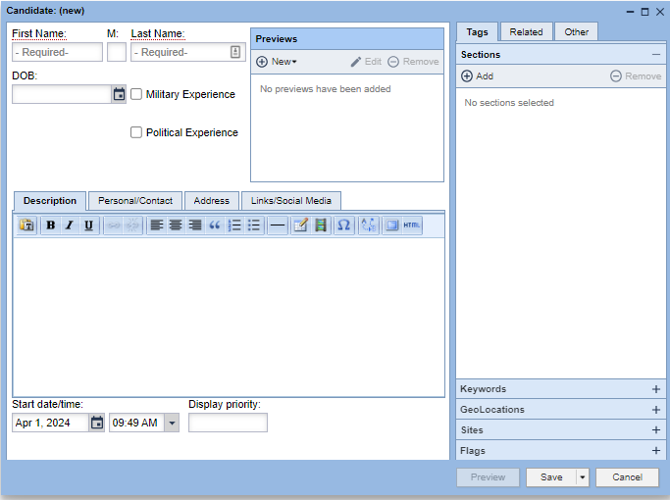
1. Click New Asset>Candidate to create a new candidate asset
2. Add the following required fields
- First Name, M, Last Name: This is the candidate’s full name.
*You can also add the following optional fields:
- DOB: Candidate’s date of birth. This displays on the profile page as age and Date of Birth.
- Military Experience: Check if the candidate has a history of military experience. This will display as Yes or No on the candidate’s profile page.
- Political Experience: Check if the candidate has political experience in their background. This will display as Yes or No on the candidate’s profile page.
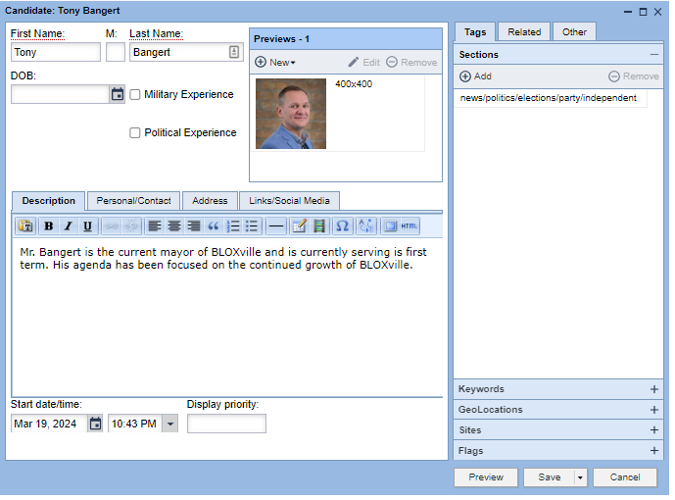
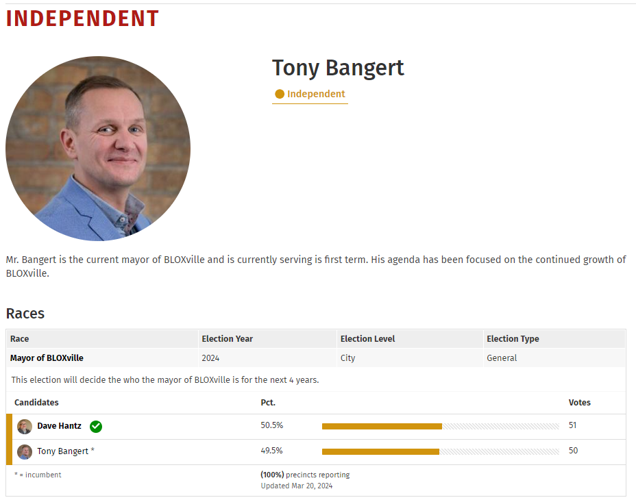
- Previews: Upload a candidate’s profile image that will display on all profile pages and on races. It is recommended to use the same image dimensions for all candidate profiles (square, vertical or horizontal) to maintain consistent display on the site.
- Description: This description can display comments from the candidate, a bio for the candidate or any other information to display on the candidate’s profile page.
- Persona/Contact: Includes fields for email, Phone, Occupation and Company for the candidate
- Address: This should be the mailing address for the candidate or their campaign office.
- Links/Social Media: Displays as links to each profile page or website below the description on the candidate’s profile page.
- Party affiliation: Party affiliation is added through a section tag. All of the section tags are located under news/politics/elections/party. Options include Democrat, Republican or Independent. Additional section tags can be added for additional parties. The candidate profiles and race results blocks will display Democrat results in blue and Republican results in red. All other party results will be displayed in black.
- State date/time: Should reflect the date/time for the asset to appear live on the site
Note: Election Stats requires a contract. You can put in a ticket or contact sales to add this package.